
What you'll achieve
Teammates sign in through the approved identity provider and access is removed safely when they leave.
Prepare identity ownership
- Use a verified organization domain before configuring Organization SSO.
- Keep one workspace Owner able to sign in until you have tested the identity-provider flow.
- Agree with your identity administrator which groups map to Owner, Admin, Agent and Viewer before enabling provisioning.
Configure and test access
Open Admin > Security > Workspace and select Organization SSO.
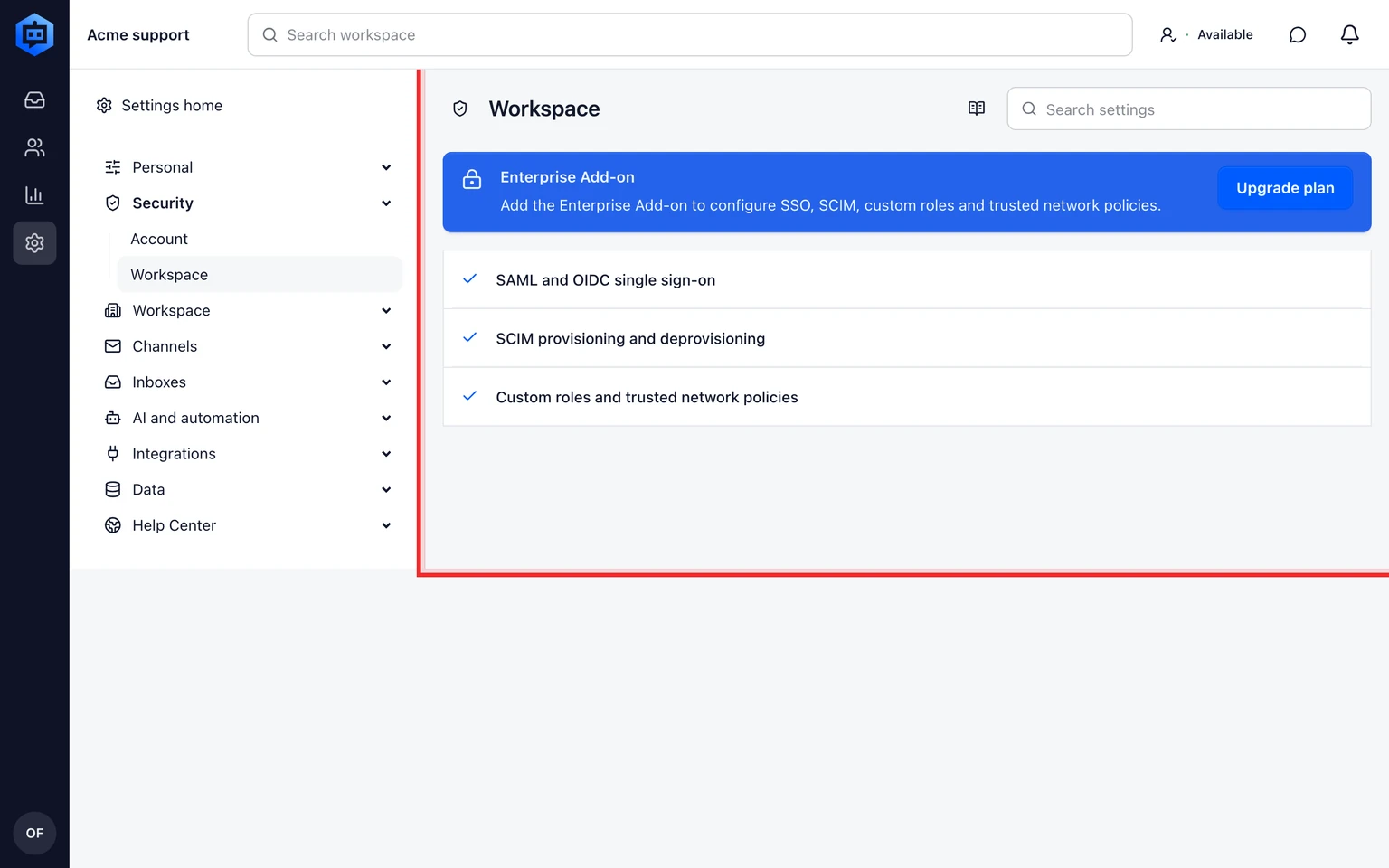
Add the provider details, test sign-in with a non-owner account and confirm the correct workspace role.
Enable SCIM only after SSO works, then map identity-provider groups to DobroDesk roles.
Choose the deprovisioning behavior and confirm reassignment for conversations and articles before removing a person.
Require two-factor authentication for administrators and set a session length that matches your security policy.

Review a high-risk change
Enforcing SSO, replacing an identity provider or bulk SCIM deprovisioning can remove access. Request approval where DobroDesk requires it, then verify the resulting change in the audit history.