What you'll achieve
Your application initializes one widget instance at the right time and can open, close, hide, prefill or localize it through a stable client API.
Choose programmatic installation when the site has application code
Use the programmatic SDK when the website is built as an application and the widget must start after consent, authentication, route selection or another application event. The standard script embed remains the simpler choice for a website builder or a site-wide custom code field.
Both methods load the same hosted DobroDesk widget. The SDK does not create a second widget implementation. It supplies the Integration ID and locale to the loader then exposes typed methods for controlling the resulting instance.
- Use the script embed when the Support button should load on every public page without application logic.
- Use the SDK when initialization depends on your application's state or when a custom button should open the widget.
- Initialize the widget once per page. Keep the returned client instead of calling createDobroDeskWidget again.
- Run initialization in the browser. Server rendering does not provide document or window.
Install the package
Add the DobroDesk widget package to the frontend application with the package manager already used by the project.
npm install @dobrodesk/widgetInitialize one widget instance
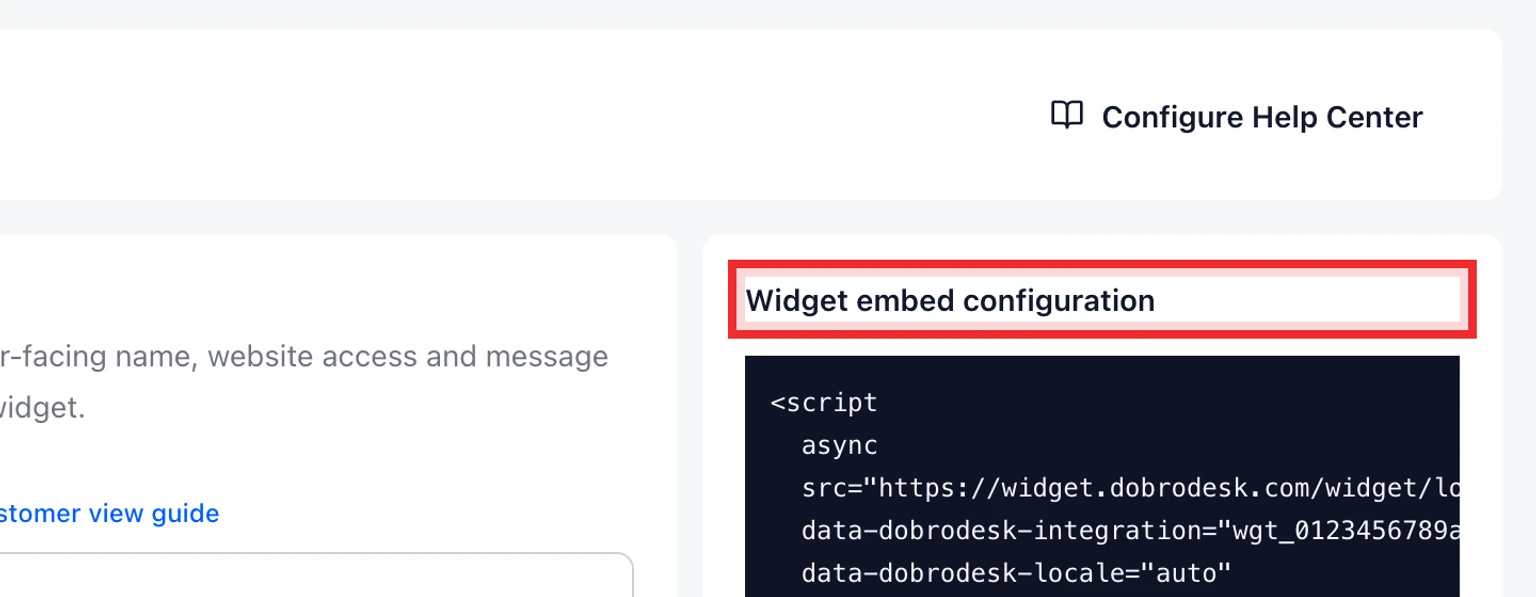
Copy the Integration ID from Admin > Channels > Website widgets.
Import createDobroDeskWidget in browser-side application code.
Pass the exact Integration ID to the integrationId option and choose auto, en or uk.
Store the returned client and await client.ready before running logic that depends on successful configuration loading.

import { createDobroDeskWidget } from "@dobrodesk/widget";

const supportWidget = createDobroDeskWidget({
  integrationId: "wgt_7f4c1d2e3a5b6980718293a4b5c6d7e8",
  locale: "auto",
});

await supportWidget.ready;
In an SSR framework, place this code in a client-only lifecycle hook or module. Do not initialize it during server rendering.
Use the hosted ES module without a package manager
A browser application that supports ES modules can import the same SDK directly. This is useful for a small custom site that has JavaScript modules but no npm build step.
import { createDobroDeskWidget } from "https://widget.dobrodesk.com/widget/sdk/v1.js";

const supportWidget = createDobroDeskWidget({
  integrationId: "wgt_7f4c1d2e3a5b6980718293a4b5c6d7e8",
  locale: "en",
  openOnReady: false,
});
Use either the npm import or the hosted ES module on a page, not both. The SDK rejects a second initialization so duplicate launchers are caught immediately.
Control the widget from application actions
Keep the client in the module or component that owns the support experience. When your own Help or Support button opens the widget, initialize with launcher: hidden so the standard launcher does not appear beside it. Consent logic can control launcher visibility after initialization. Prefill can supply fields the customer already entered in your application.
- open, close and toggle change the panel state.
- hide removes the widget from interaction while show makes it available again.
- setLauncherVisibility hides or shows only the standard launcher without destroying the widget client.
- prefill merges the supplied name, email, subject, message or configured custom fields.
- setLocale loads en or uk and falls back to English for any other locale.
- destroy permanently removes the widget instance from the current page.
const supportWidget = createDobroDeskWidget({
  integrationId: "wgt_7f4c1d2e3a5b6980718293a4b5c6d7e8",
  locale: "auto",
  launcher: "hidden",
});

await supportWidget.ready;

// Your application button
supportWidget.open();

// Consent or route state
supportWidget.setLauncherVisibility(false);
supportWidget.setLauncherVisibility(true);

supportWidget.close();
supportWidget.toggle();
supportWidget.hide();
supportWidget.show();

supportWidget.prefill({
  email: "customer@example.com",
  subject: "Question about order 1042",
});

supportWidget.setLocale("uk");
Identify signed-in customers with a short-lived JWT
Use signed customer identity when your application already knows the logged-in customer. DobroDesk verifies the customer ID and optionally the verified email before linking conversation history or exposing CRM context. The identity secret belongs only in your backend secret manager.
In the widget settings choose Require a signed logged-in user, save the widget and select Copy identity secret. Store that value as DOBRODESK_WIDGET_IDENTITY_SECRET in your backend. The public Integration ID is safe in browser code. The identity secret is not.
Install a maintained JWT library such as jose in the backend application.
Sign HS256 with issuer dobrodesk-widget:{Integration ID}, audience equal to the Integration ID and subject equal to your stable internal user ID.
Use a lifetime of five minutes and never more than 15 minutes. Create a fresh token when the page loads or the user signs in.
Include email and email_verified: true only after your application has verified ownership of that address.
Return the token from your authenticated backend endpoint, then pass it to identityToken when creating the widget.
- sub is the stable user ID from your application, not an email address.
- email_verified: false or an omitted value does not make the email trusted.
- When the email is in identityToken or prefill.email, the widget does not display another email field.
- An unsigned prefilled or typed email stays unverified until the customer confirms the one-time email link.
- If login happens after initialization, call setIdentityToken(token) and prefill({ email, name }).
- Before your application logs the customer out, call logout() so another person using the browser cannot inherit the previous conversation.
import { SignJWT } from "jose";

const integrationId = process.env.DOBRODESK_WIDGET_ID;
const identitySecret = new TextEncoder().encode(
  process.env.DOBRODESK_WIDGET_IDENTITY_SECRET,
);

export const createWidgetIdentityToken = (user) =>
  new SignJWT({
    name: user.name,
    email: user.email,
    email_verified: true,
  })
    .setProtectedHeader({ alg: "HS256", typ: "JWT" })
    .setIssuer(`dobrodesk-widget:${integrationId}`)
    .setAudience(integrationId)
    .setSubject(user.id)
    .setIssuedAt()
    .setExpirationTime("5m")
    .sign(identitySecret);

// Browser code after your authenticated endpoint returns the token
const supportWidget = createDobroDeskWidget({
  integrationId,
  identityToken,
  prefill: { email: currentUser.email, name: currentUser.name },
});
DobroDesk scopes the external user ID to this widget integration. Reusing the same signed ID returns to the same verified customer even when the email address changes. Late login keeps the current conversation and binds it to the verified customer. A conflicting verified email is rejected instead of silently merging two people.
Verify the application integration
Load the application route that initializes the SDK and confirm only the intended standard or custom Support button appears.
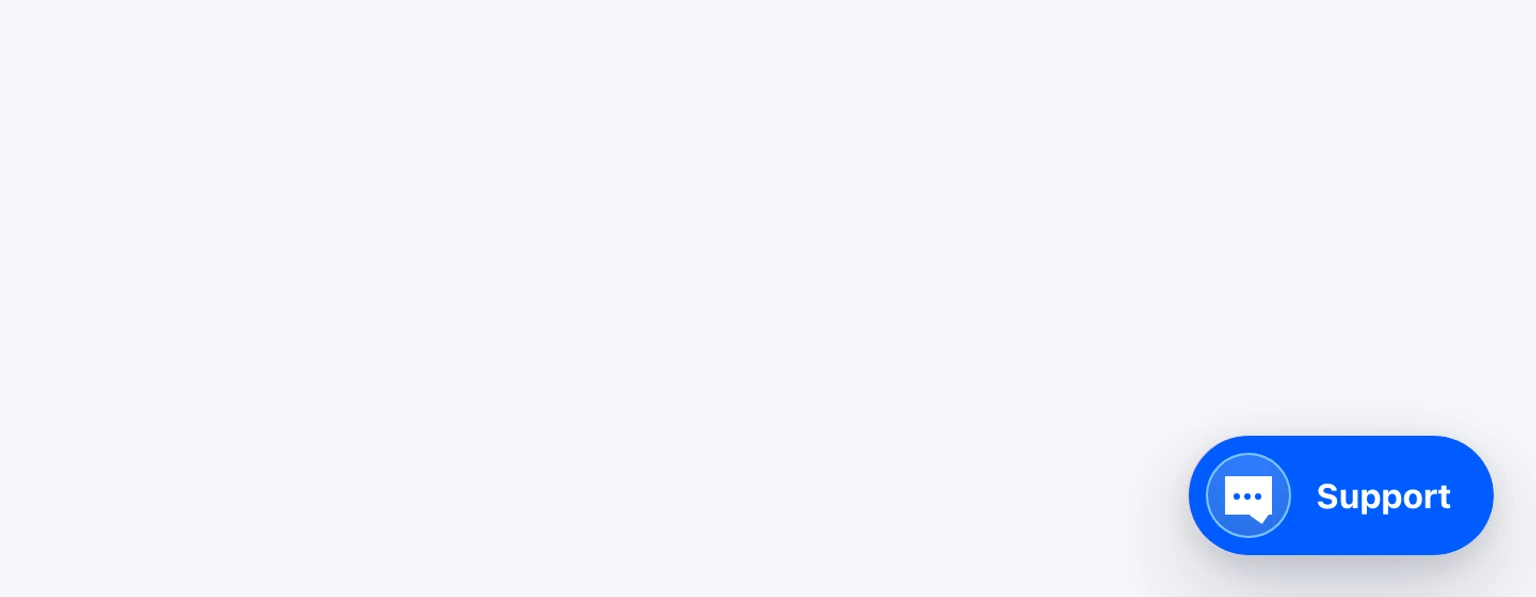
Trigger the custom action that calls open and verify the panel opens without a page reload.
Test every prefilled field with a non-sensitive sample value. Do not put payment data, passwords or private tokens into widget fields.
Switch between auto, en and uk then check the launcher, form labels and suggested answers.
Send one complete test message and confirm it reaches the configured DobroDesk Inbox.