
What you'll achieve
The DobroDesk Support button appears across your website and remains available when pages or content change.
Before opening your website admin area
Complete the widget setup in DobroDesk first. The widget must appear in the widget list and its Website addresses must include the public website.
You need access to an area that can add code across the whole website. Depending on your website builder or hosting provider, it may be called Custom code, Footer code, Body scripts, Code snippets or Integrations.
Copy the widget code from DobroDesk
In DobroDesk open Admin > Channels > Website widgets and select the widget you want to install.
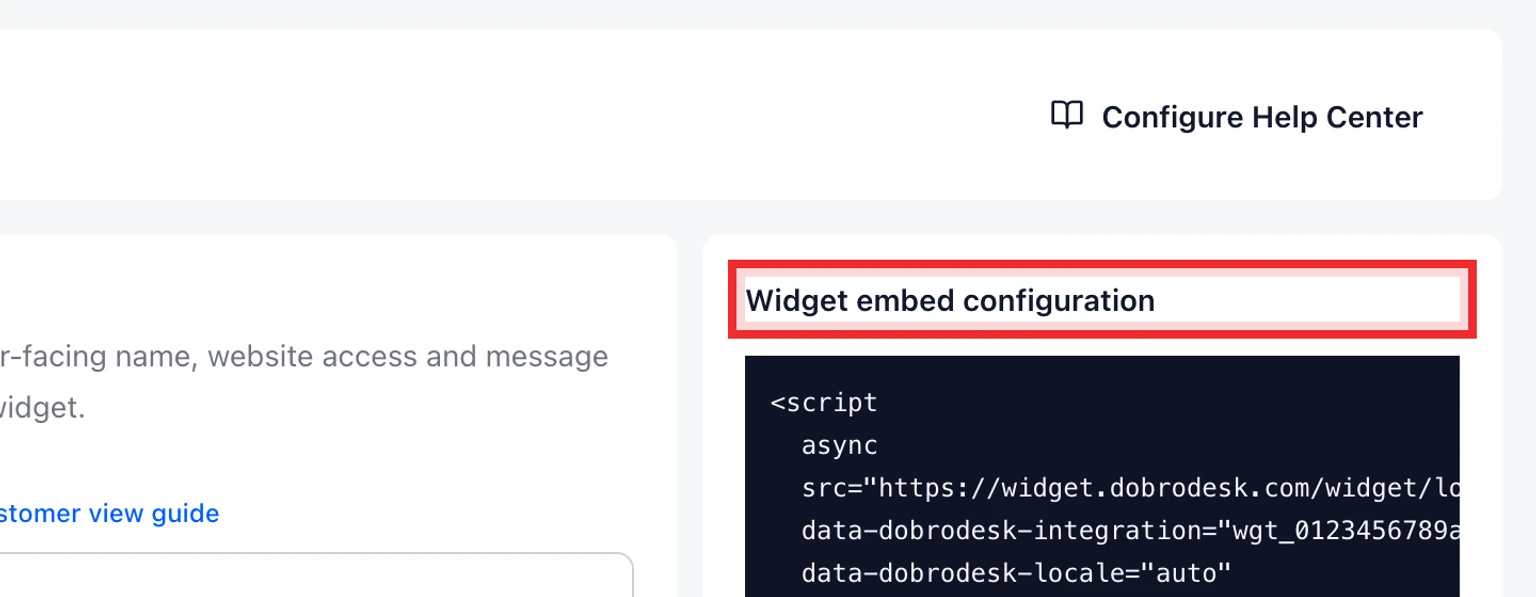
Find Widget embed configuration and select Copy widget code. Copy the entire block as one piece.
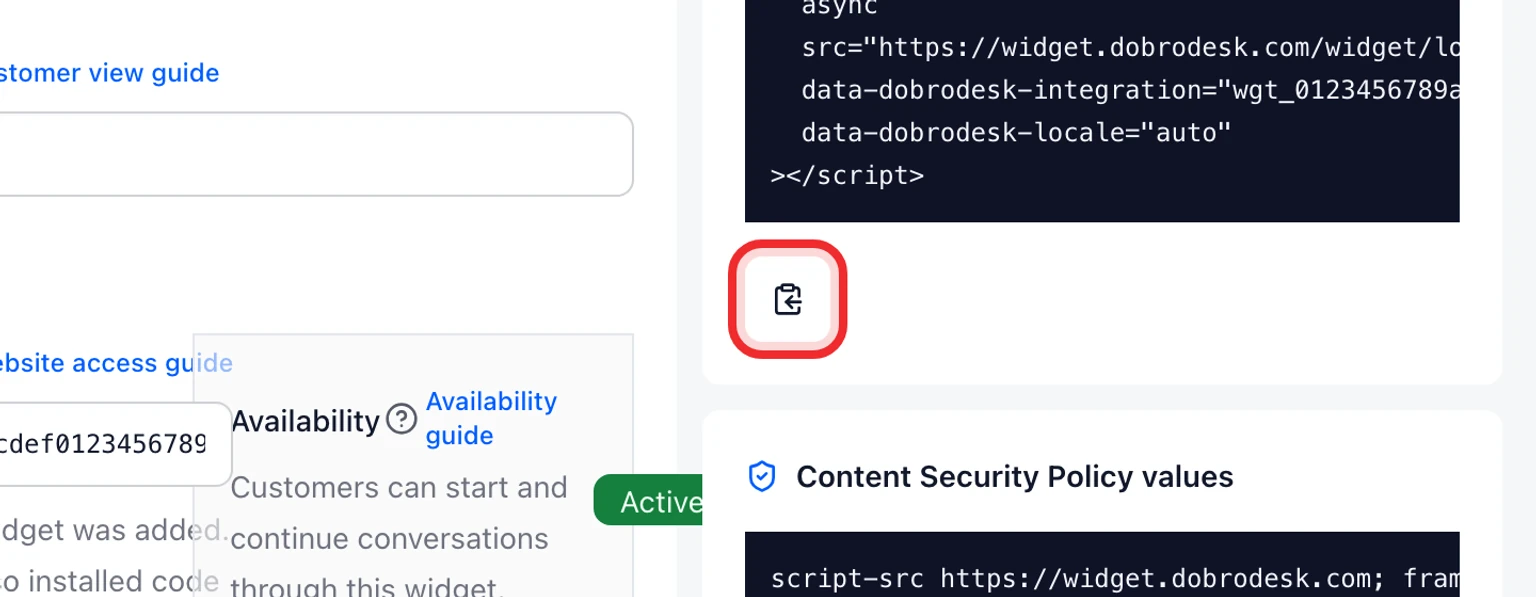


Do not change the Integration ID inside the copied block because it selects this saved widget.
Add the code across the whole website
Sign in to your website admin area and open its site-wide custom code settings.
Choose Footer, Body end or Before closing body tag as the location. These labels mean the code loads near the end of every page.
Paste the complete DobroDesk block once. Do not add another script tag and do not paste it separately on every page.
Enable the code for the entire public website then select Save, Publish or Activate.
Clear the website builder or hosting cache if your site has one.
A Custom HTML or text block inside a normal page editor is not a site-wide installation. It may load the widget only on that page and some editors remove script code from content blocks.
Check the installation
Open the public website in a private or incognito window instead of using the website builder preview.
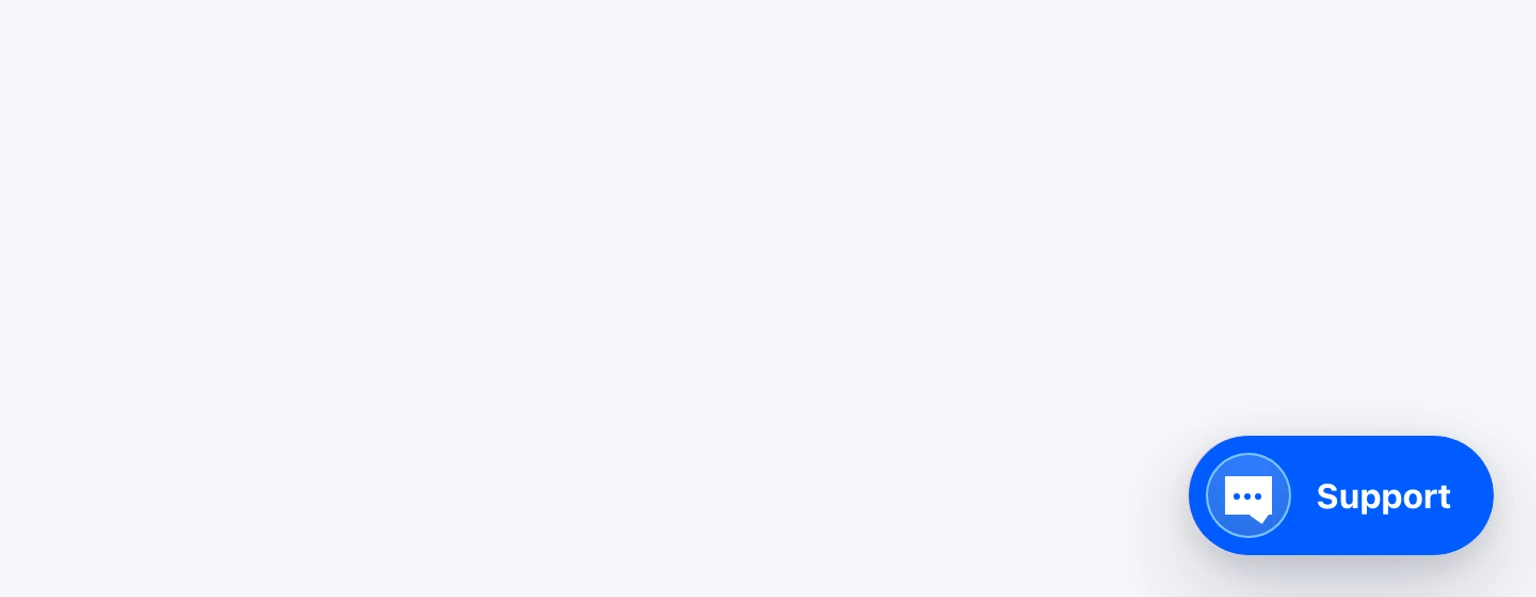
Check the home page and one other page. The same Support button should appear in the bottom corner on both pages.
Send a test message and confirm it reaches the selected DobroDesk Inbox.

If you cannot find a site-wide code area
Website builders and hosting providers use different names and menus. Search the existing settings for Custom code, Footer, Scripts or Integrations.
If none of those settings exists, send the copied widget code and this instruction to the person or company that manages your website: Add this block once before the closing body tag on all public pages, publish the change and do not modify the code.