

Updated:
What you'll achieve
The widget uses English, Ukrainian, German, Spanish, French or Brazilian Portuguese when that language is enabled, then uses the configured default when the requested language is not enabled.
Understand what is localized
The widget loads two kinds of language content. Interface text includes the launcher, buttons, field labels, validation and status messages. Customer content includes suggested answers and guided support paths approved for that locale.
Changing only the interface language does not translate an existing public answer. Each customer-facing answer must be reviewed and published for its own locale so customers do not receive a mixed-language experience.
- English uses the locale code en.
- Ukrainian uses the locale code uk.
- German uses the locale code de.
- Spanish uses the locale code es.
- French uses the locale code fr.
- Brazilian Portuguese uses the locale code pt.
- A regional browser value such as uk-UA is matched to its primary language code uk.
- The loader uses a requested language only when it is in the widget's enabled locale list. Otherwise it uses the widget's configured default locale.
Use automatic language detection
The generated embed code uses auto by default. On each page load the widget reads the browser's primary language, matches it to an enabled locale and uses the widget's configured default when that language is not enabled. Automatic detection does not scan page text or translate content in the browser.
<script
  async
  src="https://widget.dobrodesk.com/widget/loader/v1.min.js"
  data-dobrodesk-integration="wgt_7f4c1d2e3a5b6980718293a4b5c6d7e8"
  data-dobrodesk-locale="auto"
></script>
Set an explicit language for a localized page
Use an explicit locale when the website already has separate language routes and the widget should follow the selected site language. The supported interface locales are en, uk, de, es, fr and pt. The widget still uses only a locale enabled in its configuration. Otherwise it uses the configured default.
<script
  async
  src="https://widget.dobrodesk.com/widget/loader/v1.min.js"
  data-dobrodesk-integration="wgt_7f4c1d2e3a5b6980718293a4b5c6d7e8"
  data-dobrodesk-locale="uk"
></script>
Keep one embed on the page. Render the appropriate locale value from the website's existing language state instead of adding one script per language.
Set or change the locale with the SDK
Pass an enabled locale during initialization when the application already knows its current language. If the visitor changes language without a full page reload, call setLocale with the new supported locale code. The widget reloads the matching interface and customer content for the existing integration.
const supportWidget = createDobroDeskWidget({
  integrationId: "wgt_7f4c1d2e3a5b6980718293a4b5c6d7e8",
  locale: currentSiteLocale,
});

await supportWidget.ready;

// After an in-app language change
supportWidget.setLocale("uk");
Prepare public content for each language
Decide whether each website route should use auto or an explicit enabled locale: en, uk, de, es, fr or pt. The configured default is used when the requested language is not enabled.
Create or review the suggested answers and guided paths separately for every customer language you publish. Translate meaning and current policy, not only individual words.
Check product names, prices, legal wording, business hours and expected reply times in every published version.
Publish only complete customer-facing answers. If one language is not ready, keep automatic AI replies off for that language and route the conversation to a teammate.
Machine translation can help prepare a draft, but a person responsible for customer communication should review it before publication.
Test enabled languages and the configured default
Open the public website in a private window with the browser language set to the locale being tested.
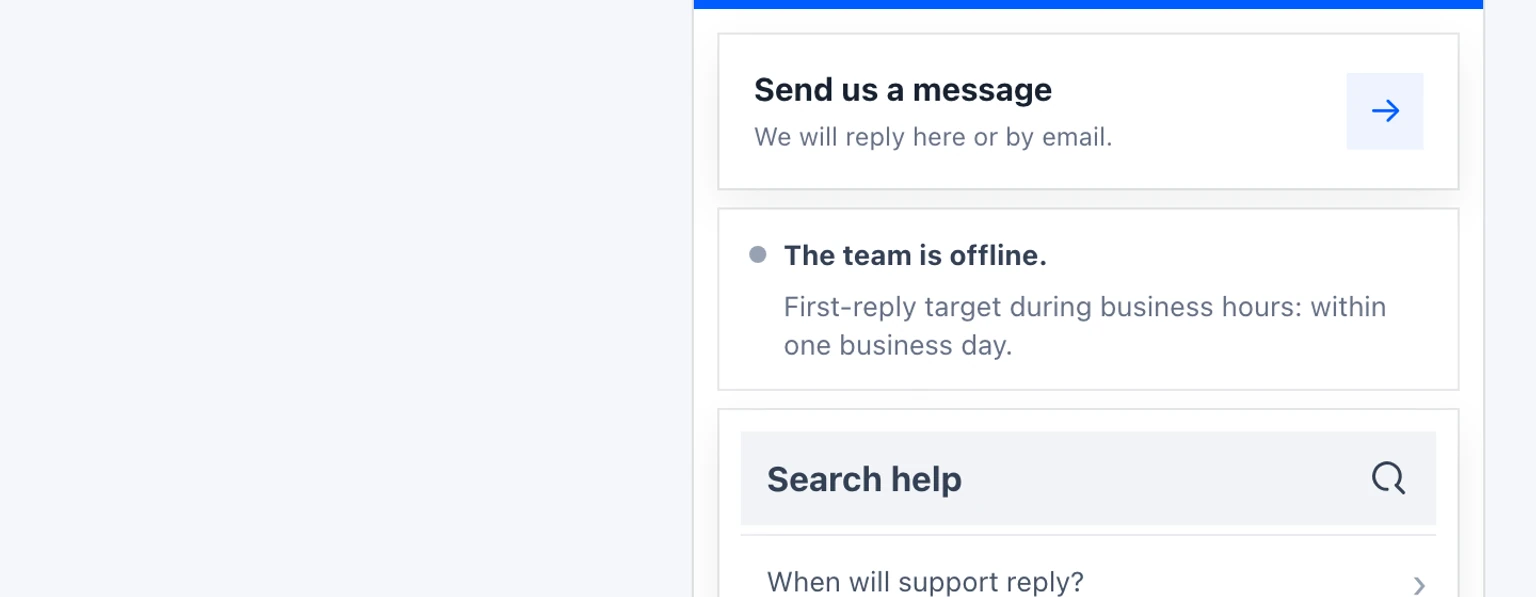
Check the Support button, header, availability, form fields, validation and confirmation message.
Open every suggested answer and guided path. Look for missing text keys or a sentence that falls back to another language.
Send a message containing the locale name and confirm the conversation reaches DobroDesk with that locale.
Repeat the test with a browser language that is not enabled and confirm the widget uses the configured default locale.
Put this guide into practice
Open Setup Center to apply the instructions in your workspace. Sign in when prompted.