

What you'll achieve
DobroDesk follows the workspace locale by default and uses your personal overrides where set.
Set personal display preferences
Open Admin > Personal > Preferences.
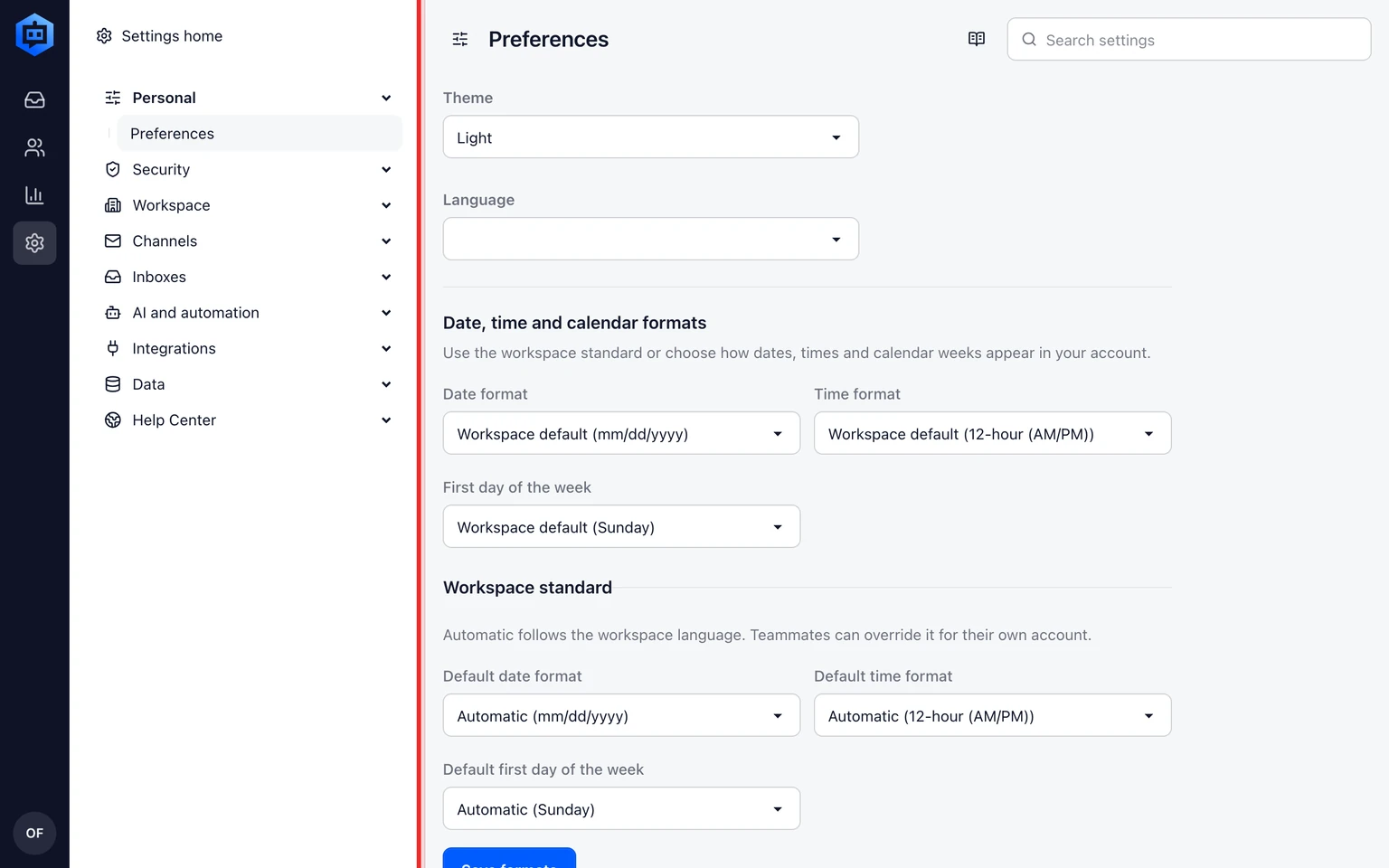
Choose the interface language and theme.
Keep date format, time format and first day of the week on Workspace default or choose personal values.
Choose your display time zone and save.

Display time zone changes timestamps only. Service calendars and SLA timers keep their assigned calendar time zone.
Set the workspace standard
As an administrator, open Admin > Personal > Preferences and find Workspace standard.
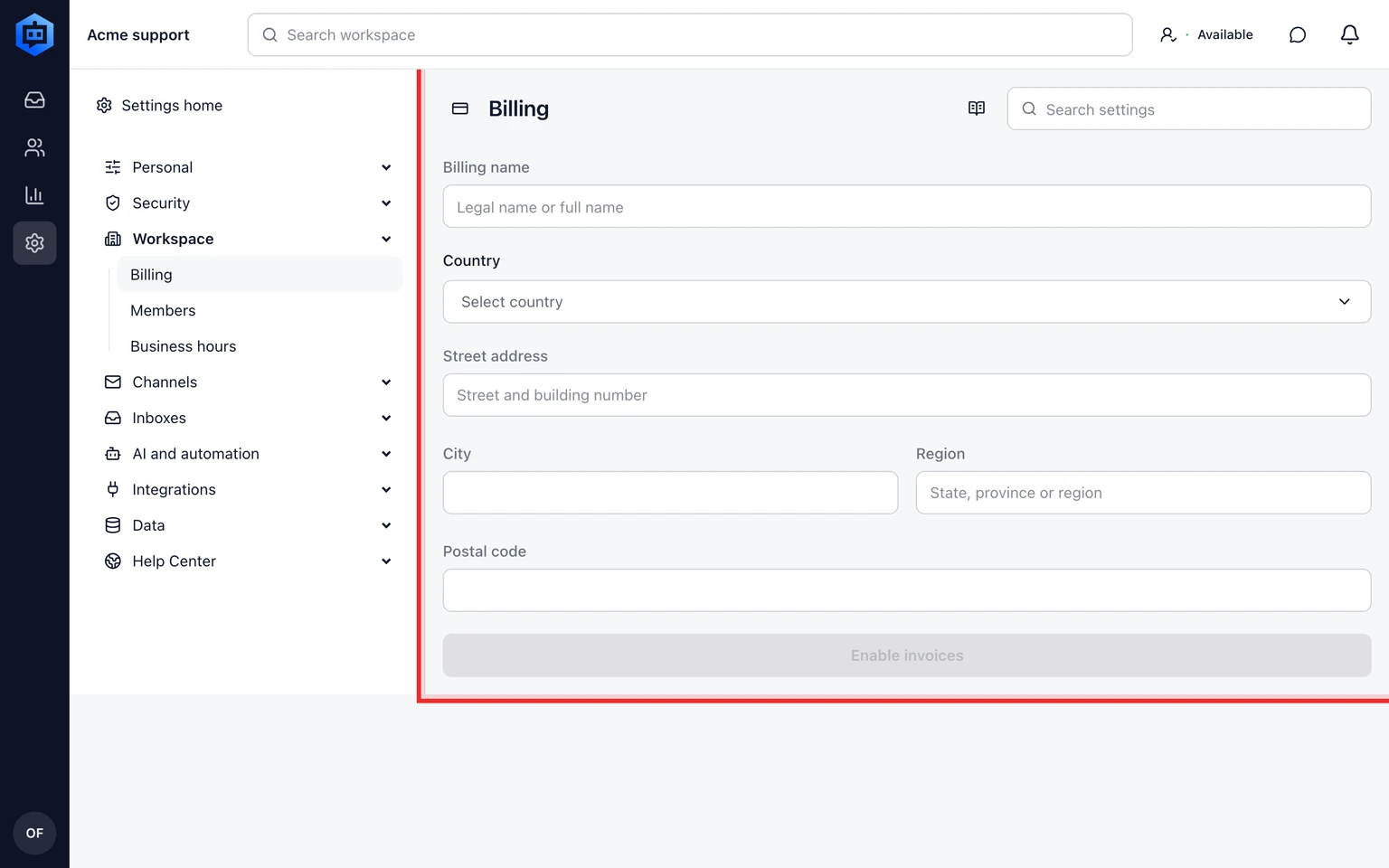
Choose Automatic to follow the workspace locale or set explicit date, time and week-start formats.
Save the standard. Existing personal overrides remain unchanged.

Automatic uses the workspace locale for date order, 12- or 24-hour time and the first day of the week. Set an explicit workspace value only when the company standard differs from that locale.