

Updated:
What you'll achieve
The right teammate sees urgent work without notifying the whole workspace.
Know who gets notified
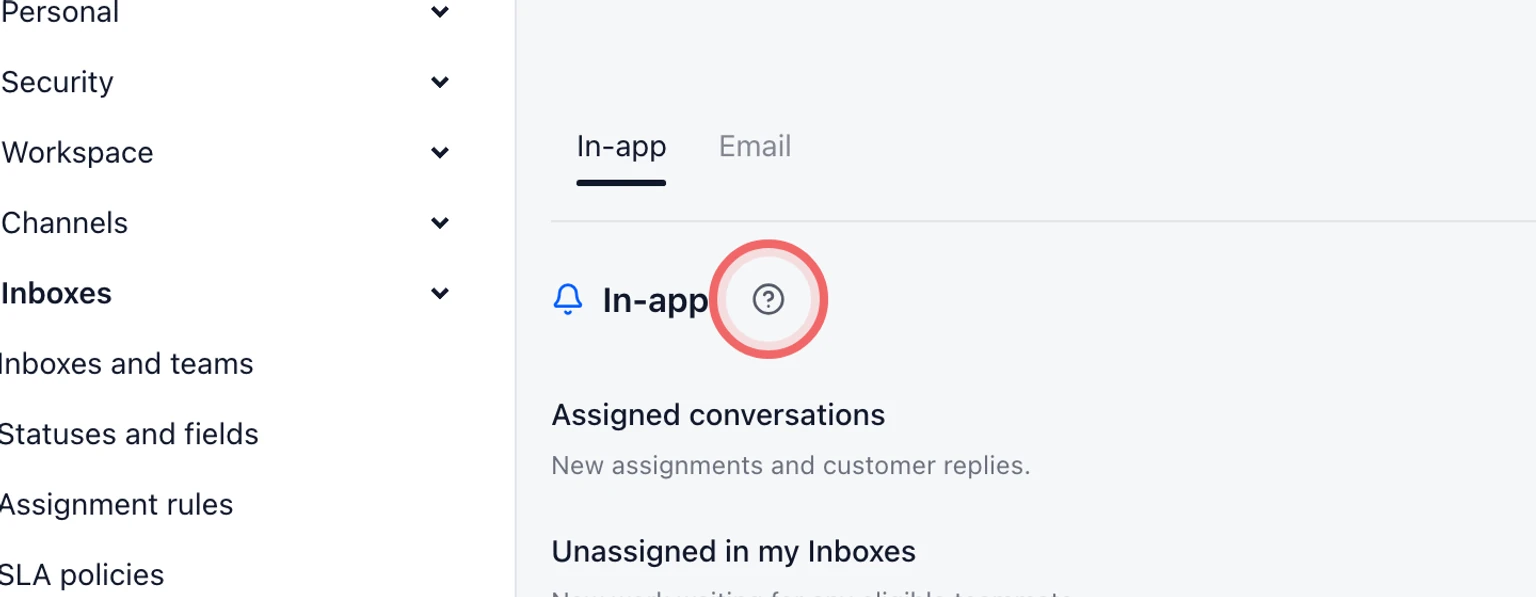
- Assignment alerts go to the new assignee.
- New unassigned conversations alert eligible Inbox members.
- For customer messages, choose conversations assigned to you, yours plus unassigned conversations or all accessible conversations.
- Voice and AI attention alerts follow conversation ownership.
- Owners and admins can opt into all accessible conversations. Their role alone does not subscribe them to every message.
- Viewer accounts never receive actionable support alerts.
Choose your alerts
Open your account menu and select Notifications.
Choose assignments, new unassigned conversations and customer messages separately in In-app.
In Email, enable Customer messages and choose which conversations to follow. Choose one email per message or group consecutive messages.
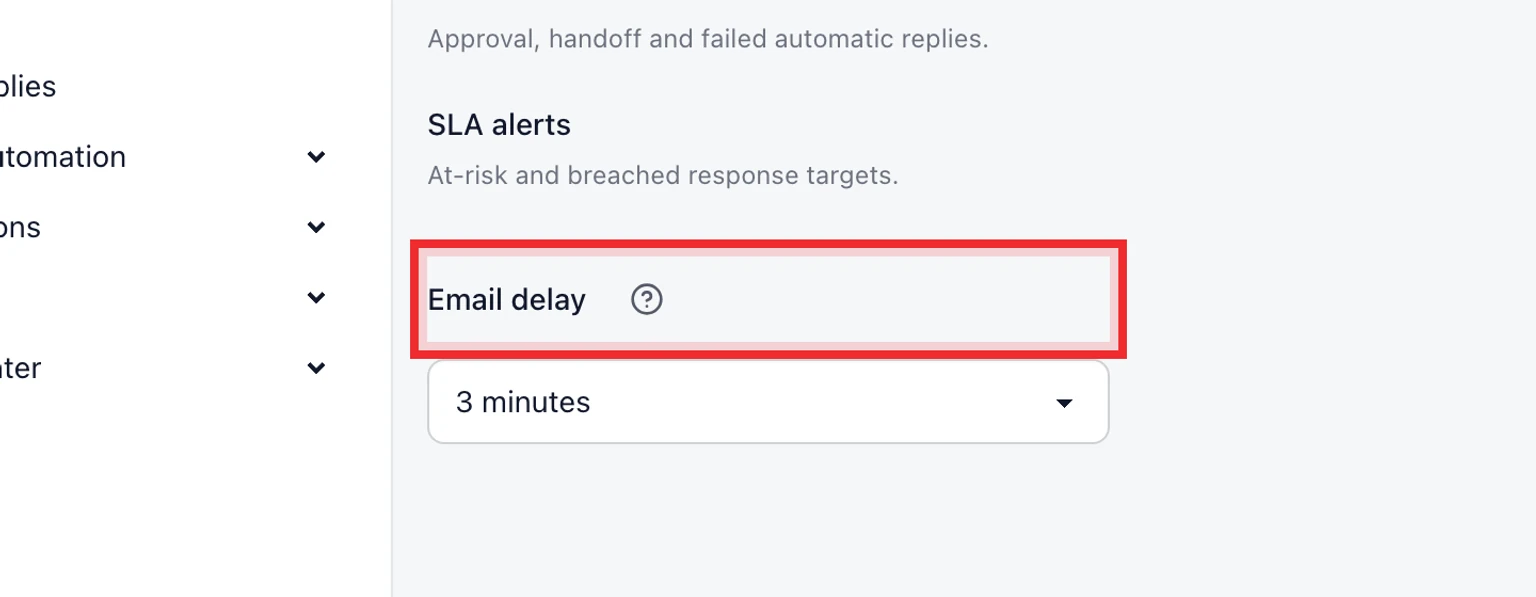
Set an email delay from 1 to 15 minutes and save.
Turn on Quiet hours, choose a start and end time and save. The schedule uses your account timezone.
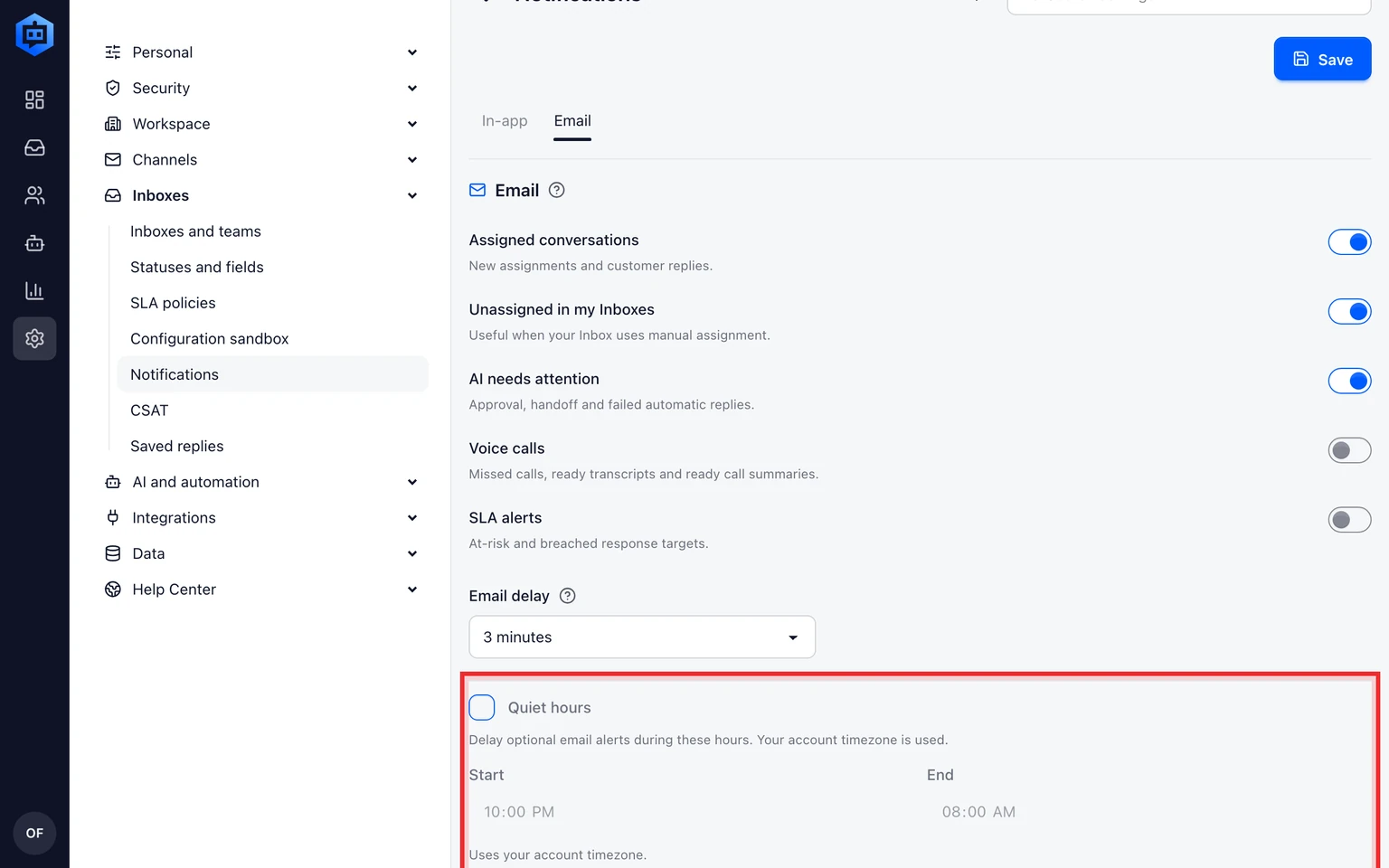
DobroDesk cancels a pending email when you open its in-app alert during the delay.
Choose your app theme
Open the account menu in the top bar then choose Preferences.
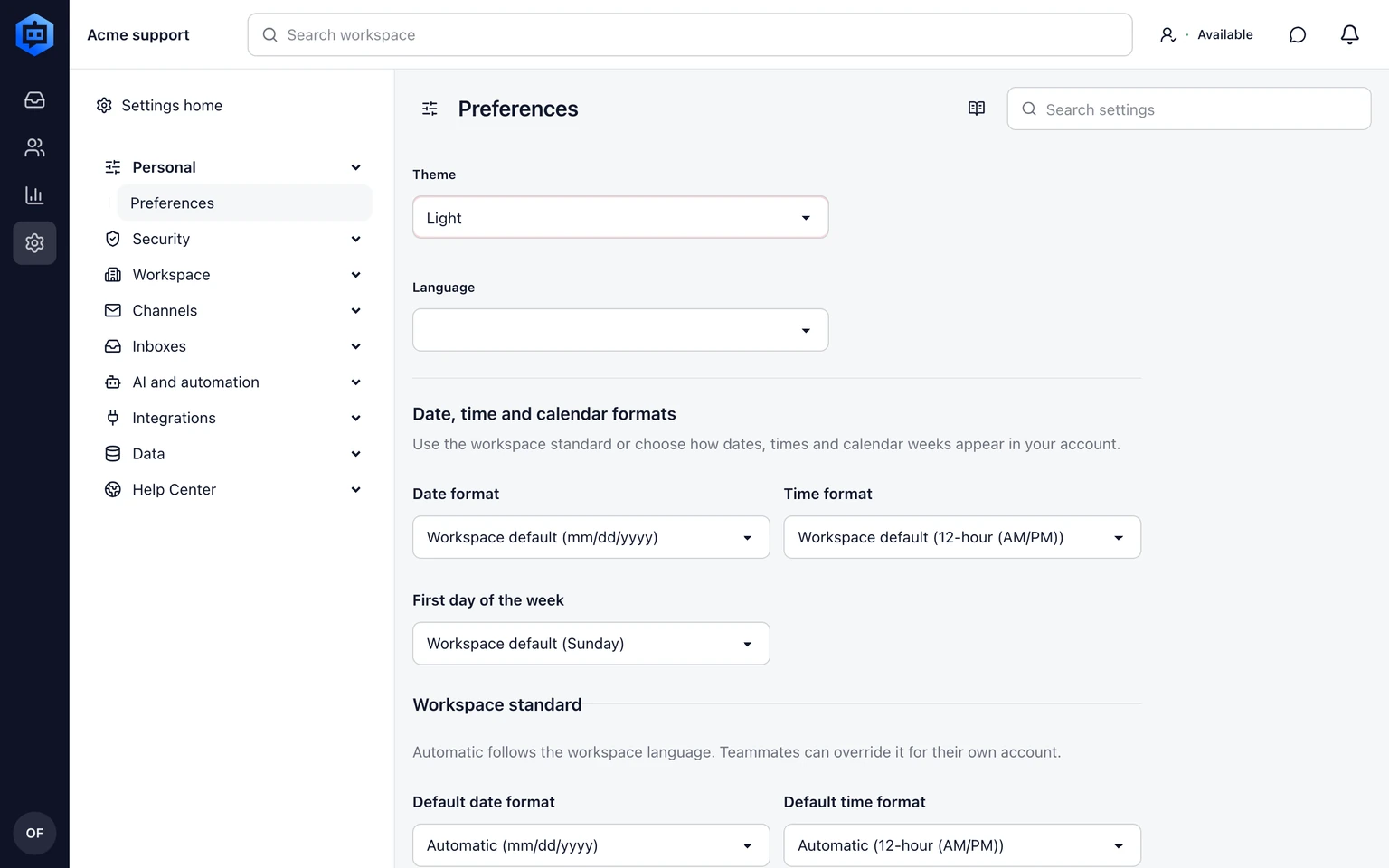
Under Theme choose Light, Dark or System.
Check the Inbox and Settings at the width you normally use. System follows the current device appearance.
Keep the bell menu focused
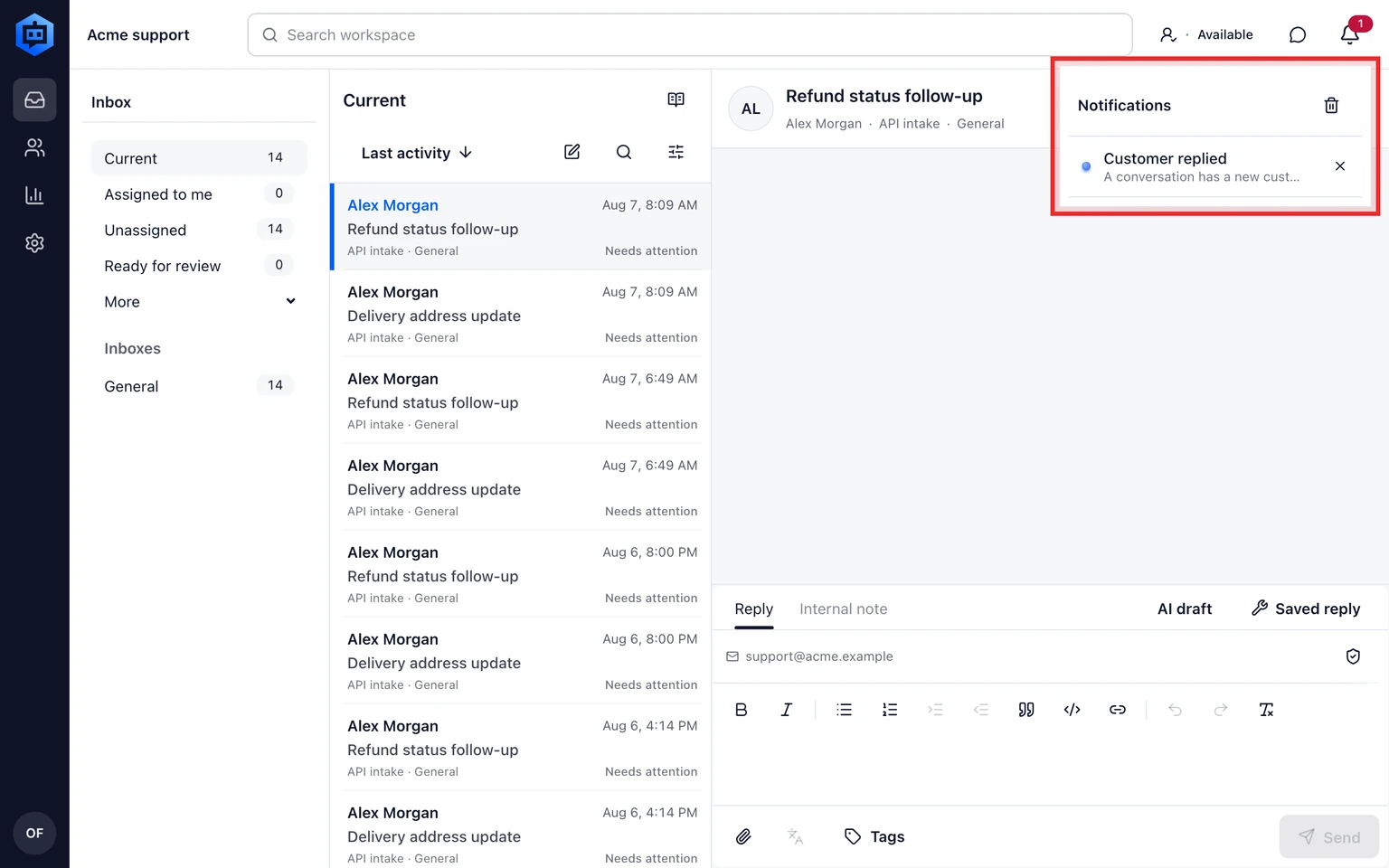
Use Clear all to remove every bell-menu alert and completed background operation.
Active imports stay visible until they finish or are cancelled.
Clearing an alert removes it from your bell menu. It does not delete the conversation or its audit history.
Understand AI attention alerts
- Needs approval means AI prepared a draft that a teammate must review before sending.
- Needs a teammate means the conversation was handed to manual support.
- AI could not answer means automatic handling stopped and the conversation moved to manual handling.
Put this guide into practice
Open Setup Center to apply the instructions in your workspace. Sign in when prompted.