
Check the customer's billing context
Review authorized customer, invoice and subscription details beside the conversation. These lookups are read-only and do not expose card or bank data.
Stripe customer and billing context
Give the support teammate a read-only view of an authorized customer's billing context. When the Stripe account and Procedure permissions are configured, a customer can confirm a one-time Checkout in the website widget.
Available
Updated
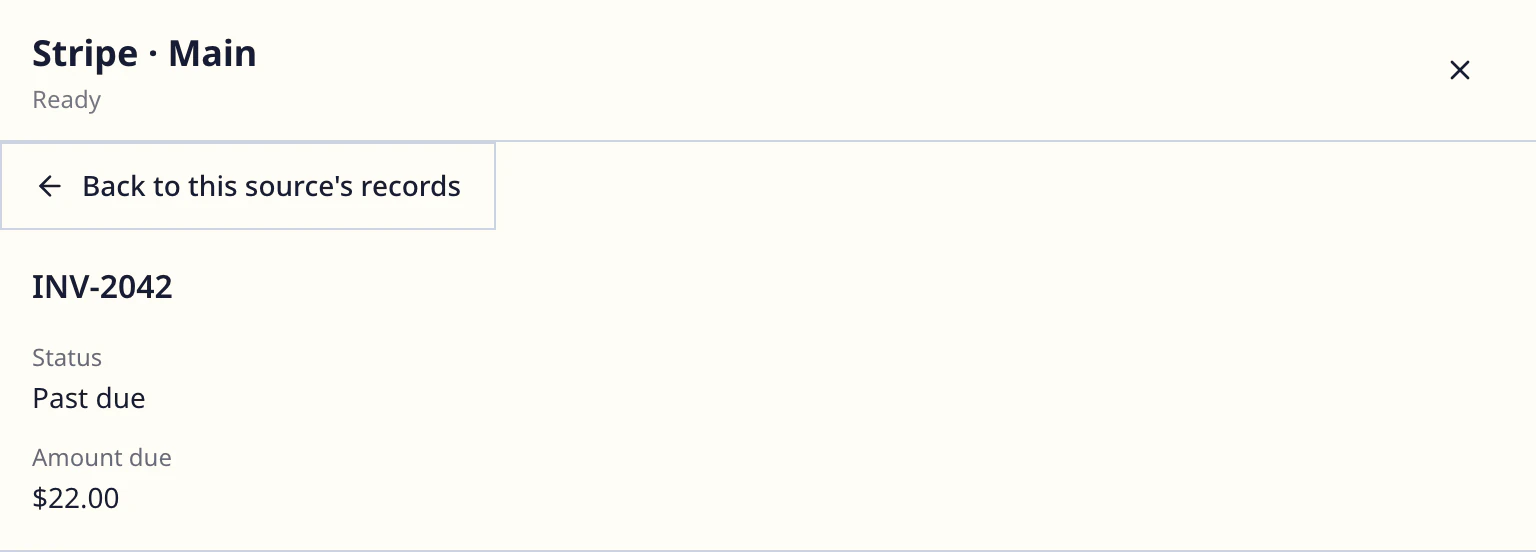
Review authorized customer, invoice and subscription details beside the conversation. These lookups are read-only and do not expose card or bank data.
A published widget Procedure can show active Products with fixed one-time Prices. The customer reviews the current quote, chooses a quantity and confirms before Stripe-hosted Checkout opens.
After Checkout, run Check payment in the original chat. DobroDesk shows paid only after a fresh Stripe status response confirms the Checkout Session.
Stripe billing context helps a teammate answer a question. It is not a payment action or an AI-approved knowledge source.
Customer context stays read-only. A customer starts and confirms a one-time payment in Stripe Checkout through a separately configured Procedure.
Connect the Stripe account you administer and review the access requested for customer and billing context.
Verify the account and billing context against a known authorized customer. Before offering Checkout, run a test purchase with Stripe test data and check that the payment shows as paid only after Stripe confirms its status. If the account lacks the required Product, Price or Checkout access, keep customer context read-only and leave Checkout unavailable.
Open Settings > Integrations > Data integrations, choose Stripe and connect the account you administer. The account administrator approves the requested access.
Confirm the connected Stripe account and the customer and billing information available to teammates.
Open a known authorized customer and check that the customer, invoice and subscription records belong to the expected account.
To offer Checkout, configure a published widget Procedure with active Products and one-time Prices. Confirm the Procedure can create a Checkout Session and check its payment status.

Start with one inbox
Choose a support address or place the widget on your site. Then assign requests and reply from the conversation.
No card needed today.