

Updated:
What you'll achieve
Eligible VIP or tiered Conversations receive the intended SLA target without changing other Inbox rules.
Create a narrow SLA rule
Put the most specific customer or company condition above broad Inbox rules so the intended commitment wins. Keep the rule limited to a segment that the team can identify consistently.
Verify both a matching and a non-matching Conversation. The first should receive the VIP or tier target and the second should keep its ordinary Inbox policy.
Set the customer's profile type or the customer or company tier before creating the rule.
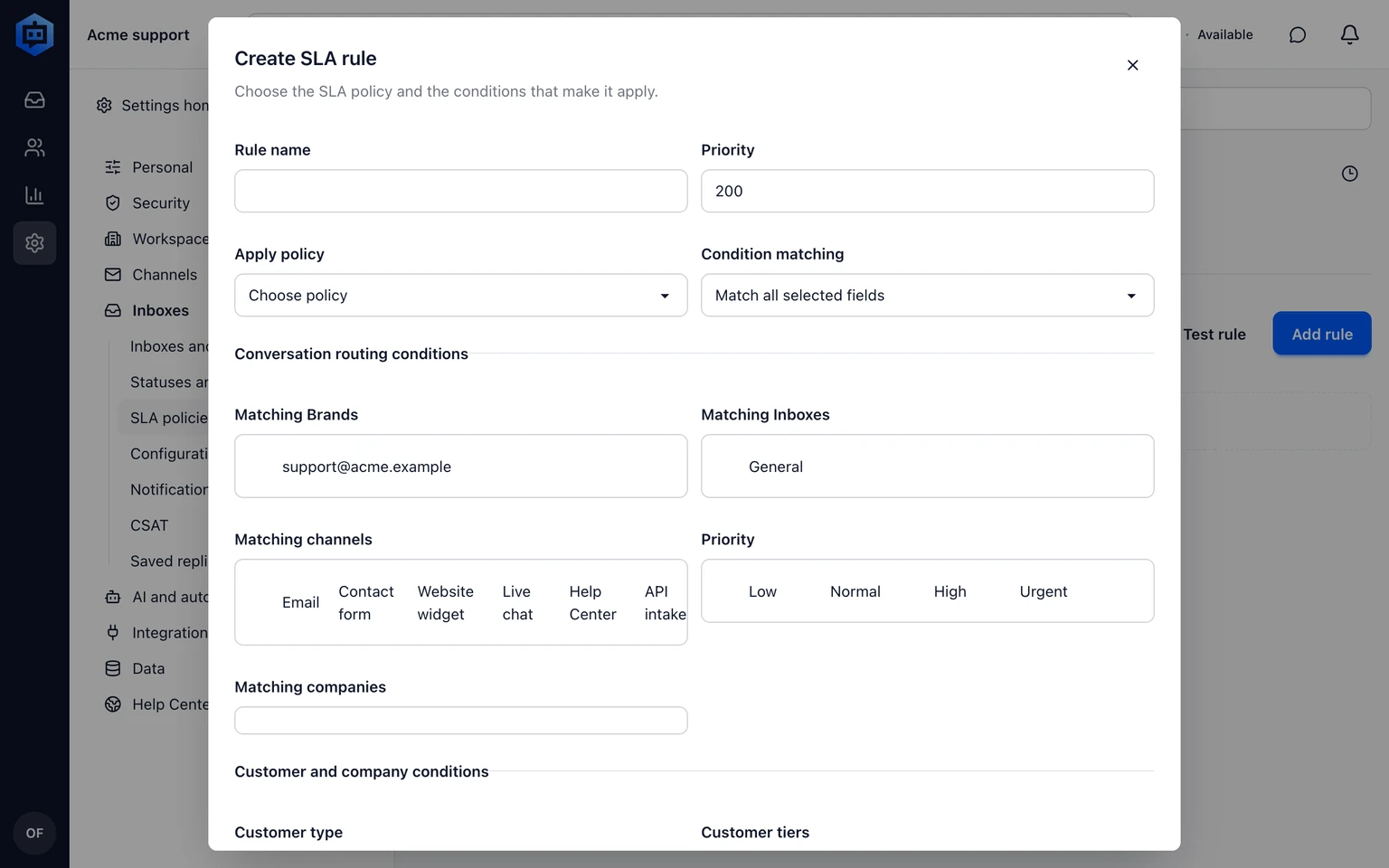
Open Settings > Inbox > SLA policies and add a rule to the policy with VIP, customer tier or company tier conditions.
Place the rule above broader rules, enable it and use a representative Conversation to verify the selected target.
Put this guide into practice
Open Setup Center to apply the instructions in your workspace. Sign in when prompted.