

What you'll achieve
Customers stay in control of microphone access, can stop recording at any time and send only the text they have reviewed.
Start and stop recording
Opening the widget or loading a page does not start the microphone. Recording begins only after the visitor's action and permission.
The widget turns speech into text in the browser. This control does not send audio or send a message until you choose Send.

Open the website widget and choose the microphone icon in the message field. The widget asks for microphone access only after this action.
Allow access when the browser asks. While the widget is listening, the microphone control changes to a red stop icon.
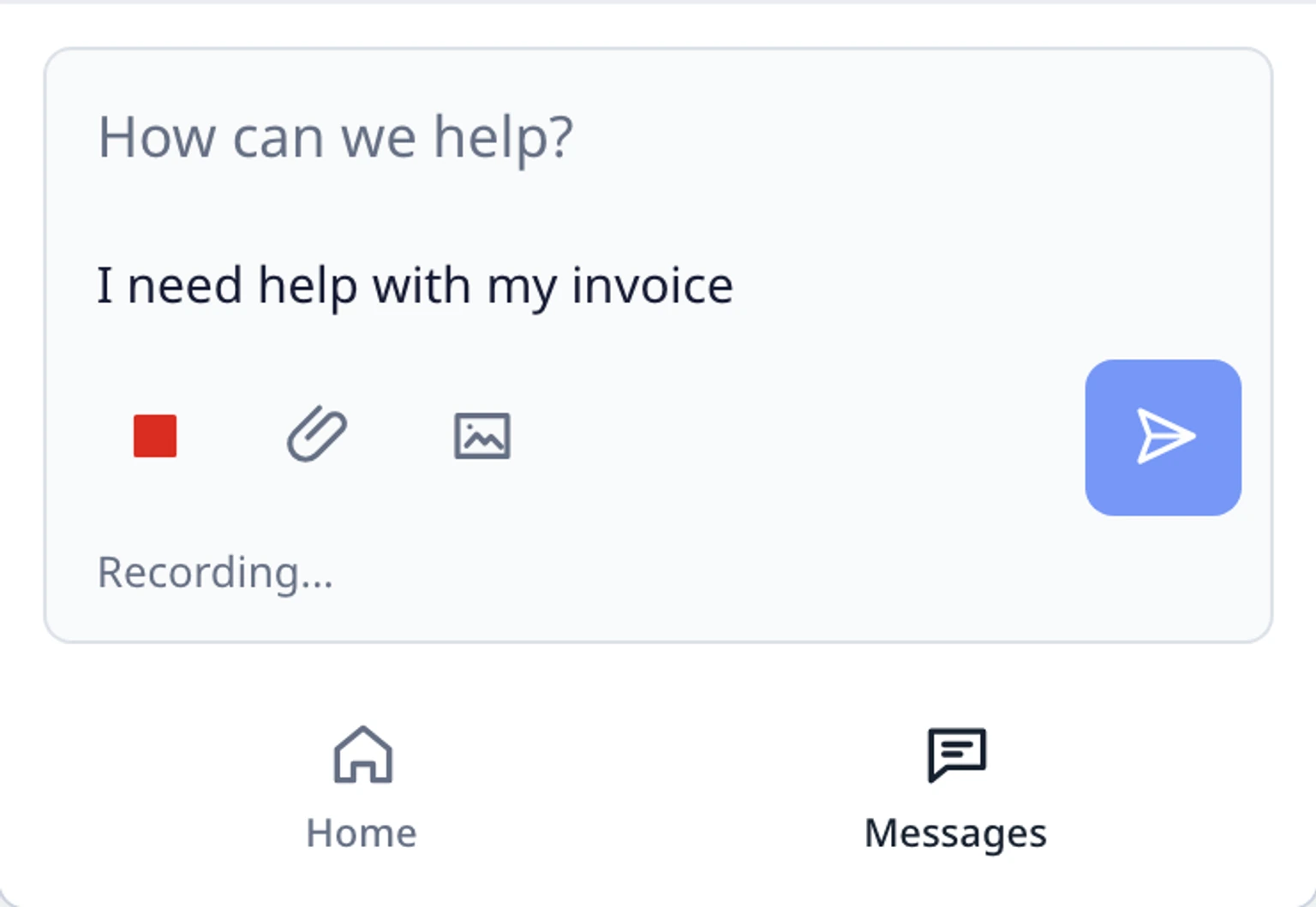
Tap the stop icon when you have finished speaking. The widget keeps the recognized words in a review state and does not send them yet.

Review, keep or delete the words

Read the recognized text in the review area. You can keep the existing draft and check the new words before they are inserted.
Choose the green check icon to insert the reviewed text into the message draft. The message is still unsent.
Choose the red trash icon to delete the recorded result. The existing draft stays available so you can try again or type instead.
Send only after checking the draft
Edit the inserted text like any other message and check the recipient context and attachments.
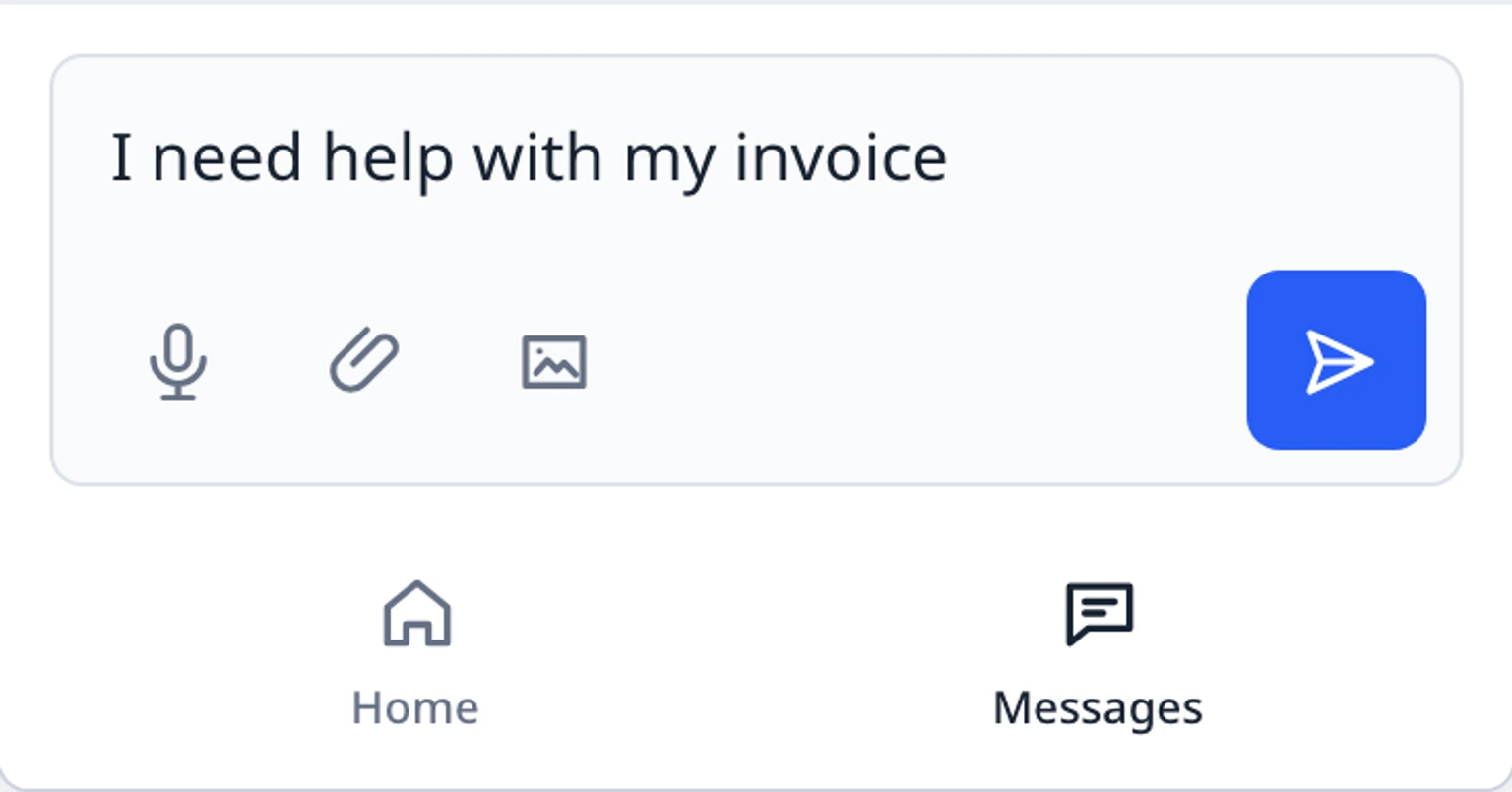
Choose Send when the complete message is ready. Recording or accepting the text never sends a reply by itself.
If the microphone is busy, the recording stops unexpectedly or no words are heard, choose the microphone again to retry. If access was denied, change this site's microphone permission in the browser and then try again.
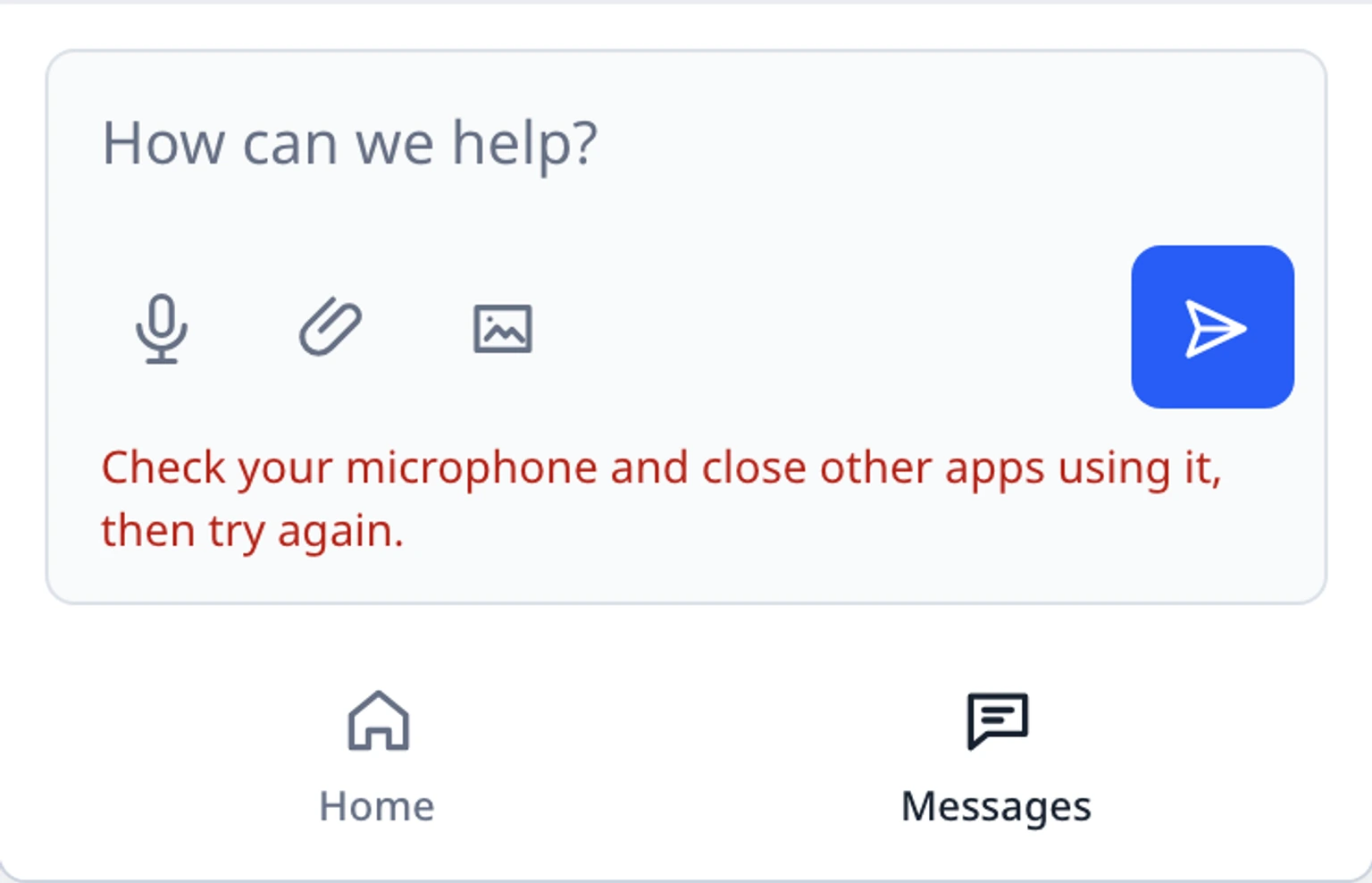
If the browser does not support speech recognition, the site blocks microphone access or the selected language is not supported, type the message. Those cases cannot be fixed from inside the widget.

