
What you'll achieve
You can identify where the website widget setup stopped working and collect the details support needs if help is required.
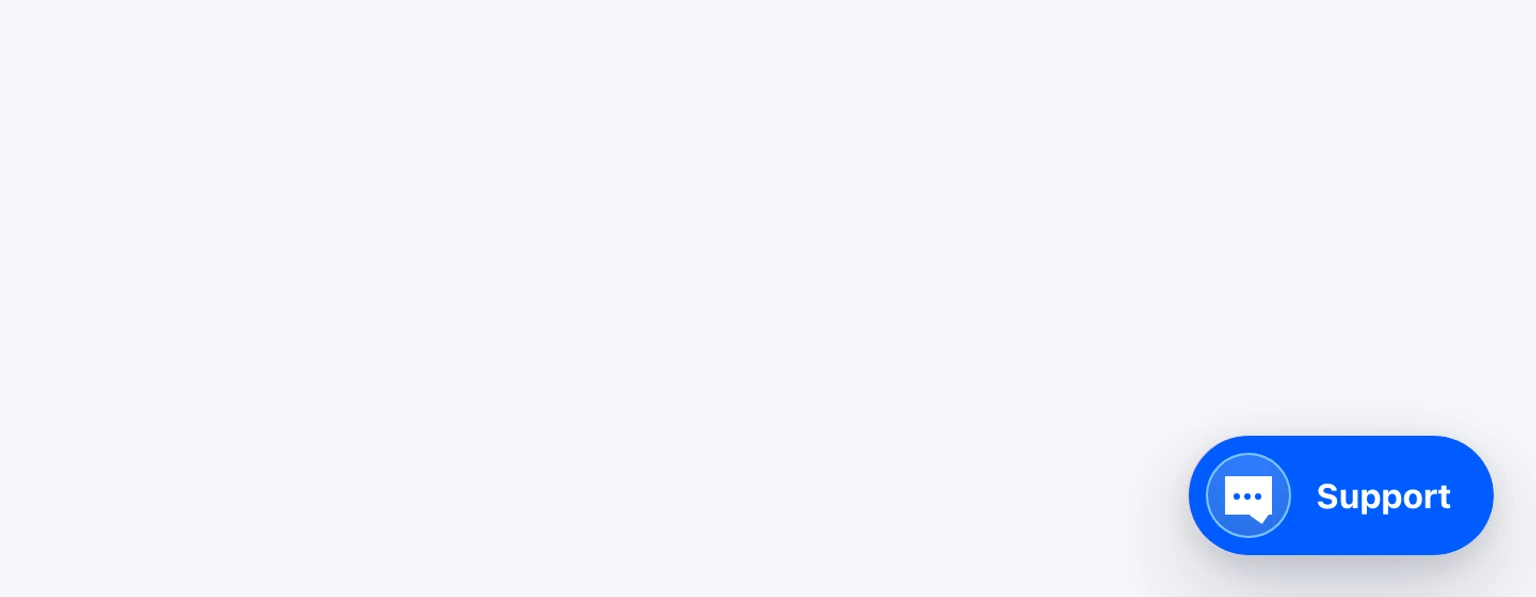
The Support button does not appear
Open DobroDesk Admin > Channels > Website widgets, select the widget and confirm its status is Active.
Compare the public website address in your browser with Website addresses. The https://, domain and www version must match.
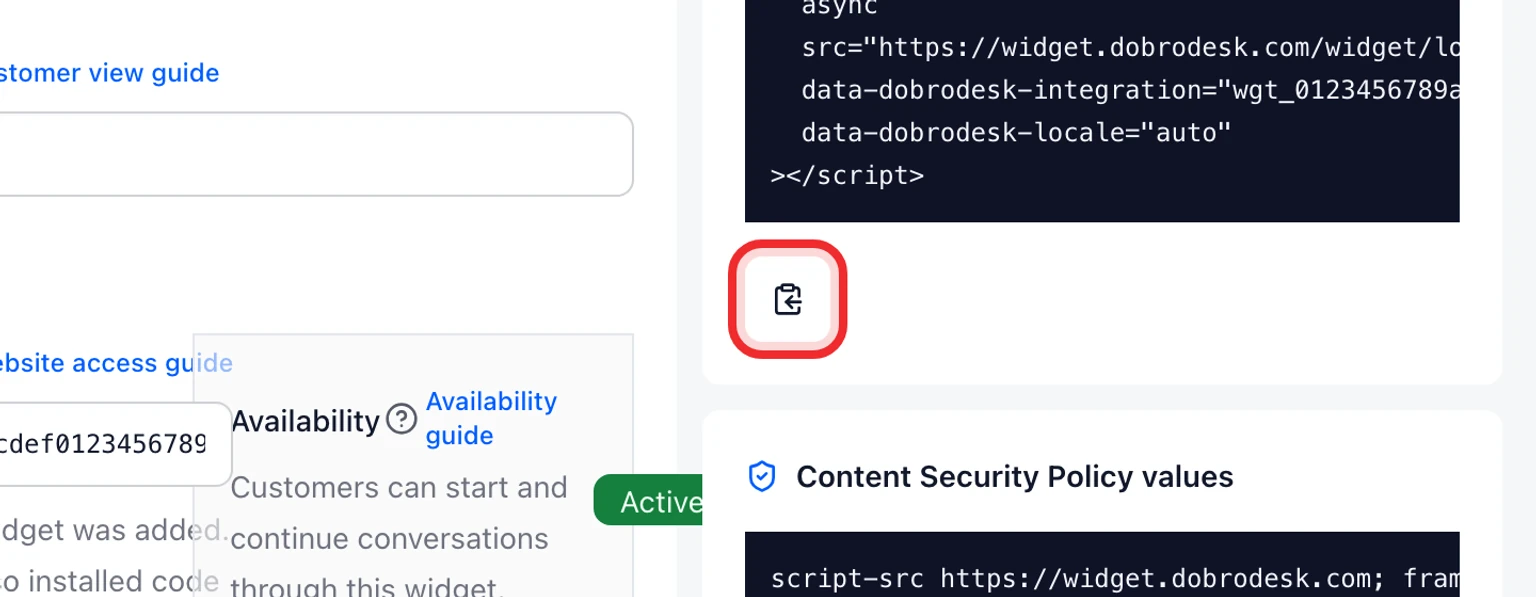
Confirm the widget code was saved in a site-wide website setting rather than a normal page text block.
Publish the website change, clear its cache and open the public page in a new private window.
Temporarily disable browser content-blocking extensions for the test. If the button then appears, allow DobroDesk in that extension.


The button appears but does not open or send
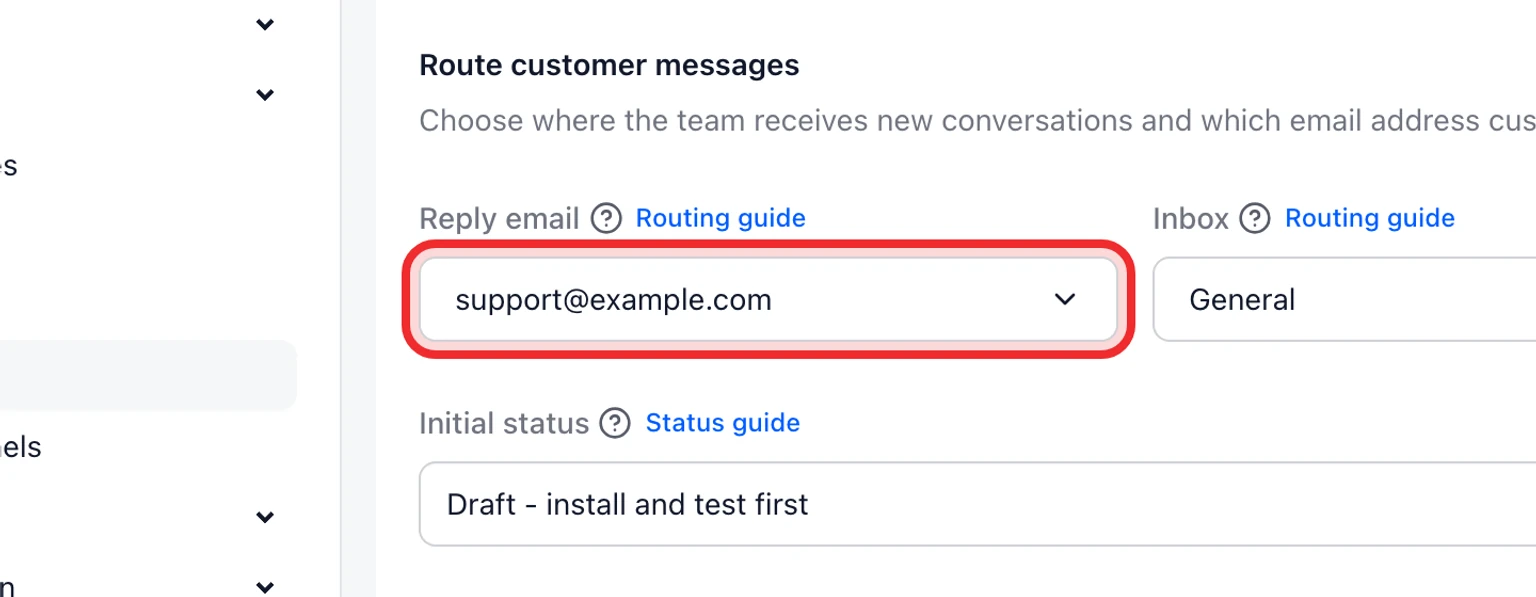
Open DobroDesk Admin > Channels > Website widgets and confirm the widget is Active and still has a destination mailbox and Inbox.
Check the site-wide layout and remove any second copy of the DobroDesk loader. One page must initialize one widget only.
Open the widget and enter an email address you can access plus a short unique test message.
Try once more in a private window on the real website. Do not use a website builder preview address unless that address is also allowed.

DobroDesk prevents deleting a mailbox while a website widget still routes to it. Move the widget first when you retire a support address.
The message is missing or reaches the wrong Inbox
Open the widget settings and check the selected destination Inbox.
In DobroDesk open that Inbox and clear any teammate, status or channel filters that could hide the new conversation.
Send a new message with a unique phrase, for example Website test 14:30, so it is easy to search for.
What to send DobroDesk support
If the checks above do not solve the problem, send enough information to reproduce it. Do not send your password or private account credentials.
- The public page URL where the widget should appear.
- The Integration ID shown in DobroDesk.
- The approximate date and time of the latest test including your time zone.
- A screenshot of what you see and the exact error message, if one appears.
- Whether the problem affects every page or only one page.
If the problem affects only some pages
A widget that works on the home page but not on another page is usually installed in one page template instead of the site-wide layout. Ask the website manager to confirm that the same DobroDesk code loads on every public page where support should appear.
If the widget works in a private window but not in your normal browser, clear the normal browser cache and check content-blocking extensions. This difference usually points to saved browser data rather than the DobroDesk widget.