
What you'll achieve
Your Analytics view shows real ratings, response rate and teammate results.
Enable customer satisfaction requests
Open Admin > Inbox > CSAT.
Enable Request feedback after resolution.
Choose whether customers can leave an optional comment.
Keep sensitive-case suppression on unless your policy requires otherwise.
Choose a customer cooldown and save the settings.

Review the results
Open Analytics and choose 7, 30, 90 or 120 days.
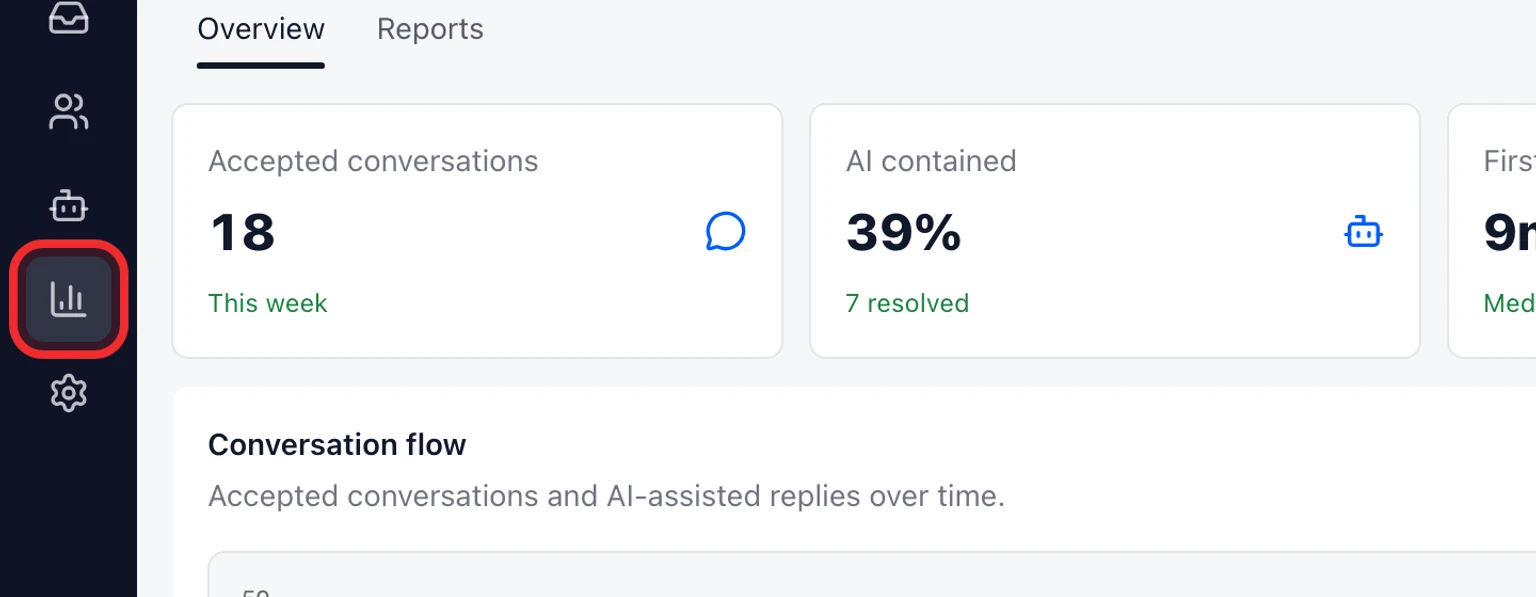
Review positive CSAT, average rating, response count and response rate.
In Explore conversations, group SLA breaches by policy, Inbox or assignee, then open a result to review the matching conversations.
Export CSV when you need the current dashboard outside DobroDesk.

Imported history is excluded until a customer continues the conversation. DobroDesk shows No data instead of a synthetic CSAT score before real responses arrive.
Save or schedule a report
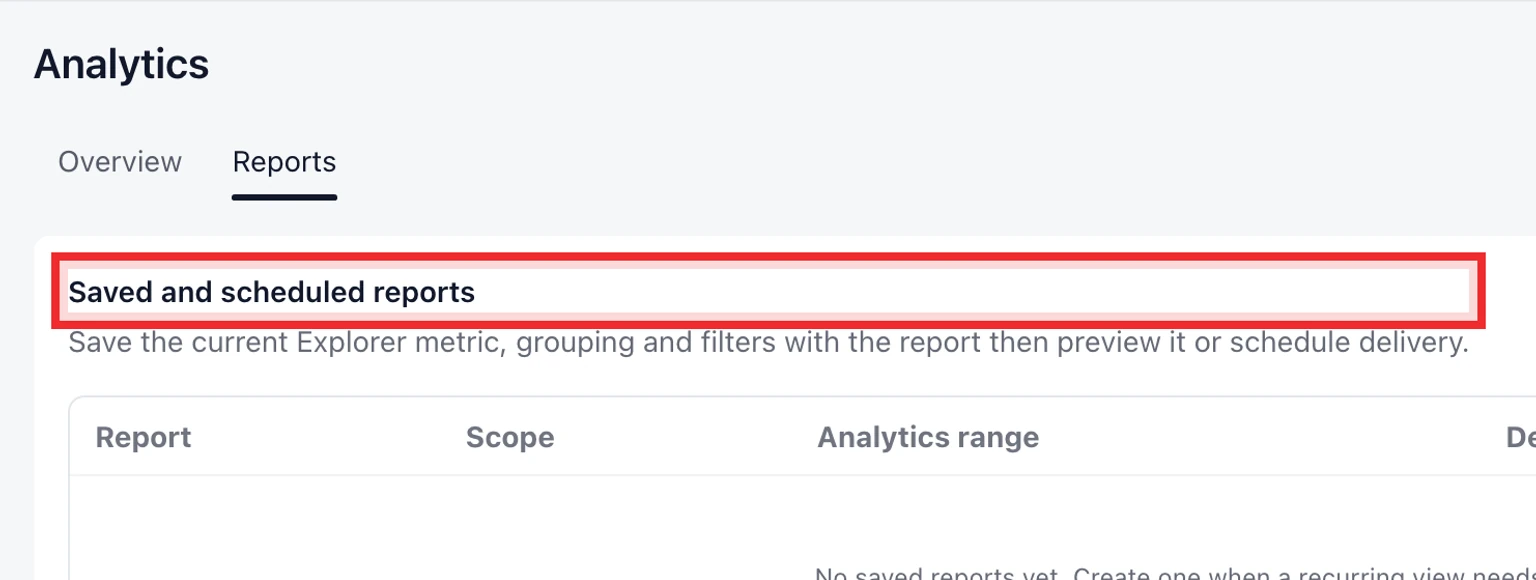
Under Saved and scheduled reports enter a report name and choose 7, 30, 90 or 120 days.
Select the overview, CSAT, Inbox or teammate sections you need.
Keep delivery off for a reusable report or choose daily, weekly or monthly email delivery.
Set the UTC delivery hour, add recipients and select Save report.
Use Preview to open the saved range or pause delivery without deleting the report.

Set an internal SLO objective

Under SLO objectives select New objective.
Choose a measured outcome, target percentage and 7, 30 or 90-day window.
Scope the objective to one Inbox or keep All Inboxes.
Review the eligible sample, actual result and Met, At risk or Missed state.
Pause an objective without deleting its definition when the operating policy changes.
SLOs are internal operating targets. They do not replace customer-facing SLA policies or their breach notifications.