Migrate from Zendesk

What you'll achieve

Your team can search past issues and continue support from DobroDesk.

Before you start

  • Create or connect the destination DobroDesk mailbox.
  • Use a Zendesk administrator account that can approve a read-only connection.
  • Confirm the source subdomain, for example acme for acme.zendesk.com.
  • Allow popup or redirect navigation so Zendesk can return you to DobroDesk after approval.

Connect and analyze Zendesk

  1. Open Admin > Data > Migration and choose Zendesk.
    Migrate from Zendesk: Connect and analyze Zendesk, 1. Open Admin > Data > Migration and choose Zendesk.
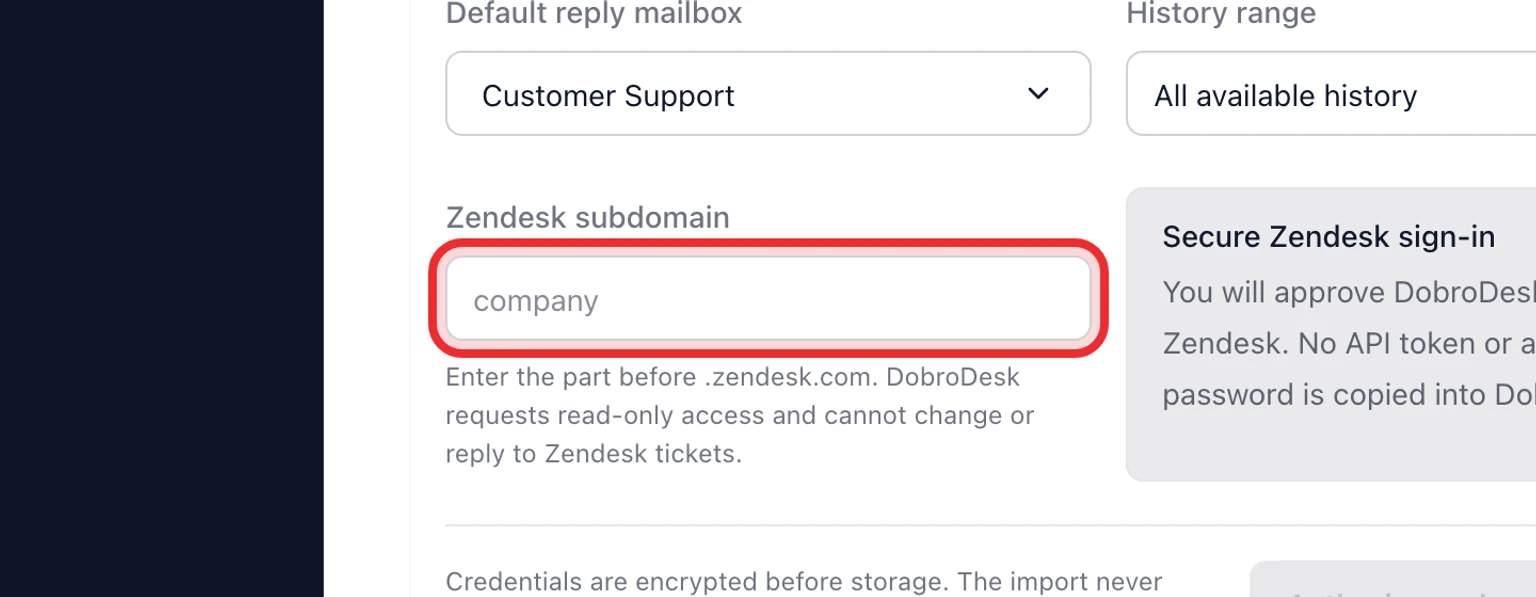
  2. Select the destination mailbox and history range.
    Migrate from Zendesk: Connect and analyze Zendesk, 2. Select the destination mailbox and history range.
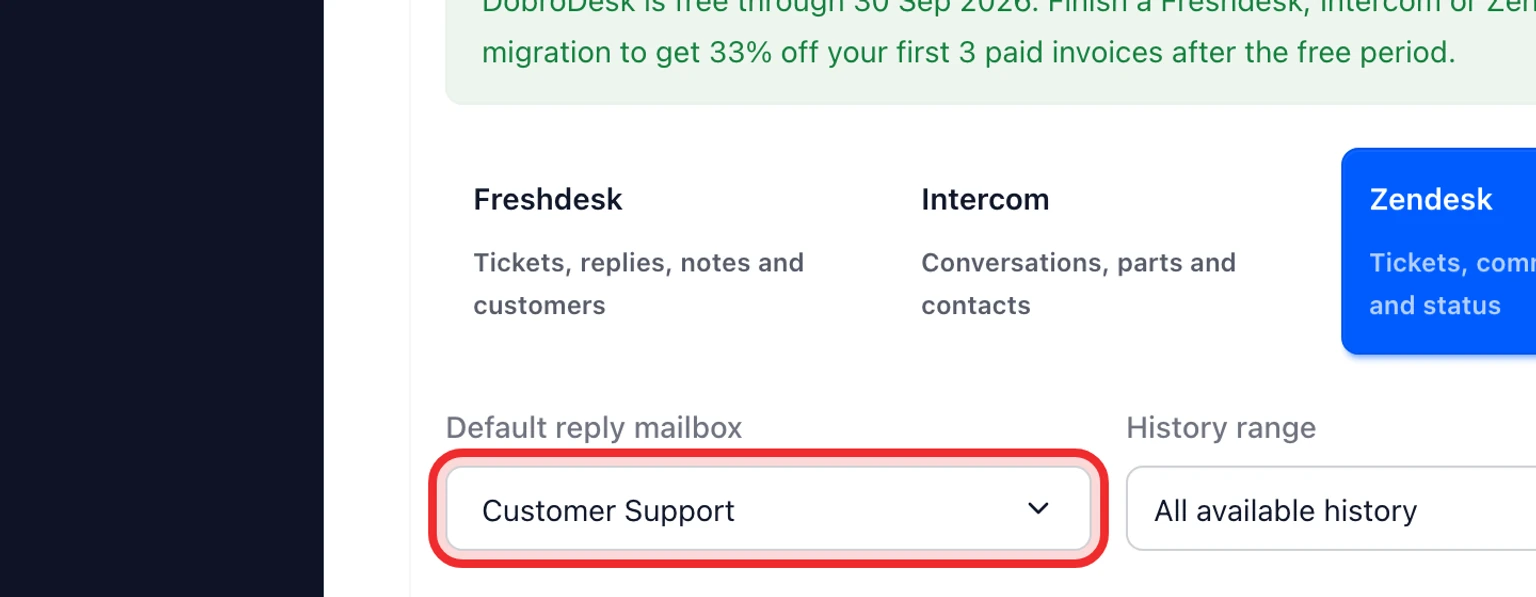
  3. Enter the Zendesk subdomain. Do not paste an API token or admin password.
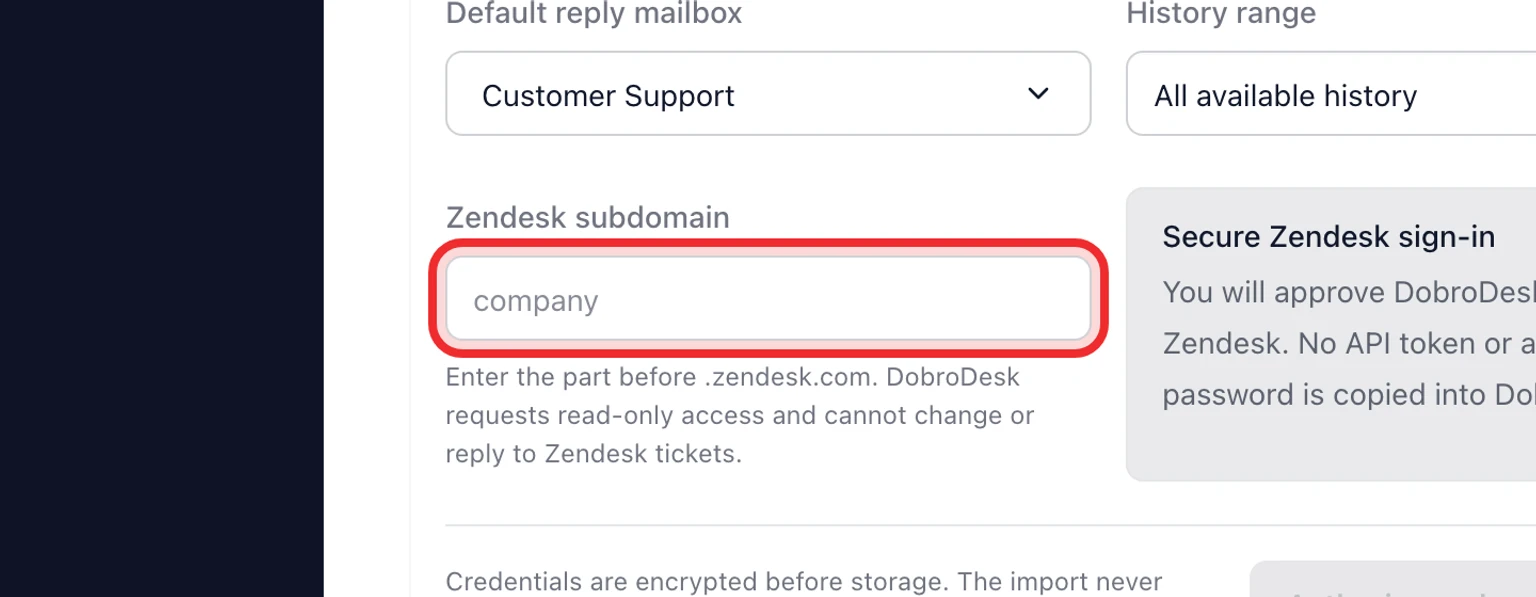
    Migrate from Zendesk: Connect and analyze Zendesk, 3. Enter the Zendesk subdomain. Do not paste an API token or admin password.
  4. Select Authorize and analyze Zendesk, approve read-only access in Zendesk, then return to DobroDesk.
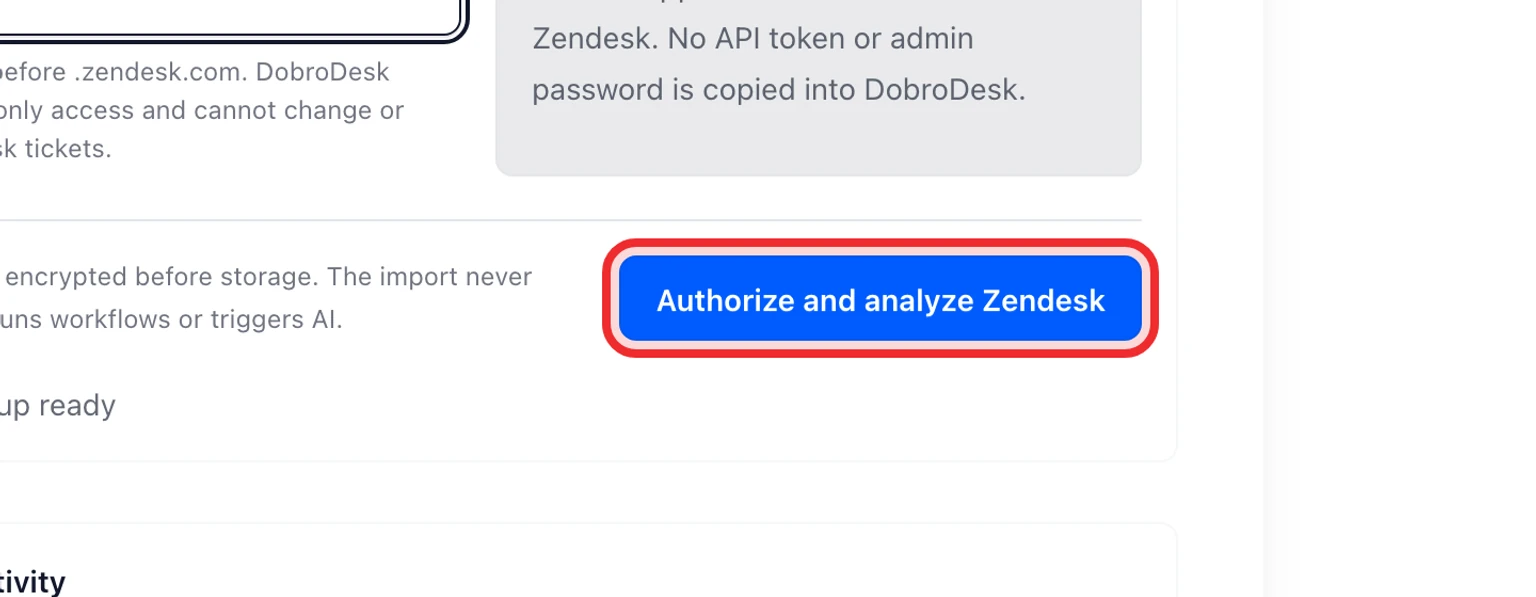
    Migrate from Zendesk: Connect and analyze Zendesk, 4. Select Authorize and analyze Zendesk, approve read-only access in Zendesk, then return to DobroDesk.
  5. Review detected groups, custom fields, statuses and warnings.
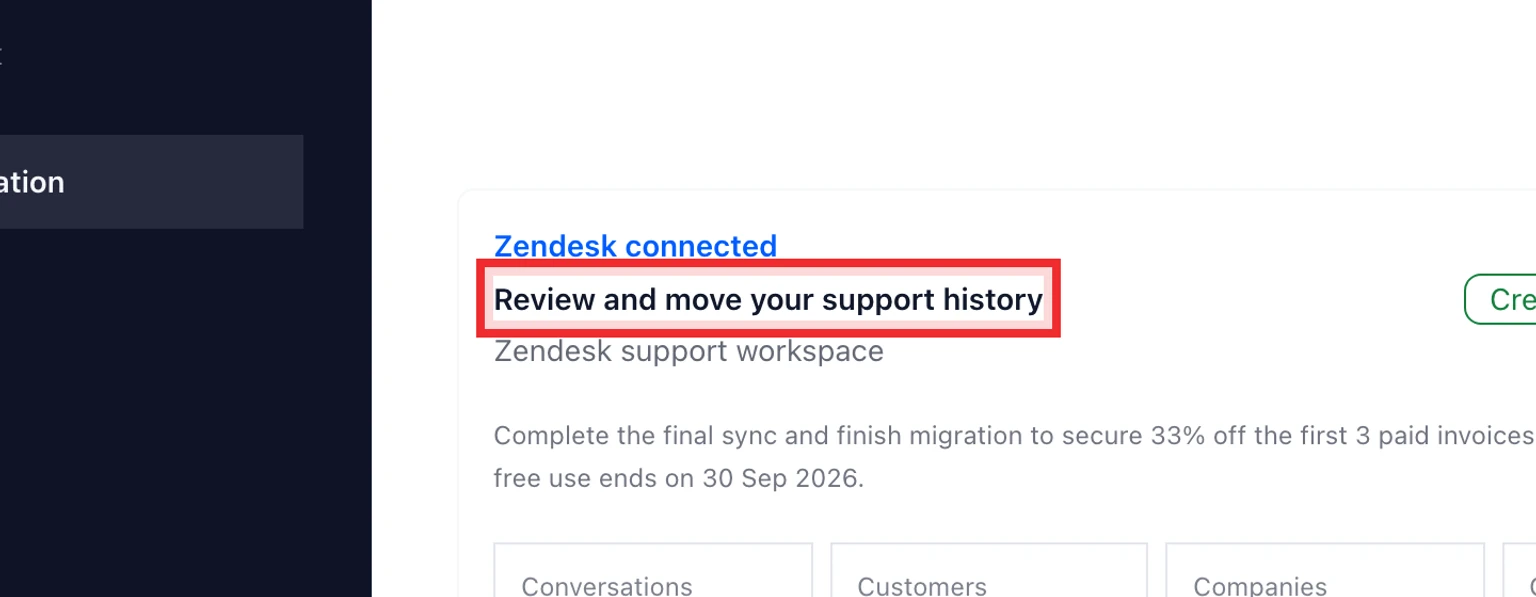
    Migrate from Zendesk: Connect and analyze Zendesk, 5. Review detected groups, custom fields, statuses and warnings.

Test then move your data

  1. Map Zendesk groups to DobroDesk Inboxes.
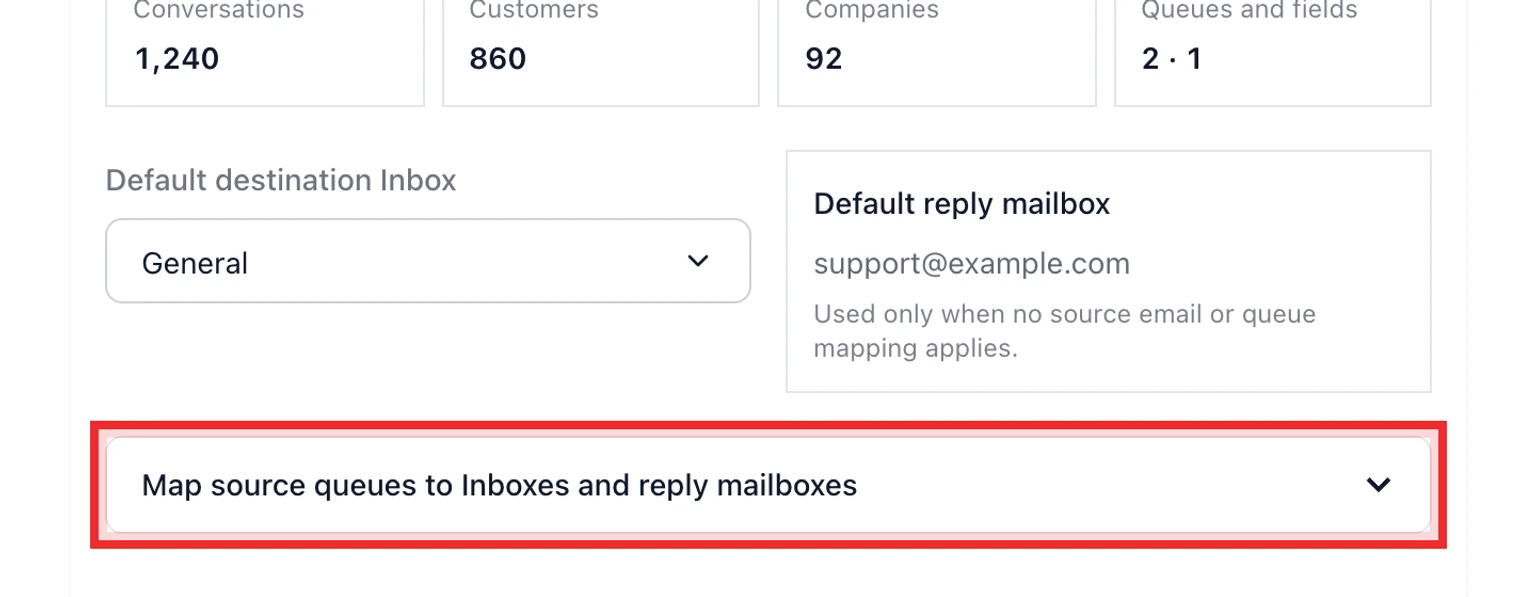
    Migrate from Zendesk: Test then move your data, 1. Map Zendesk groups to DobroDesk Inboxes.
  2. Keep Help Center articles and macros selected if you want review drafts.

    Migrate from Zendesk: Test then move your data, 2. Keep Help Center articles and macros selected if you want review drafts.
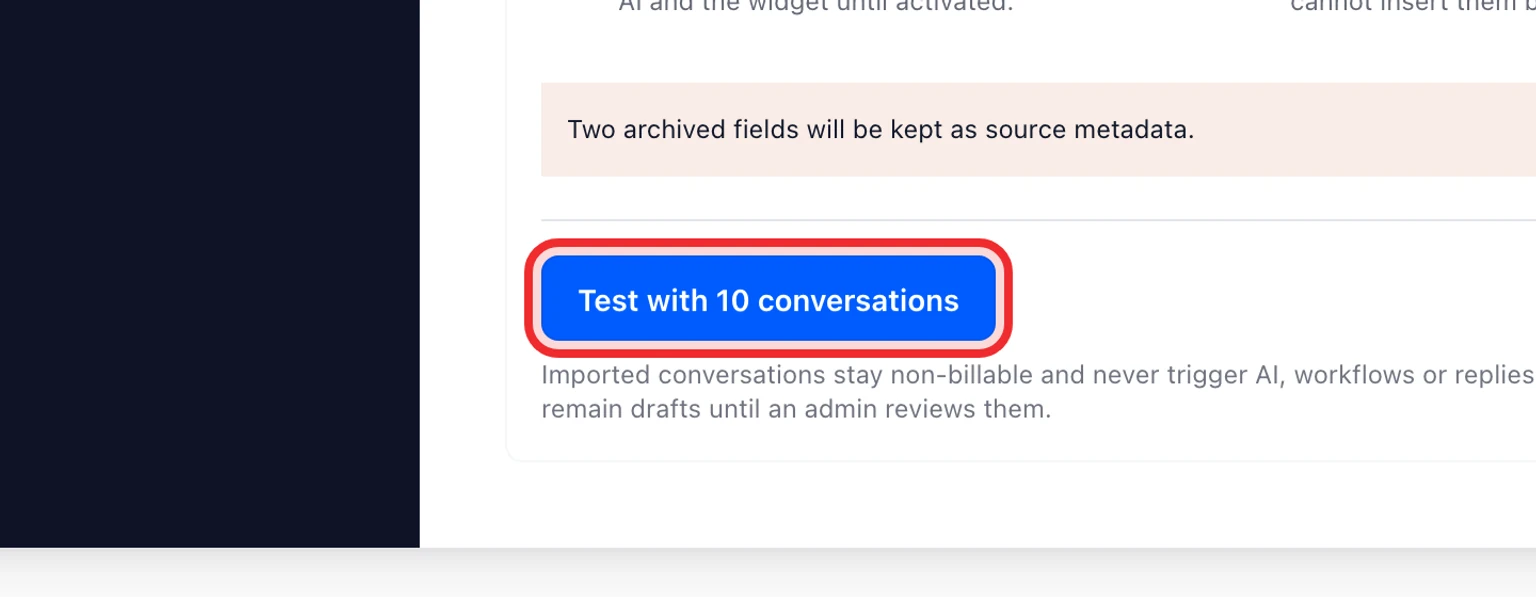
  3. Run a test with 10 tickets.

    Migrate from Zendesk: Test then move your data, 3. Run a test with 10 tickets.
  4. Check customers, organizations, message order, private notes and attachments.
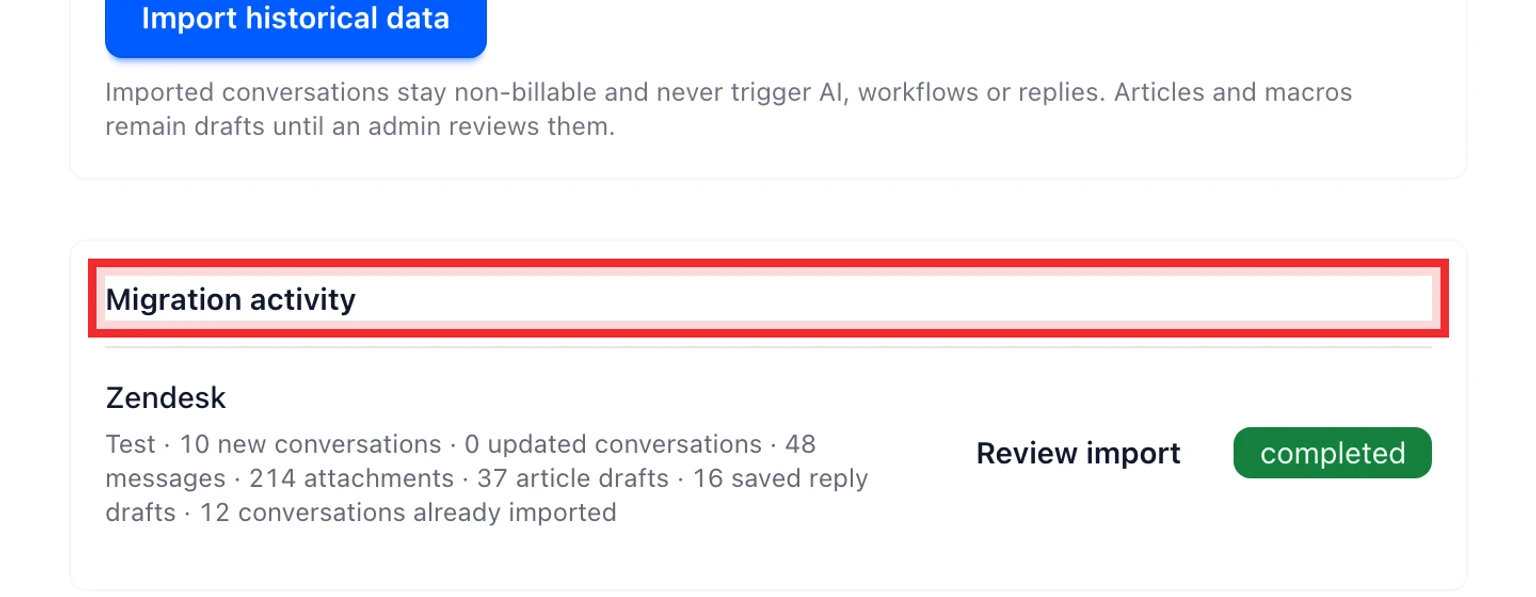
    Migrate from Zendesk: Test then move your data, 4. Check customers, organizations, message order, private notes and attachments.
  5. Run the historical import then run the final sync during cutover.
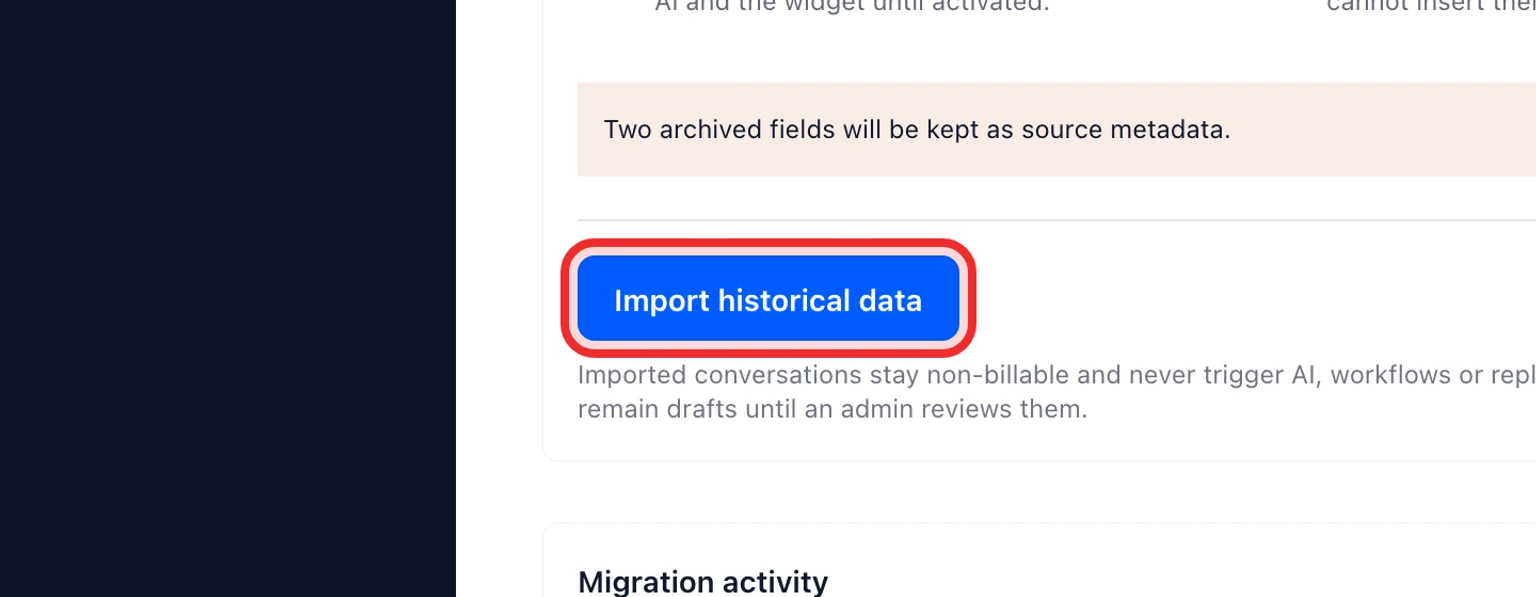
    Migrate from Zendesk: Test then move your data, 5. Run the historical import then run the final sync during cutover.
  6. Review reconciliation and finish the migration.
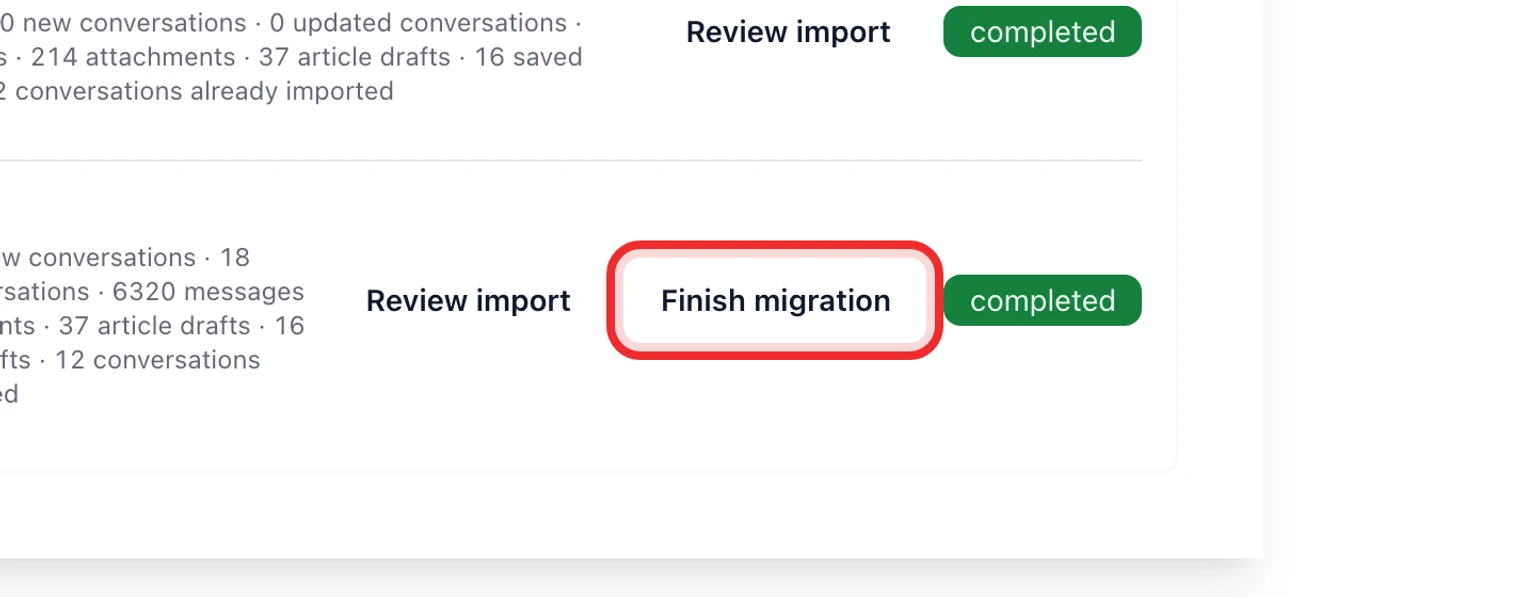
    Migrate from Zendesk: Test then move your data, 6. Review reconciliation and finish the migration.

Keep going