
Find the order behind a delivery question
Match the customer by verified email, confirm the source store and inspect order status, fulfillment and tracking when Shopify provides them.
Shopify customer support
For Shopify stores already connected to DobroDesk, teammates can match customers by verified email and review orders in the conversation. Refunds and cancellations require separate permission and explicit customer confirmation. New installs through Shopify's public App Store listing are currently unavailable.
Connected stores only
Updated
Match the customer by verified email, confirm the source store and inspect order status, fulfillment and tracking when Shopify provides them.
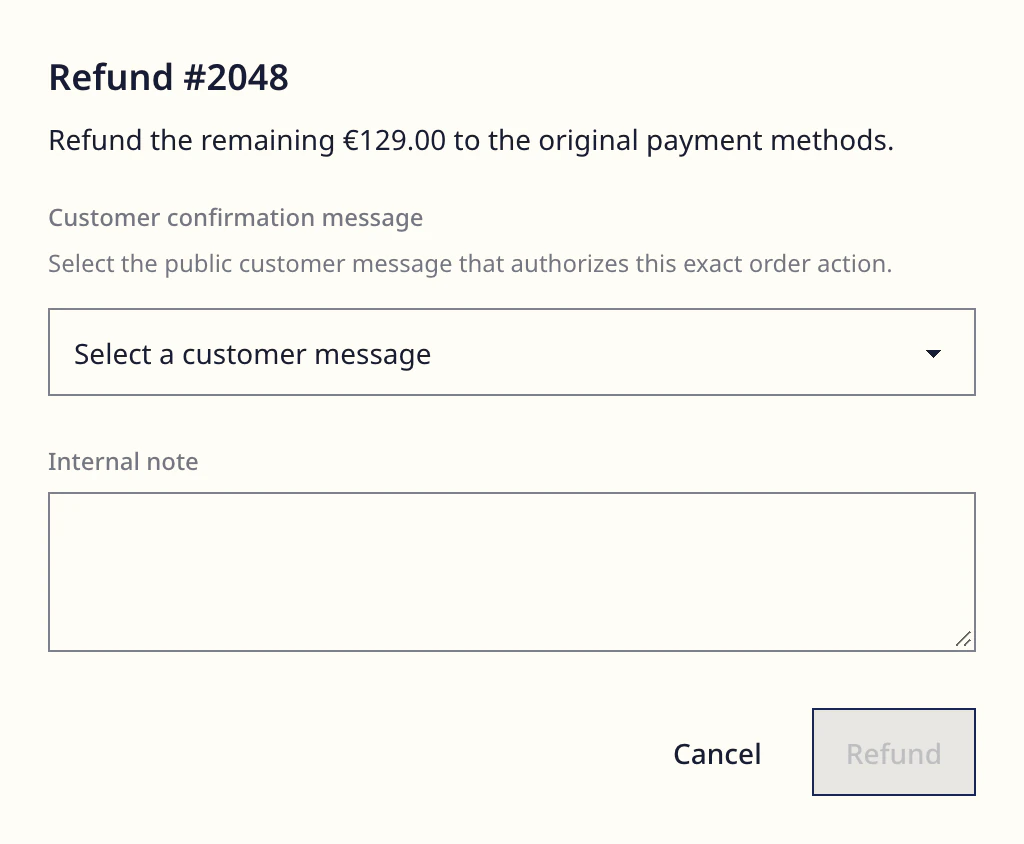
Open the order from the conversation or Overview. Confirm the selected order and options before cancelling. The action requires Manage commerce actions permission and an explicit customer message about this order.
DobroDesk checks the refundable amount again and can refund it in full from this flow. Use Shopify for partial refunds or other refund arrangements.
Shopify records are operator context inside the conversation. Connecting a store does not make its data approved AI knowledge.
Looking up a record does not change the store. A teammate must have permission before using a commerce action.
New installs through Shopify's public App Store listing are currently unavailable. In DobroDesk, open Settings > Integrations > Data integrations to check whether Shopify is already connected to your Workspace.
Confirm the store label, customer match and expected order fields. If a field is missing, check the store access shown in the connection details. Do not use a live refund or cancellation as a setup test. Take an action only for a real order after the customer explicitly confirms that exact action. If Shopify's response is uncertain, verify the linked order in Shopify before another attempt.
Open Settings > Integrations > Data integrations and check whether Shopify is connected to your Workspace. You need the Manage integrations permission.
If a Connect option for Shopify is available in these settings, select it and review the customer, order and return access requested for that store.
Return to DobroDesk, select or create a Workspace and confirm the connection. Check billing if the Workspace does not have an active subscription or prepaid access.
Open a known customer and confirm the verified-email match, source store and expected order details.

Start with one inbox
Choose a support address or place the widget on your site. Then assign requests and reply from the conversation.
No card needed today.