

Updated:
What you'll achieve
Your native app has a clear delivery path for support replies while provider credentials stay limited to the managed setup flow.
Prepare the native app
- Install the optional native push artifact only when your app needs notifications. Framework wrappers expose `client.attachPush(...)` with a platform PushPort adapter. The host still owns native permission, device-token access and notification opening.
- Use the published typed client event hook (`client.events` in Flutter or `client.subscribe(...)` in JavaScript wrappers) while the app and native client are active. Handle `snapshot` in your own in-app conversation UI.
- The hook emits `snapshot` after the client starts or resumes a session or after you explicitly call `client.refresh()` or `client.waitForAssistant()`. The host owns any DobroDesk APNs or FCM callback and decides whether to call `client.refresh()` or update its own UI. Use the signed `message.created` webhook to drive your app's background delivery.
- This is a foreground refresh signal, not a continuous realtime watcher or unread event. It does not schedule local notifications or request notification permission.
- Choose who owns delivery. Select Off when the app should not receive DobroDesk mobile push, Use my app's delivery when your own backend sends APNs or FCM notifications or DobroDesk manages delivery when DobroDesk sends them.
- Off disables delivery by DobroDesk only. If your app uses its own relay, configure its opt-out rules in your app backend. This setting does not change webhook subscriptions.
- For Use my app's delivery, keep APNs and FCM credentials in your own backend. Never paste provider keys into the native app source code or a conversation.
Choose a delivery mode
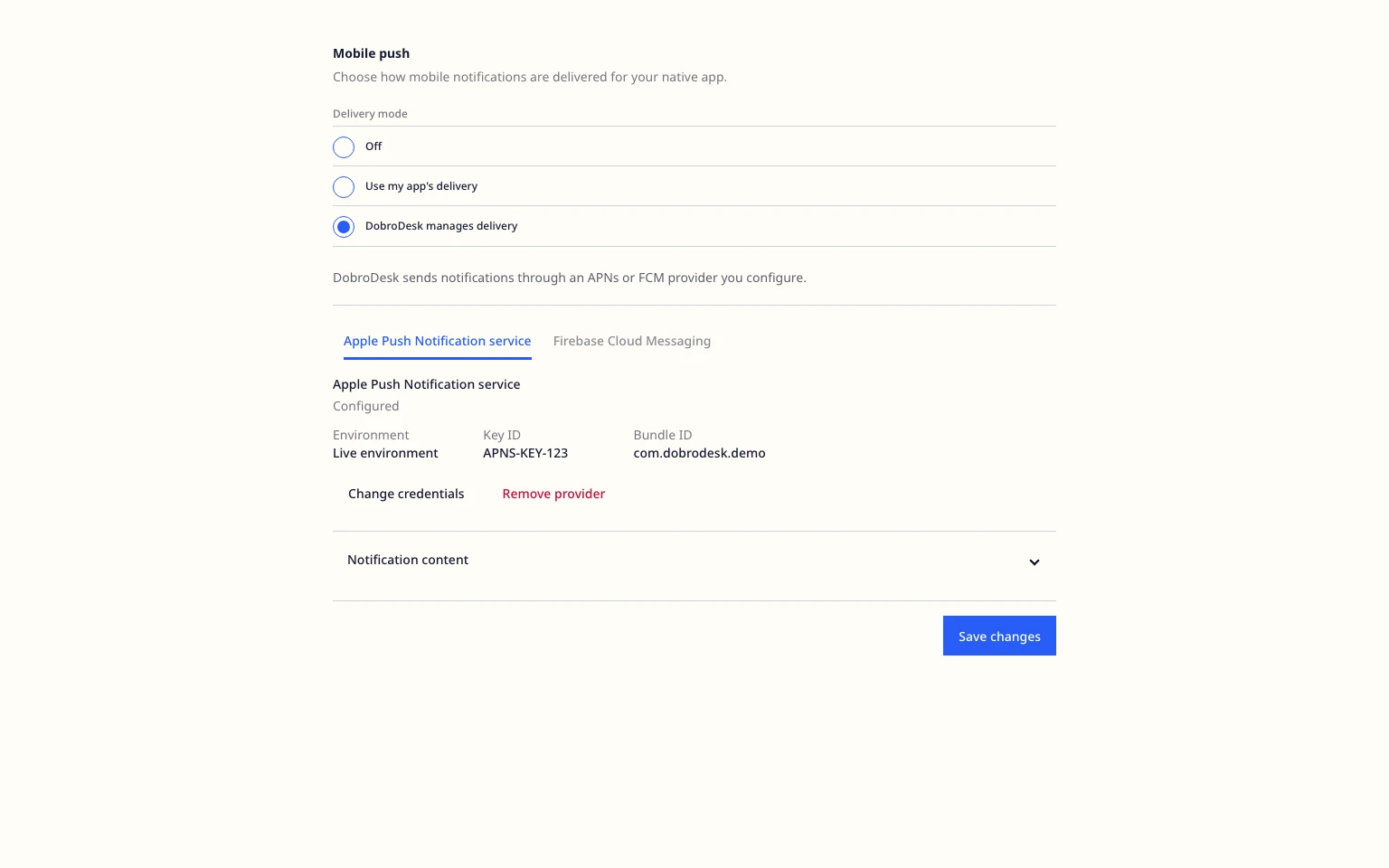
Open Settings > Channels > Mobile push.
Select Off to keep mobile push inactive. This does not ask for provider credentials.
DobroDesk delivery is disabled. Your app controls its own notification delivery.
Select Use my app's delivery when your app backend owns APNs or FCM delivery. Open the linked guide for the device registration flow, then save the mode.
Select DobroDesk manages delivery when DobroDesk should deliver the notification. Choose APNs or FCM, select Add provider and enter the fields for that provider.
The provider fields for DobroDesk manages delivery stay hidden until you choose Add provider or Change credentials. Existing private keys are never shown again.
Open Notification content when you want to edit the short title and body. The section stays collapsed until you need it.
Select Save changes. The mode where DobroDesk manages delivery requires at least one configured provider. The DobroDesk delivery route is used only for this mode.
Verify delivery safely
Register a test device through the native app and associate it with the intended workspace account.
When DobroDesk manages delivery, send a teammate reply in a test conversation and confirm that the device receives the permitted notification for that workspace.
When Use my app's delivery is selected, send the test notification through your own backend and confirm that the device token and app permissions work before investigating DobroDesk settings.
If DobroDesk manages delivery and it fails, check the provider environment, app identifier, credentials and token registration before changing the notification copy.
To rotate credentials, select Change credentials, enter the new key and save. To remove a provider, select Remove provider, confirm the action and save again. If it was the last configured provider, saving turns mobile push delivery off.
Put this guide into practice
Open Setup Center to apply the instructions in your workspace. Sign in when prompted.