

Updated:
What you'll achieve
A tested Zap starts from a new DobroDesk conversation or adds a note that only your teammates can see.
Before you connect
Open the official DobroDesk invitation from Settings > Integrations > Zapier and accept it in the Zapier account that will run your automation. Anyone with owner or admin access to their DobroDesk workspace can use this setup link. The app is currently marked Invite Only in Zapier and is not listed in its public app directory.
You need a Zapier account and owner or admin access to the DobroDesk workspace. A Zap is an automation with a trigger that starts it and one or more actions that follow.
- New Conversation starts a Zap when a new conversation is created. You can choose one Inbox or leave the Inbox field empty to include all Inboxes.
- Add Internal Note adds text to an existing conversation for your teammates. It does not send a reply to the customer.
- The pilot does not offer triggers for new messages or conversation updates, or actions to send replies, assign teammates or change a conversation's status.
Create the access key your Zap needs
Start automations lets the key read conversation identifiers, Inbox, status, source channel and timestamps across the workspace. It cannot read message text or attachments. Choosing an Inbox filters delivered events, but does not narrow the key's workspace-wide access to this metadata.
Add internal notes grants permission to add a note to any conversation in the workspace. Share neither key in a screenshot, email, customer message or public document.
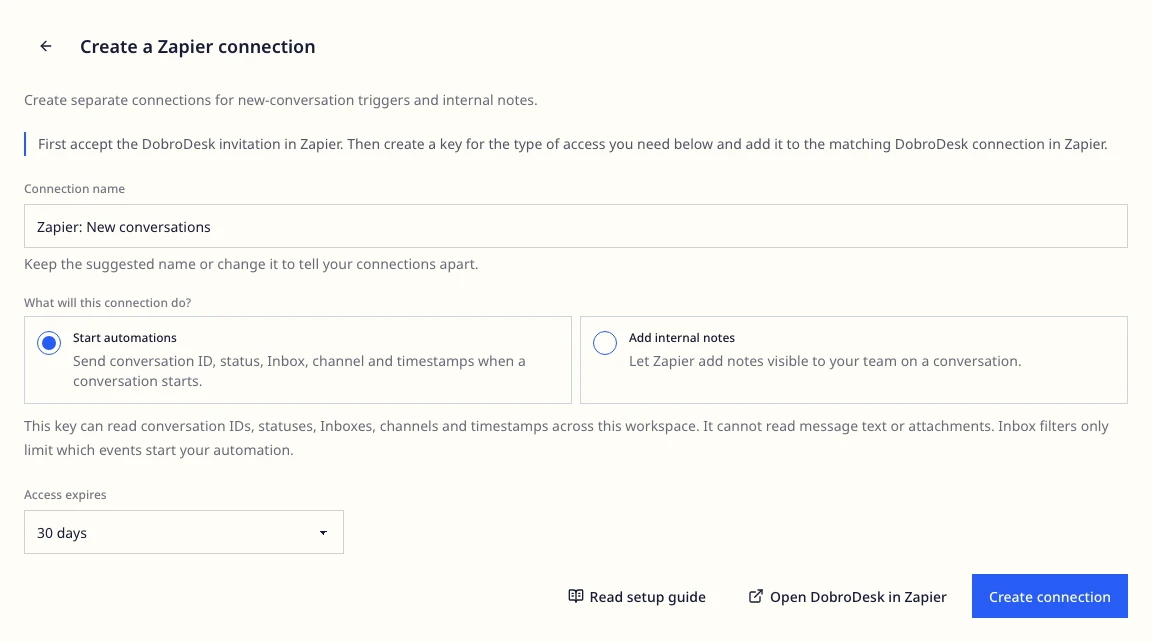
In DobroDesk, open Settings > Integrations > Zapier and choose Create connection.
Give the connection a name you will recognize, such as CRM new conversations.
Choose Start automations for the New Conversation trigger or Add internal notes for the note action. Use a separate connection and key for each purpose.
Choose when access expires: 30, 90 or 365 days. Select Create connection.
Copy the access key and paste it into the DobroDesk Access key field when connecting the DobroDesk account in Zapier. The key is shown only once. Confirm that you have saved it after connecting.
Start a Zap from a new conversation
Conversation ID identifies the conversation. Event ID identifies the event that started this run. Keep those fields when you need to link an external record or return a note to the same conversation.
An event can be delivered more than once. If the destination creates records, use its find-or-create, update-or-create or duplicate-prevention option where available. Testing a destination action may create a real record in that app.
Create a Zap in Zapier. Choose DobroDesk from your invited apps and select the New Conversation trigger.
Connect the DobroDesk account using the key created for Start automations. If you already connected a note key, add a separate account connection for this trigger.
Optionally select an Inbox. Leave it empty if the Zap should receive new conversations from every Inbox.
Test the trigger with a new conversation created with fictional information through a published widget or another active connected channel. The isolated test chat in Setup Center does not send integration events or start notifications and automations, so it cannot start a Zap.
Choose the next app and action, such as creating a task in your team's task tool. Select the DobroDesk fields that the action needs, then test that action.
Add an internal note from Zapier
When retrying or replaying the same note, keep its source ID and text unchanged. With the same connection, DobroDesk returns the existing note instead of adding another. Changing the text while reusing that source ID causes a conflict. Check completed runs before retrying with a replacement key, because the replacement connection has a separate duplicate-prevention history.
Add a DobroDesk action and select Add Internal Note. Use a separate account connection with the key created for Add internal notes.
In Conversation ID, select Conversation ID from the earlier New Conversation step. For a Zap that starts in another app, supply the ID of the existing DobroDesk conversation that should receive the note.
Enter the Internal note text. You can include fields from earlier steps, such as a task reference. The limit is 20,000 characters.
In Source event or operation ID, select Event ID from New Conversation. For another starting app, select a stable identifier for that specific note operation. Use a different value for each intended note.
Test the action. Open the conversation in DobroDesk and confirm that the text appears as an internal note, rather than a customer reply.
Publish and check a complete run
Check Zapier's current plan limits for your chosen apps and number of steps before relying on the automation. A DobroDesk invitation does not establish eligibility for a particular Zapier plan.
Review the test results for every step and publish the Zap when its destinations and note text are correct.
After publishing, create a fresh conversation with fictional information through a published widget or another active connected channel. An earlier editor sample does not prove that the published Zap receives a new event.
Open Zap History in Zapier and check that the new run completed. Confirm the expected record in the destination app and any internal note in DobroDesk.
If the Zap does not work
If you need help, send support the failed step, approximate time with time zone and a screenshot with access keys and customer information hidden.
- DobroDesk is missing from the app picker: open the official invitation from DobroDesk settings and accept it in the same Zapier account you are using to build the Zap. Check that you have not switched to another Zapier account.
- The account connection fails: check whether the DobroDesk connection is active or expired and whether you copied the complete key. A key that was not saved cannot be shown again. Revoke that connection and create a replacement.
- A step lacks permission: use Start automations for the trigger and Add internal notes for the note action. Reconnect the affected step with the matching key.
- If a published Zap receives no new conversations, check that the Zap is on, the key is active and the conversation belongs to the selected Inbox. Create a new conversation through a published widget or another active connected channel. The isolated test chat in Setup Center does not send integration events. A new message in an existing conversation is not a new-conversation event.
- A note fails or reports a conflict: check Conversation ID, the text limit and the source operation ID. Check whether the note already exists before replaying the run.
Replace or disconnect Zapier access
Open Settings > Integrations > Zapier and select a connection to see its status, expiry and last access. Trigger connections also show their active trigger count. Last access means the key was used, not that every Zap step completed successfully. Check Zap History for the run result.
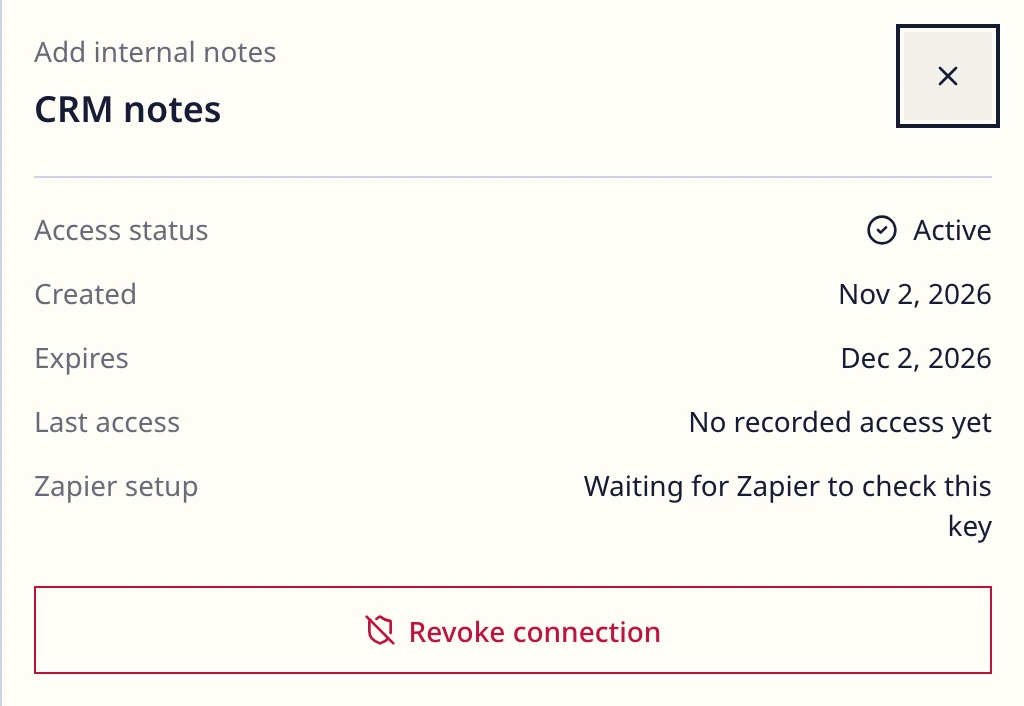
To replace an expiring key, turn off the affected Zap, create a new connection for the same purpose and reconnect its step in Zapier.
Check earlier runs for completed notes or destination records before testing the replacement. Revoke the old connection once the replacement is configured, then publish and verify a fresh run.
To disconnect completely, turn off the Zap in Zapier first. In DobroDesk, select each connection used by that Zap, choose Revoke connection and confirm. Revoke both keys if the Zap uses a trigger and a note action.
Put this guide into practice
Open Setup Center to apply the instructions in your workspace. Sign in when prompted.