
What you'll achieve
Customer WhatsApp messages arrive as conversations in your chosen Inbox after Meta verifies the callback.
Prepare the WhatsApp Business details
- An active Brand, Inbox and reply mailbox in DobroDesk.
- A Meta app with access to the WhatsApp Business Account and phone number you intend to connect.
- The Phone number ID, WhatsApp Business Account ID, Access token and App secret from that same Meta app.
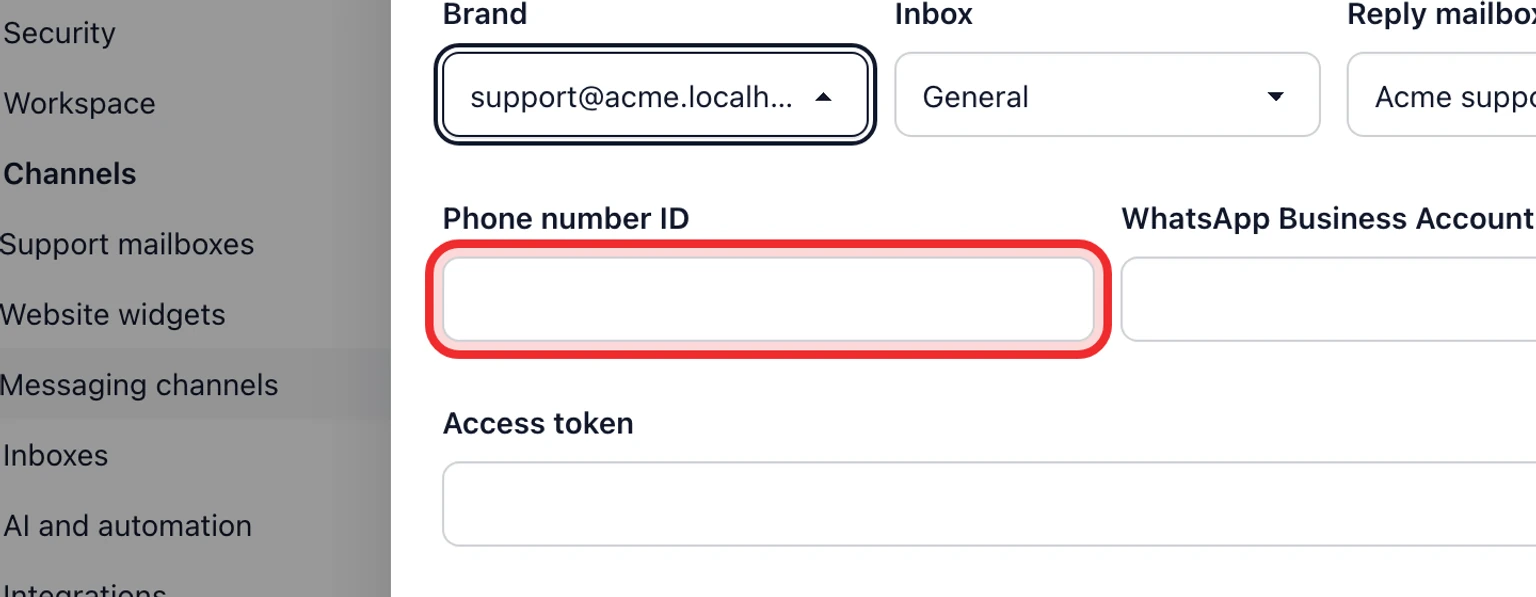
The Phone number ID is not the customer-facing phone number. Do not paste a personal WhatsApp number or a Business Account ID into this field.
Save the WhatsApp connection
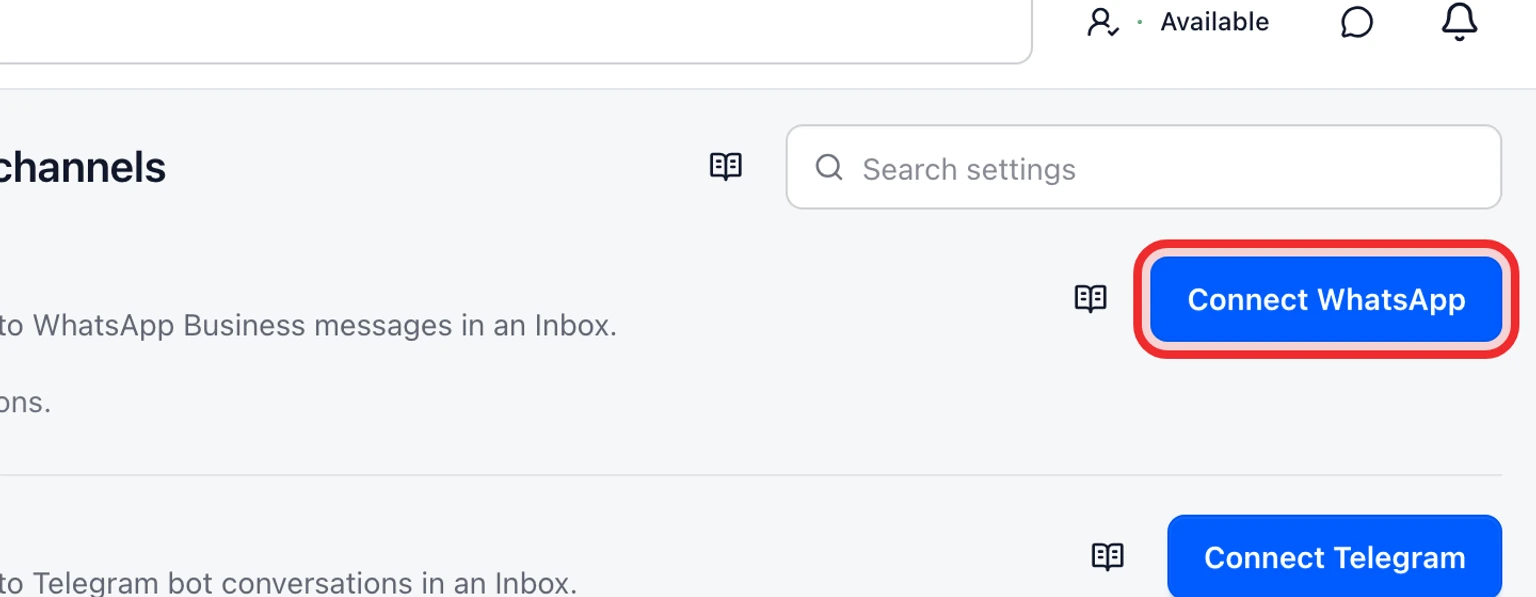
Open Admin > Channels > Messaging channels and select Connect WhatsApp.
Choose the Brand, Inbox and Reply mailbox that should own this channel.
Enter Phone number ID, WhatsApp Business Account ID, Access token and App secret.
Keep the generated Verify token, then select Save and continue.
Copy the Callback URL and Verify token shown by DobroDesk.


Complete callback verification in Meta

Open the WhatsApp configuration for the same Meta app and add the copied Callback URL.
Paste the copied Verify token and complete Meta's callback verification.
Return to Messaging channels and confirm that the connection status changes from Action required to Active.
Send a WhatsApp message from a customer test number and confirm it becomes a conversation in the selected Inbox.
Saving the connection alone is not activation. A status of Action required means Meta has not completed callback verification yet. Use credentials from the same Meta app and Business Account, otherwise verification or delivery will fail.