
What you'll achieve
After Meta verifies the callback, eligible customer DMs can enter the selected Inbox as support conversations.
Prepare the Instagram details
- An active Brand, Inbox and reply mailbox in DobroDesk.
- The exact Facebook Page ID and professional Instagram account ID linked to that Page.
- The Page access token, Meta App secret and verification token from the matching Meta app.
Treat the Page access token, App secret and Verify token as credentials. Do not share them in chat or a document. DobroDesk verifies that the professional account belongs to the supplied Page before it creates the connection.
Finish callback verification in Meta
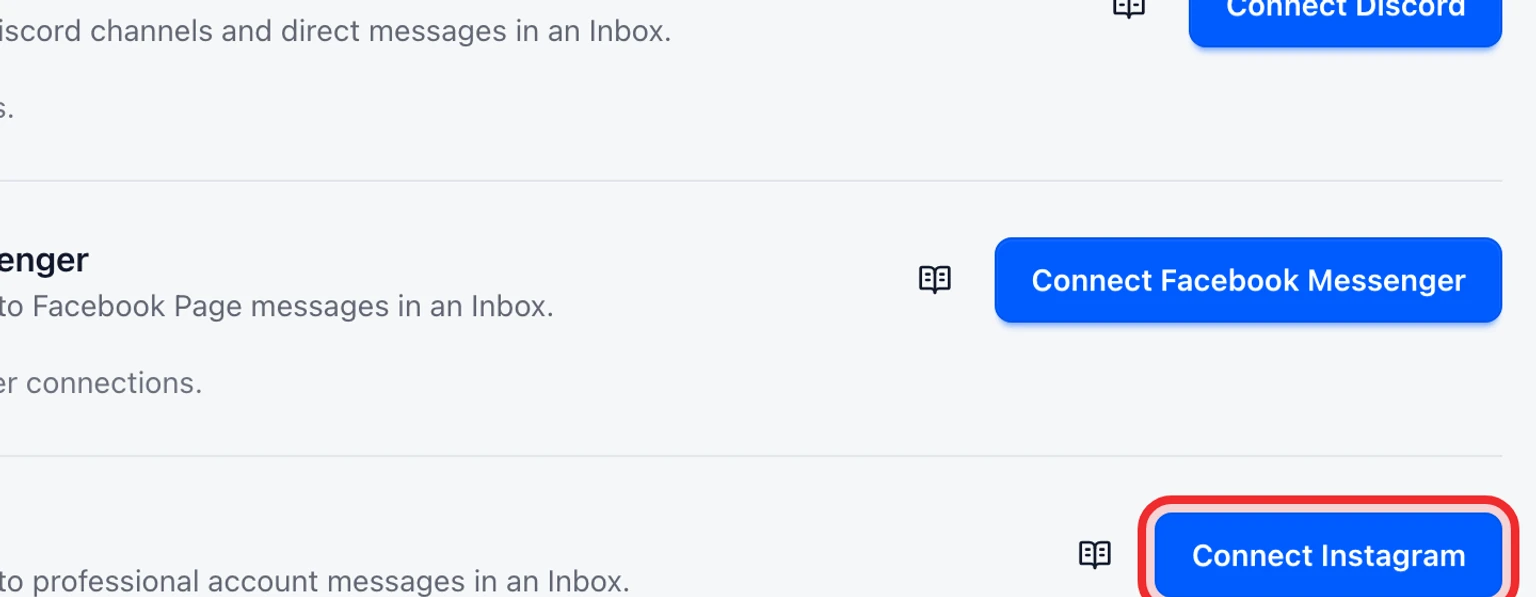
Open Admin > Channels > Messaging channels and select Connect Instagram.
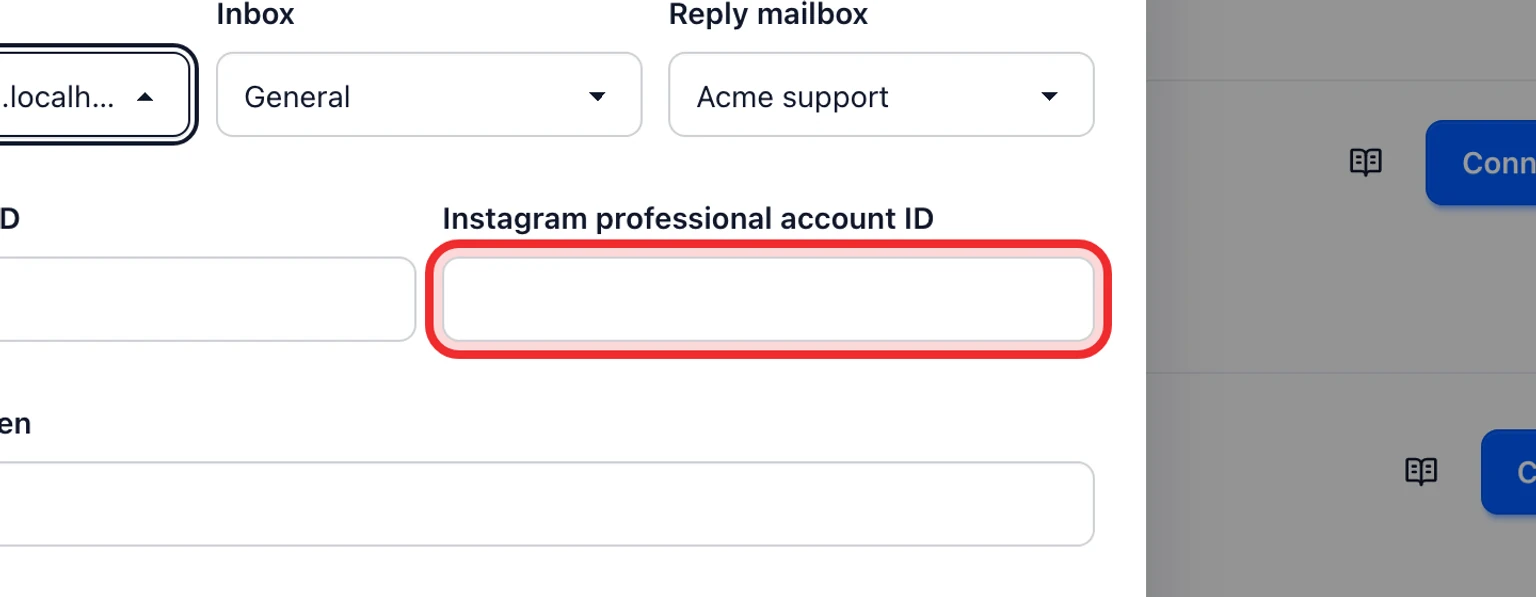
Choose the Brand, Inbox and Reply mailbox that should own this channel, then enter the Facebook Page ID, Instagram professional account ID, Page access token, App secret and Verify token.
Select Connect. DobroDesk verifies the Page and professional account and shows a Callback URL and Verify token.
Copy both values into the matching Meta app webhook configuration and complete Meta's callback challenge.
Confirm the connection is Active, then send a customer-initiated test DM to the professional account.


Saving a connection starts it as Action required. Instagram free-text replies require approval, a current seven-day customer-care window and a recorded customer-initiated DM. DobroDesk cannot use this connection for unsolicited DMs.