
What you'll achieve
New conversations go only to available teammates who are below their assignment limit.
Choose your availability
Open the availability menu in the top bar.
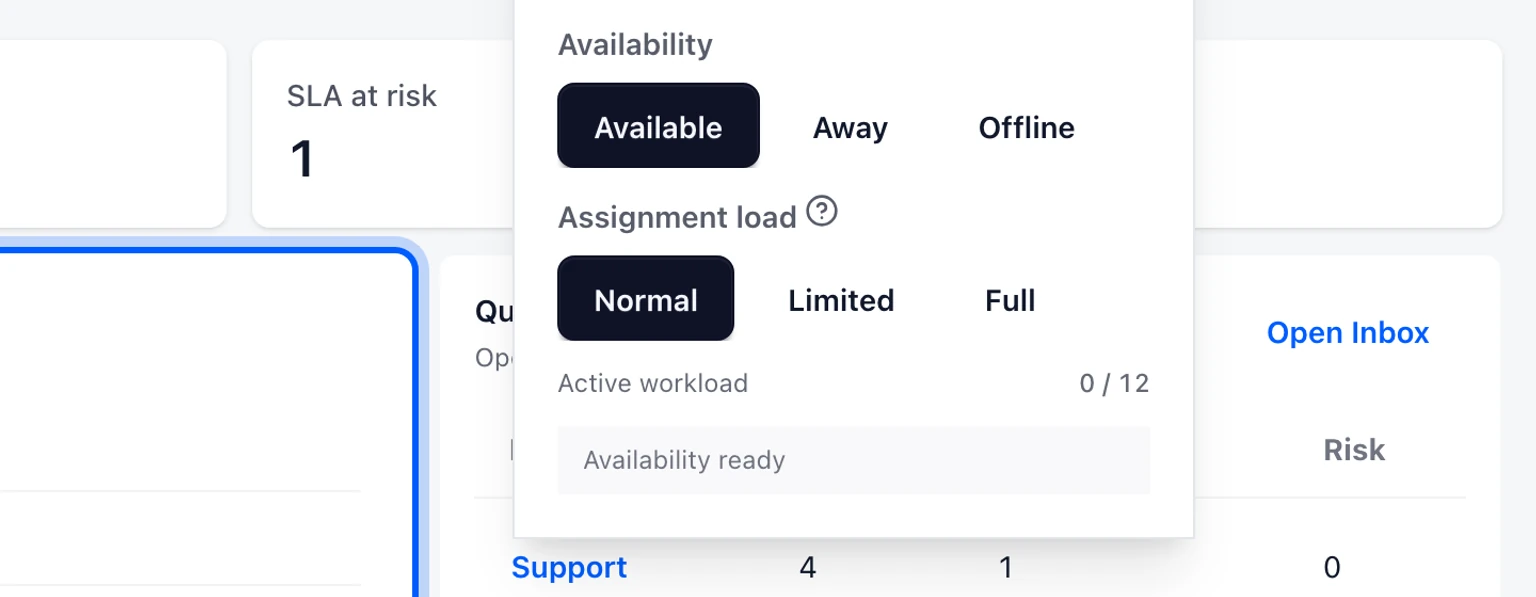
Choose Available when you can receive new work, Away for a temporary pause or Offline when your shift ends.
Choose an away reason so teammates can understand your coverage state.
Choose whether new customer replies should return to the Inbox while you are away.

Away and Offline stop new automatic assignments. Existing conversations stay assigned unless a customer replies and return-to-Inbox is enabled.
Control assignment load
- Normal participates in automatic assignment at full priority.
- Limited stays eligible but is considered after teammates with normal load.
- Full pauses new automatic assignments without changing your availability label.
- The numeric assignment limit is a hard cap on active conversations.
Set teammate limits
Open Admin > Inbox > Inboxes and teams.
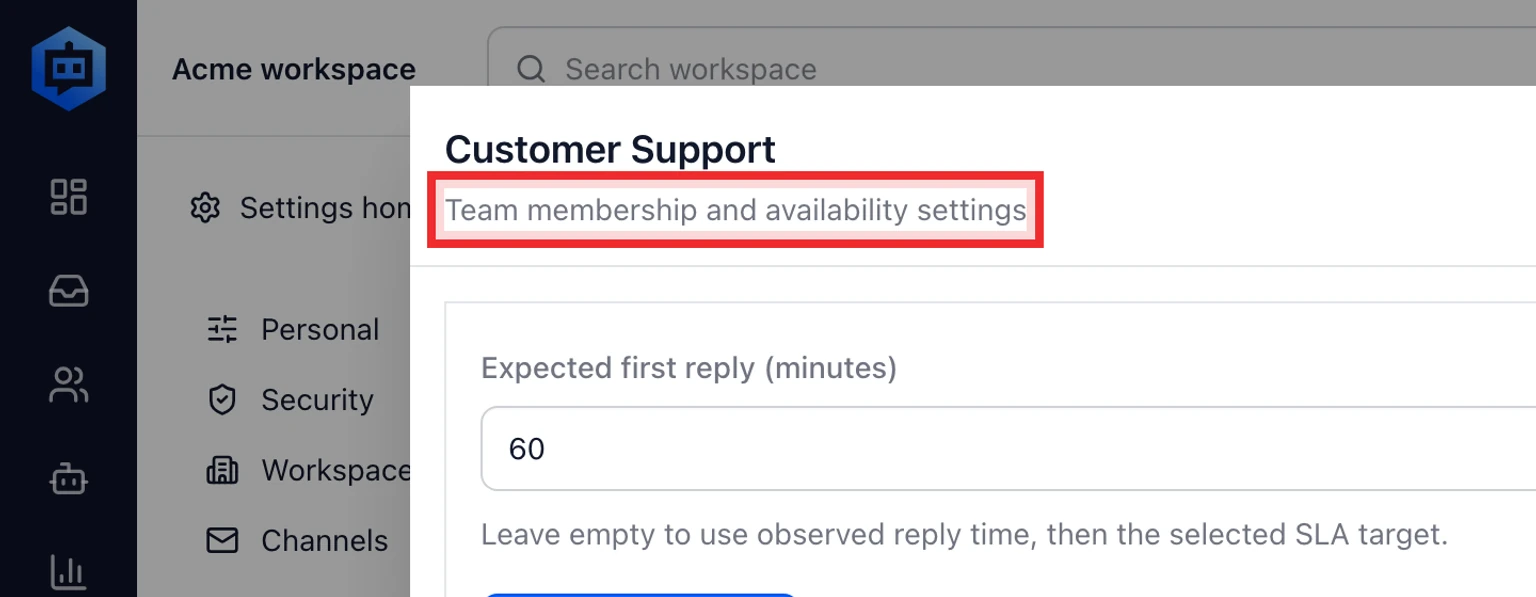
Choose a team and find the teammate under Team membership and availability settings.
Set the maximum active assignments and save the team.
