
What you'll achieve
Customers see a recognizable support identity, useful expectations and only the contact options your team is ready to handle.
Choose the name customers will see
Workspace name shown to customers appears in the widget header and customer-facing system messages. Use the company, brand or support team name a visitor already recognizes. Acme Support is clearer than an internal department code such as CX Team 2.
Integration ID is different. DobroDesk generates this random public identifier after creation and places it in the copied widget code. You can regenerate it from the widget settings if the installation must be replaced.

Choose when the widget accepts messages
- Draft keeps the public widget unavailable while you prepare and test its configuration in DobroDesk.
- Active accepts customer traffic and is the correct status for a launched widget.
- Paused preserves the configuration but stops new conversations while you investigate or make a temporary operational change.
- Disabled keeps the saved configuration but makes the public widget unavailable when it should no longer be used.
Understand the customer conversation
The website widget gives customers one support experience. They can send a message and return in the same browser to see your team's reply. DobroDesk handles the underlying message delivery without exposing technical channel choices in widget setup.
Open the widget on the real website and select Contact support.
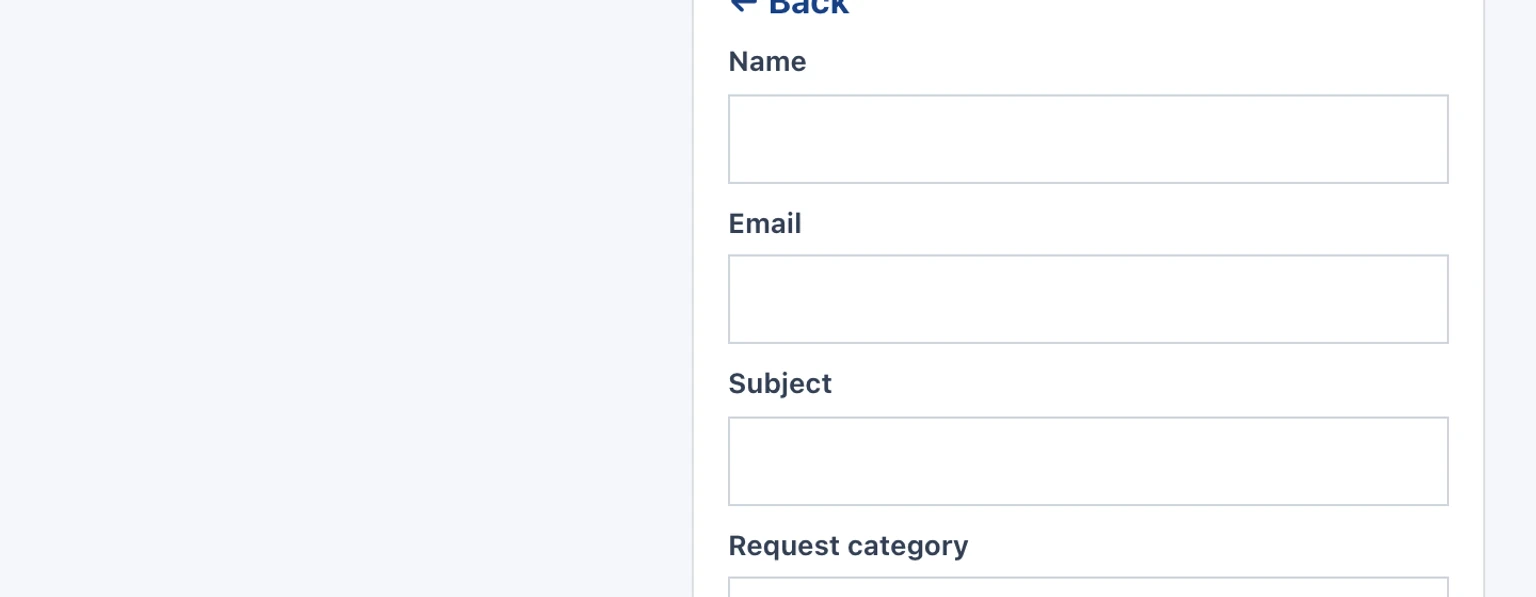
Confirm the email and message fields are clear to a customer.
Send a message and verify that it reaches the selected Inbox.
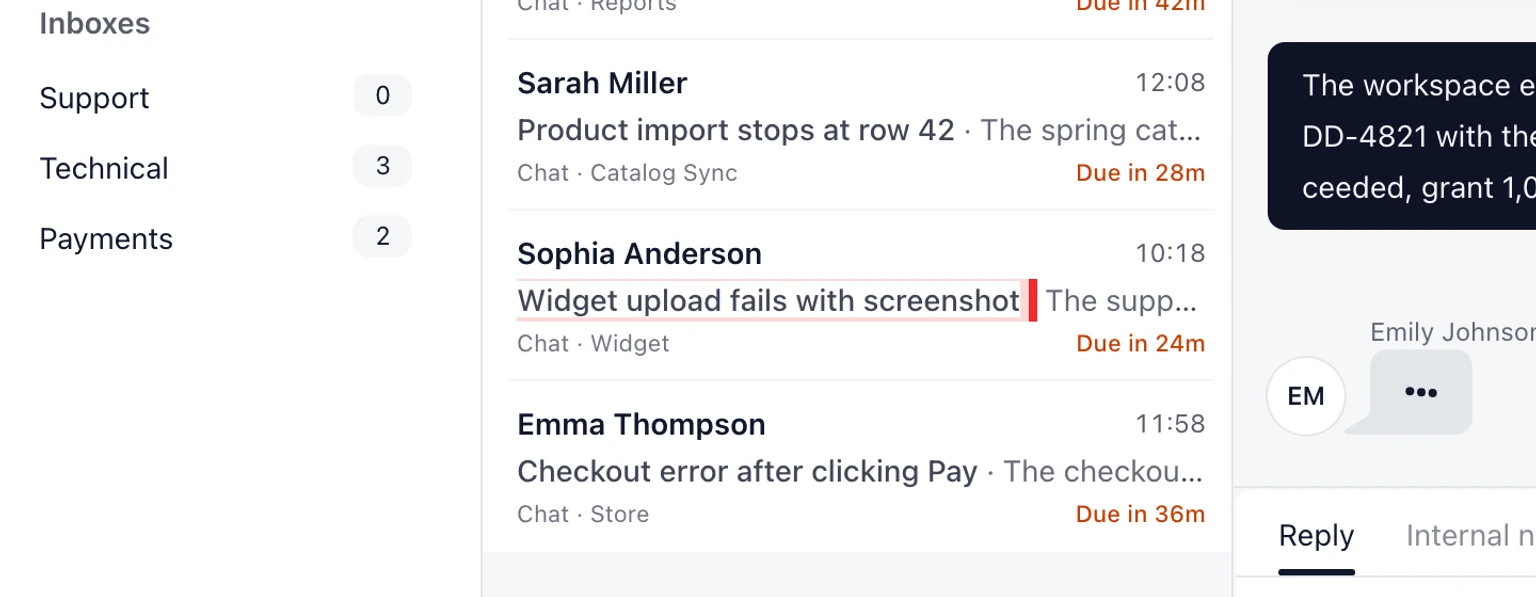
Reply from DobroDesk and confirm the customer can return to the same browser and read it.


Review the information inside the widget
Open the widget on a real page and check the public support name in the header.
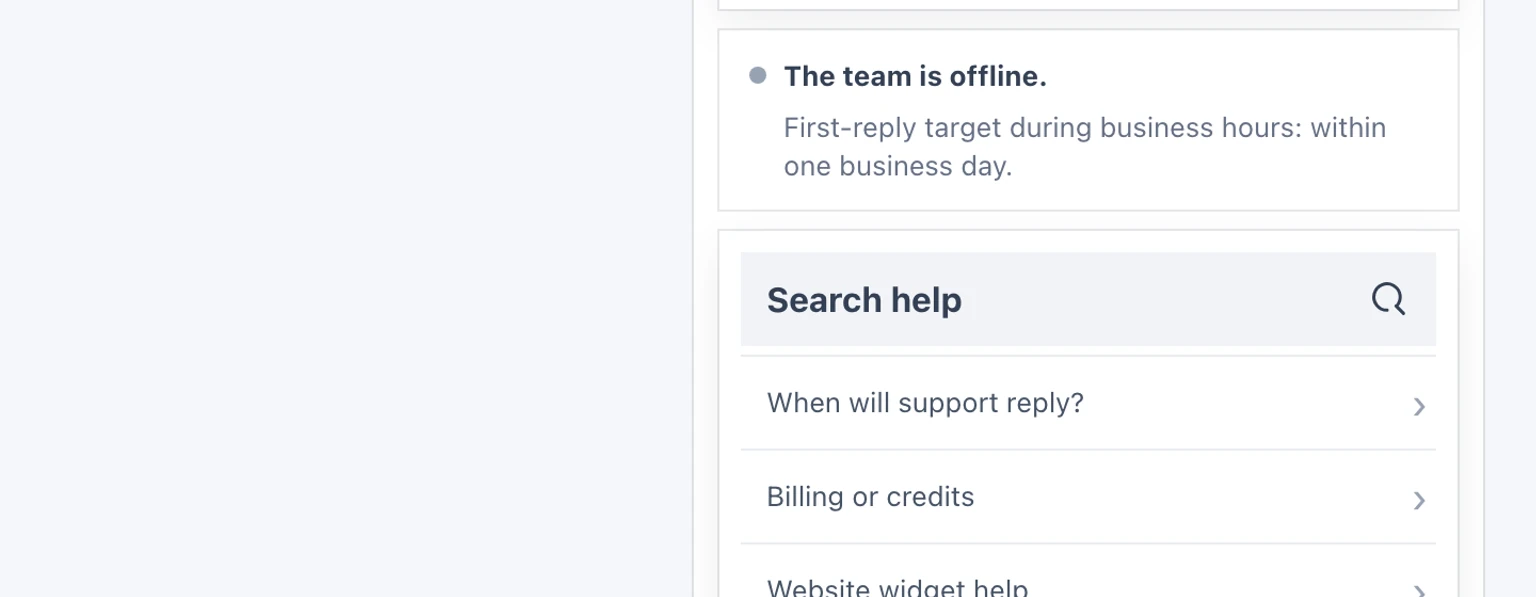
Read the availability and reply-time message as a customer. It should set an honest expectation based on your business hours and team coverage.
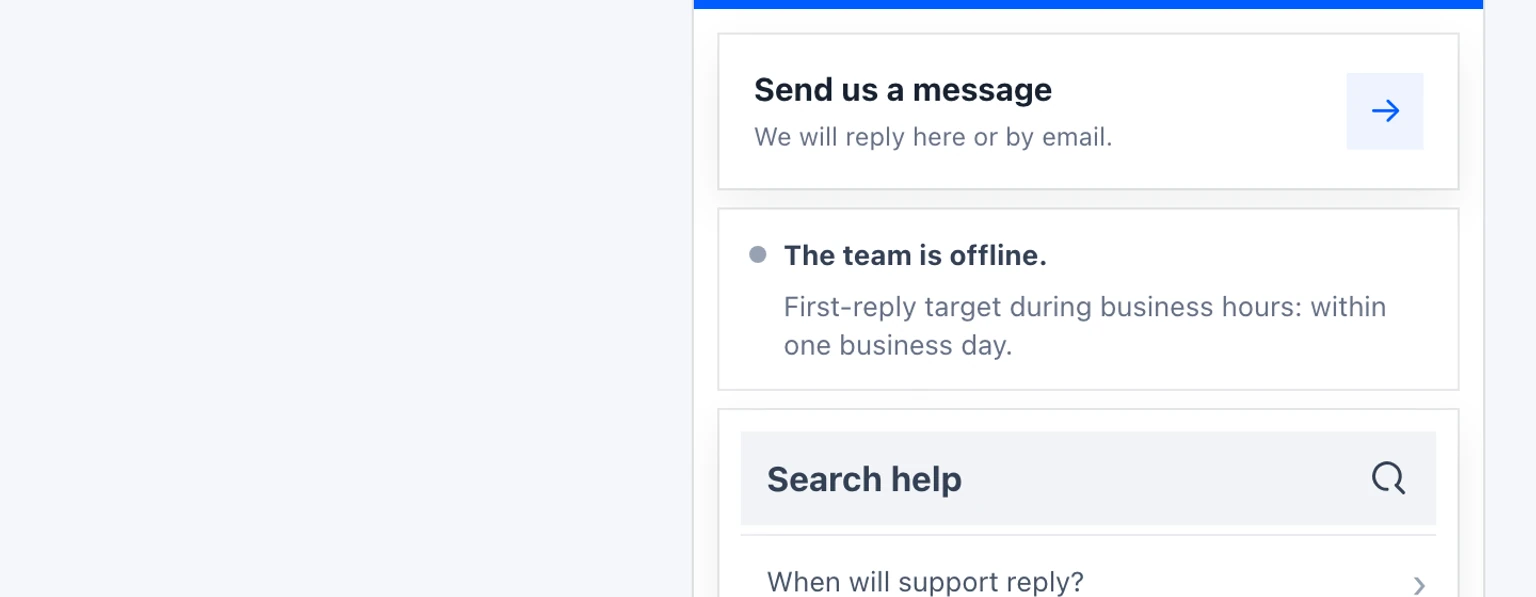
Open every suggested answer. Only approved public information should appear. Remove outdated prices, private procedures or unfinished drafts from customer-facing knowledge.
Select Contact support and confirm the email and message fields are understandable without internal terminology.


Use separate widgets when the experience differs
One widget can serve pages that share the same support identity, website addresses and destination Inbox. Create a separate widget when another brand needs a different public name or another website needs a different Inbox or reply email.
Do not create a second widget only because a page layout changed on the same website. Keep one widget when the support experience and ownership are unchanged. This makes installation, testing and future troubleshooting easier.
- Use names customers recognize rather than internal abbreviations.
- Keep reply expectations accurate instead of promising instant support.
- Review public answers whenever products, policies or opening hours change.
- Test from the customer's view after every public setting change.