
What you'll achieve
Customers can browse approved answers and open each article at a stable URL.
Prepare public articles
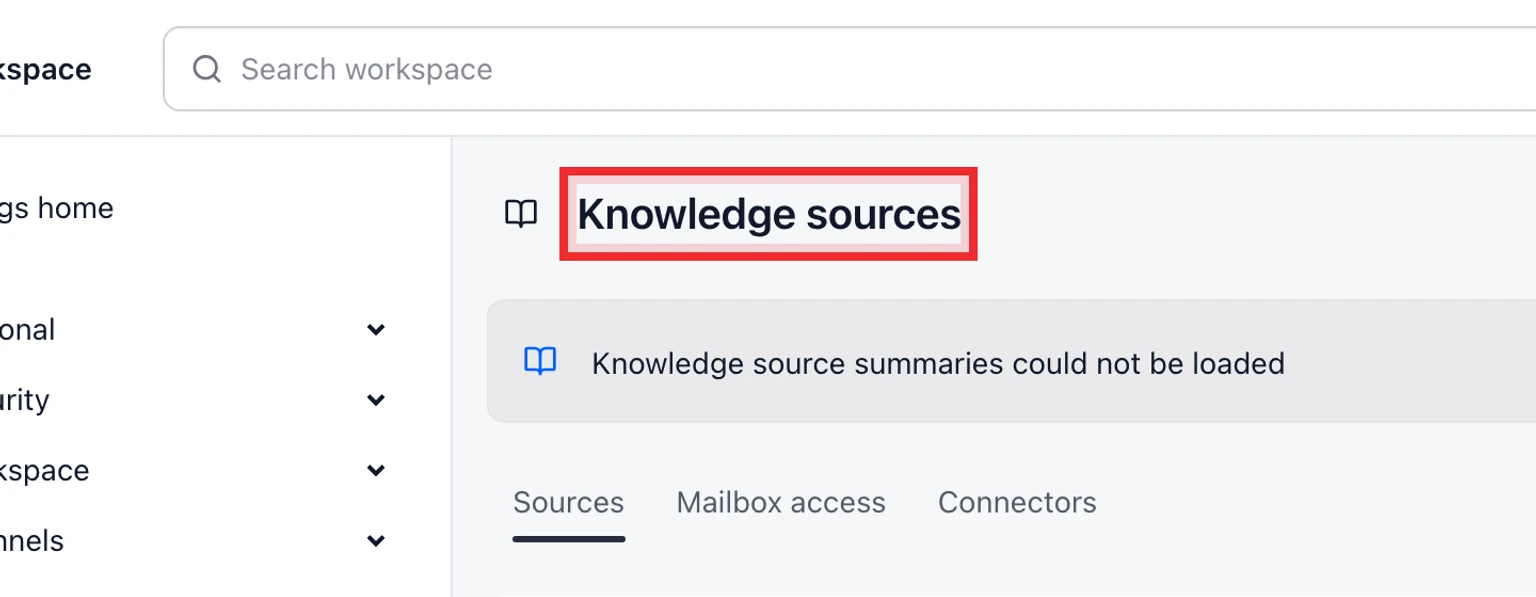
Open Admin > AI & Automation > Knowledge sources.
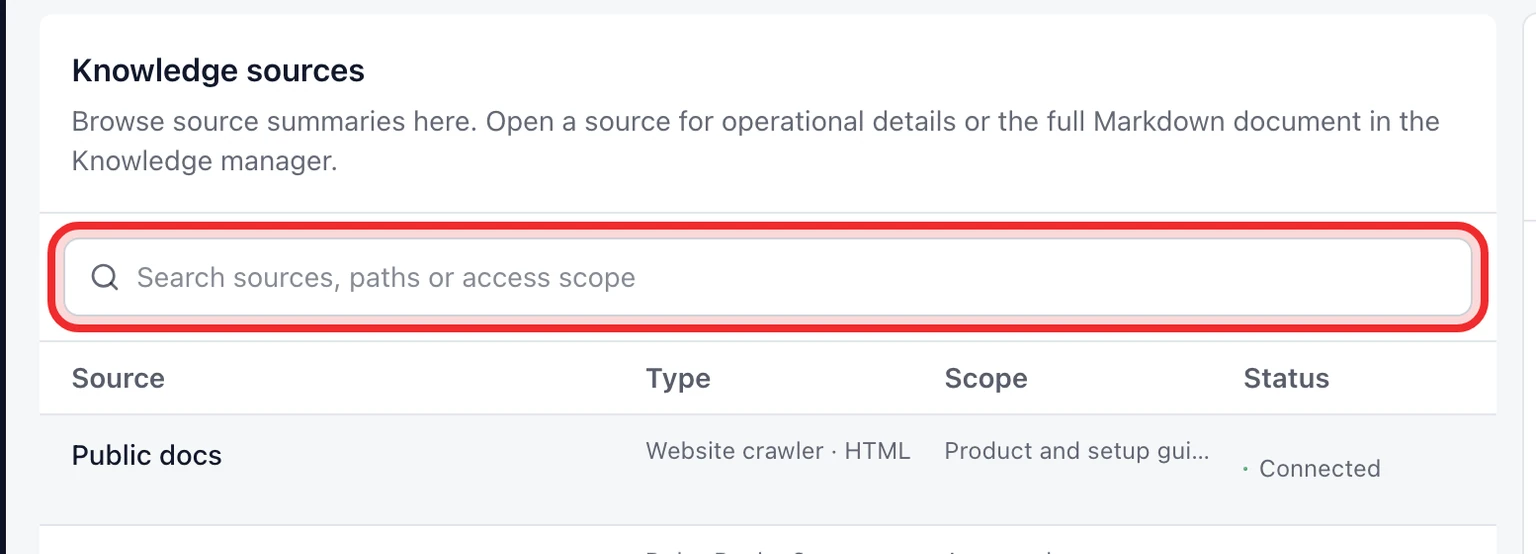
Choose New article and enter the title, customer question, reviewed answer, language and collection.
Save the article as a private draft then review its search metadata, audience and Brand scope.
Approve the article when it is accurate. Approval makes it eligible for a Help Center but does not publish it to every site.
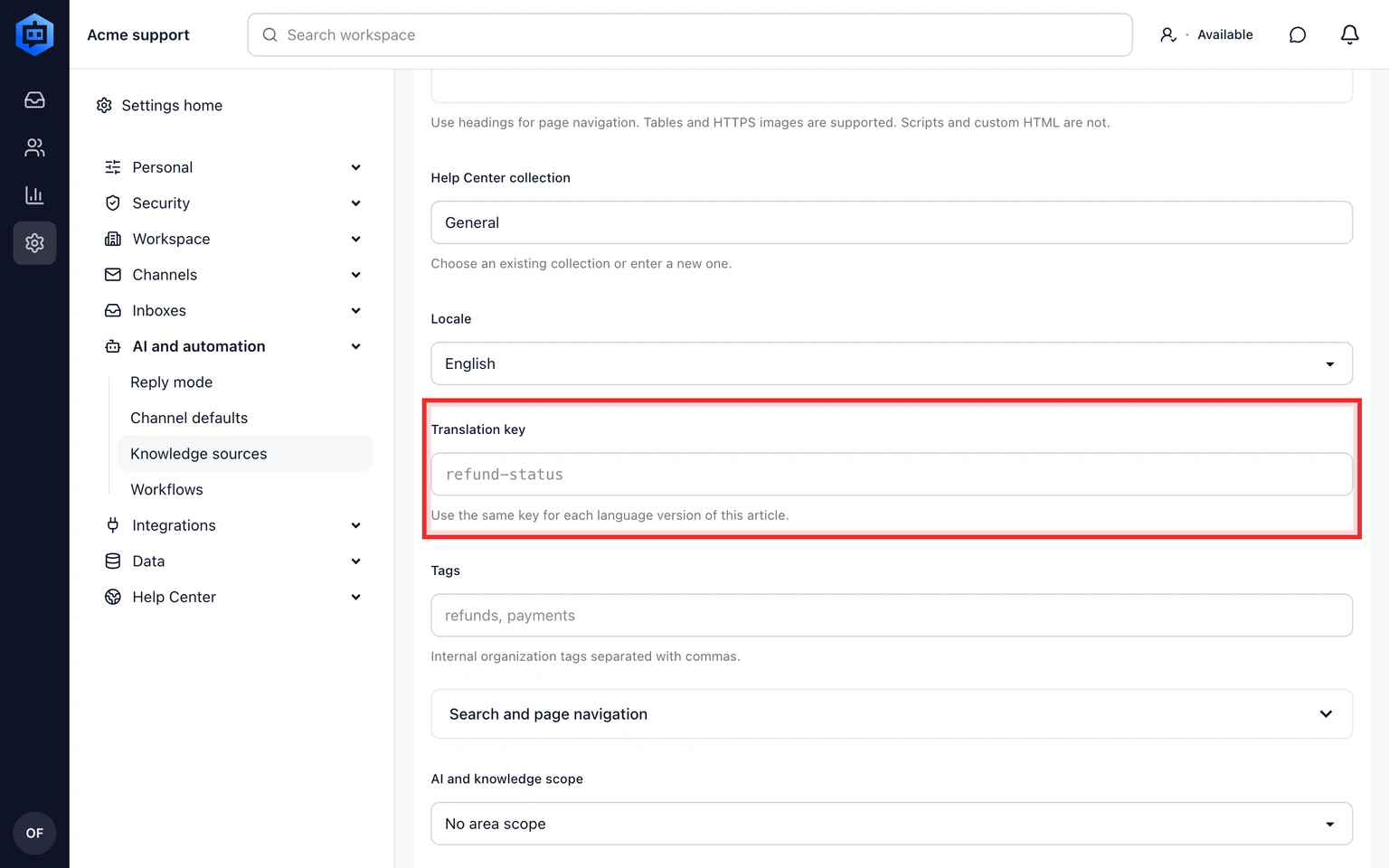
Create one article for each language, then give matching versions the same translation key so Admin can flag missing translations.


Review or restore an earlier version
Select an existing Public FAQ in Knowledge sources.
Review its version history below the editor.
Select Restore on the version you need.
Review the restored content then publish it when it is accurate.

Restored versions are always drafts. AI and widget access stay off until a teammate reviews and publishes them again.
Configure and publish one site
Open Admin > Help Center > Self-serve and choose the site bound to the correct website widget.
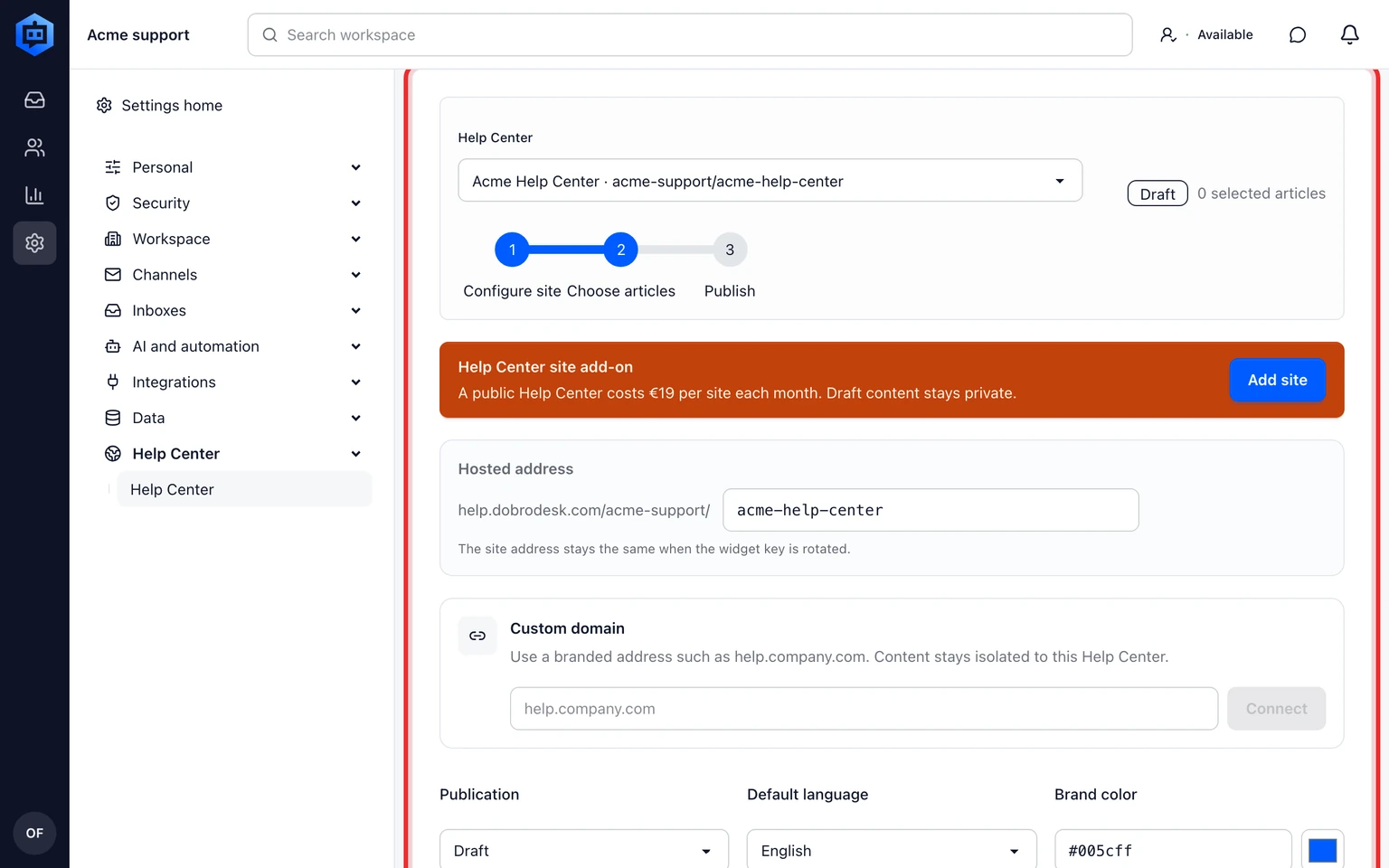
Choose Add site to activate the €19/site/month add-on. The site remains private until billing confirms the entitlement.
Set the hosted path, optional custom domain, languages and bounded white-label theme.
Choose the approved articles that this site may publish. Articles from another workspace, Brand or Inbox scope are never eligible.
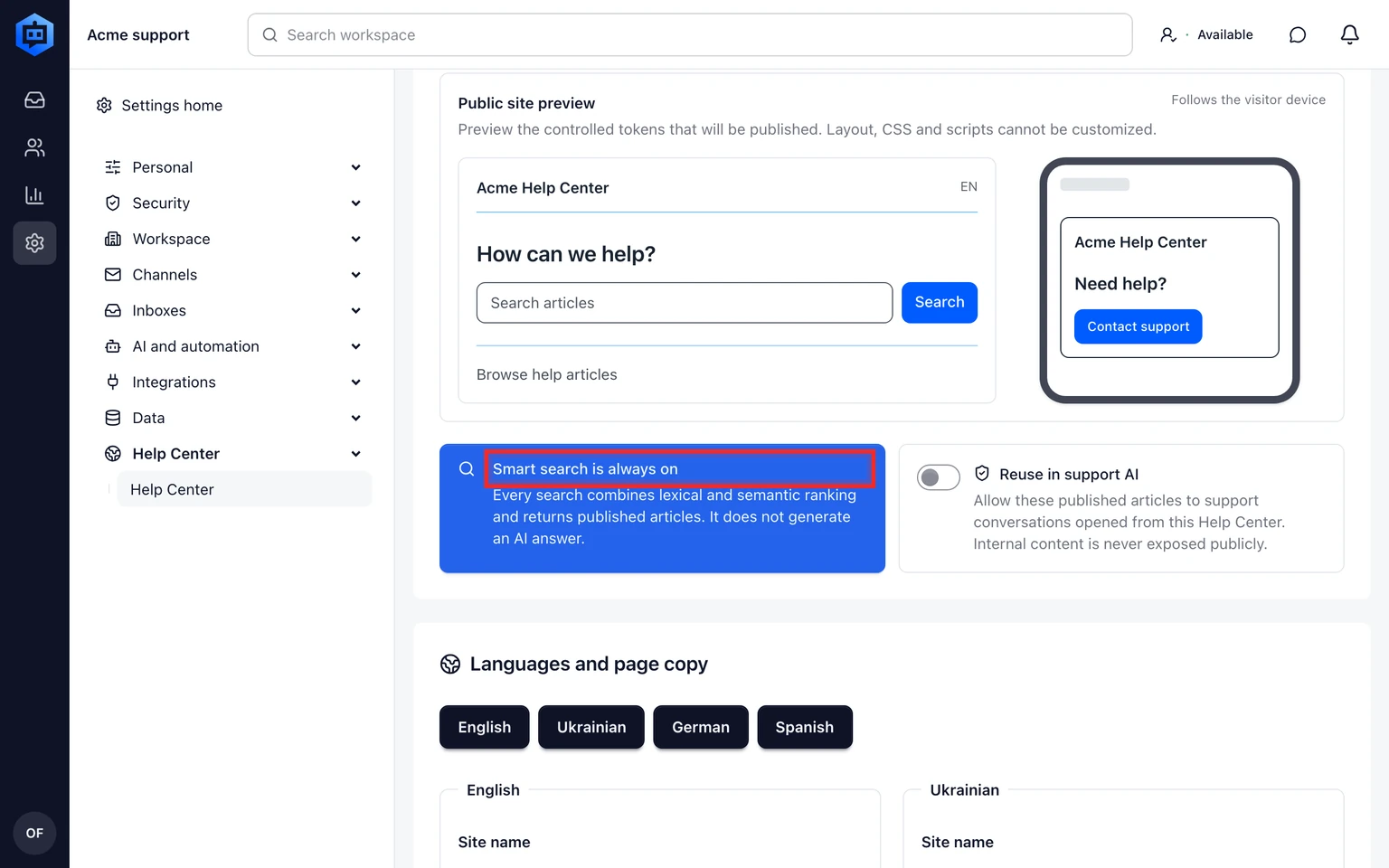
Set Publication to Published and save. Open the public link only after the active entitlement is visible.
Search for a known article and a missing answer. Search always combines lexical and semantic ranking and returns articles only. Contact support opens the site's bound widget.
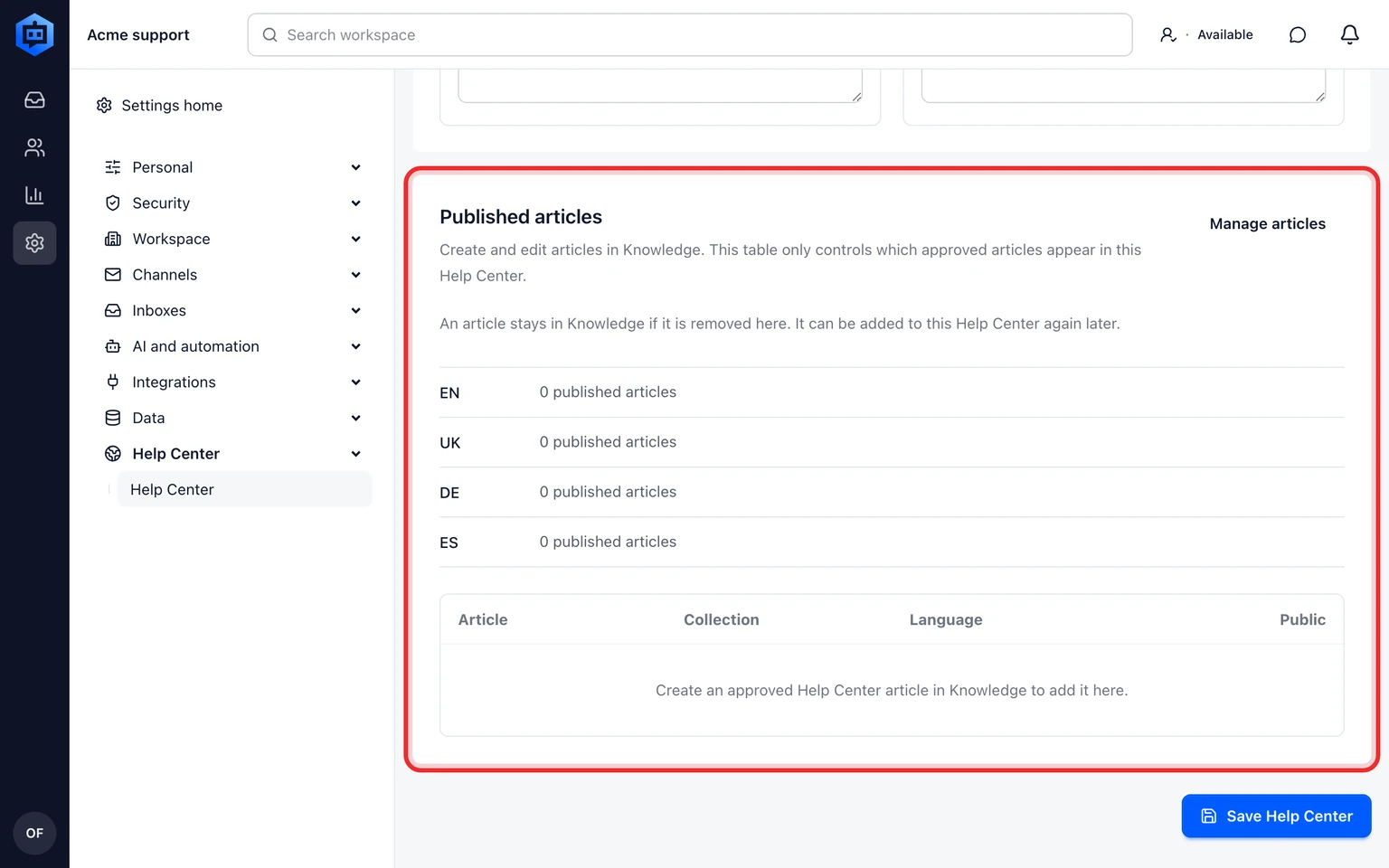


Help Center search never generates an AI answer. AI starts only after the visitor opens the isolated support widget.
Review article feedback
Published articles ask readers for a helpful or not helpful rating. A negative rating offers the site's bound support widget with the article context attached.
Open Admin > AI & Automation > Knowledge sources and select Issues.
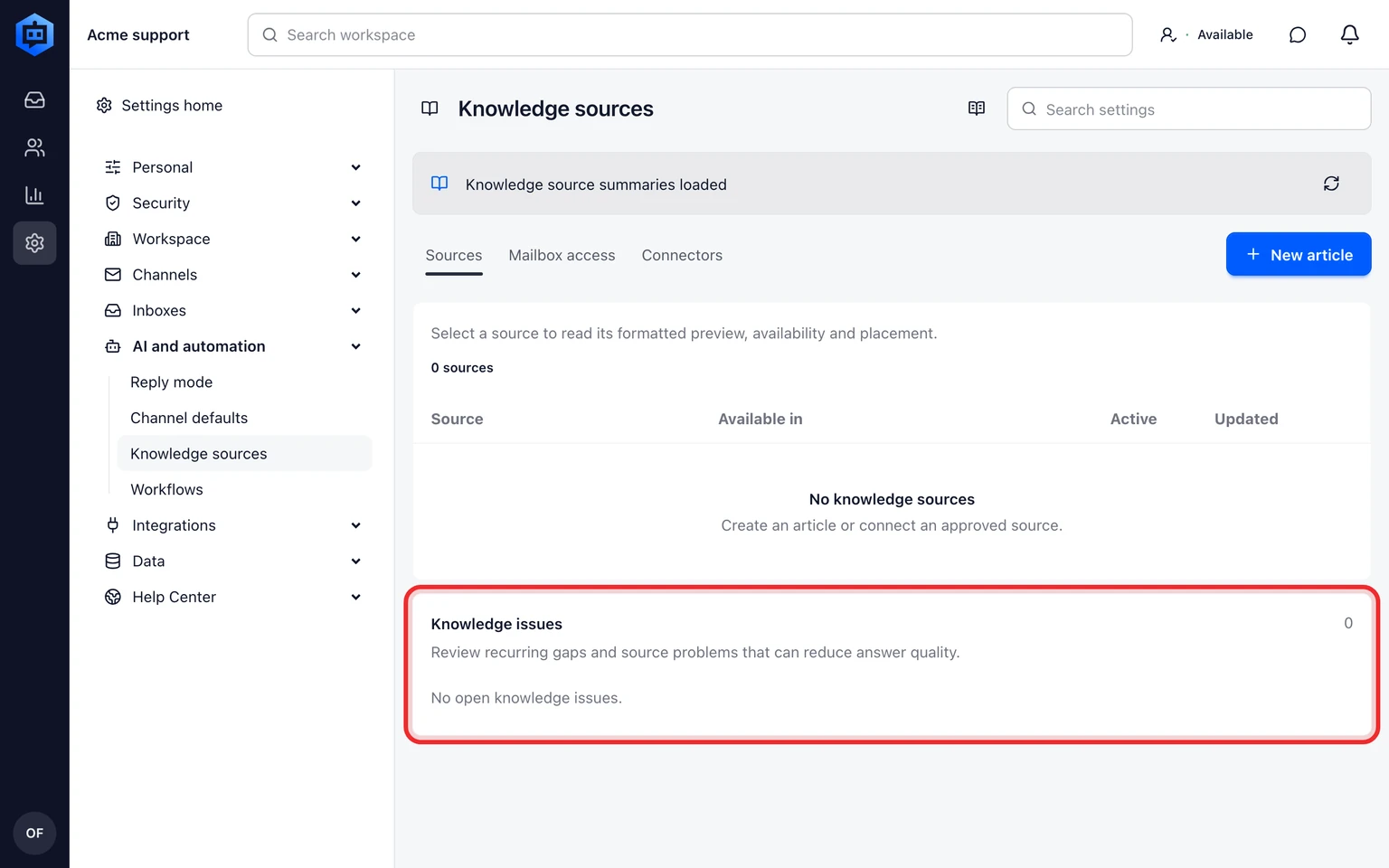
Filter for Negative article feedback and open the affected public article.
Correct the answer, review the change and publish a new version. The issue count preserves repeated reader feedback for the same published article.
