
Mobile app support
In-app customer support for iOS and Android
Let customers open Help or message support inside your iOS or Android app. DobroDesk puts each support conversation in a shared Inbox for your team.
What support looks like inside the app
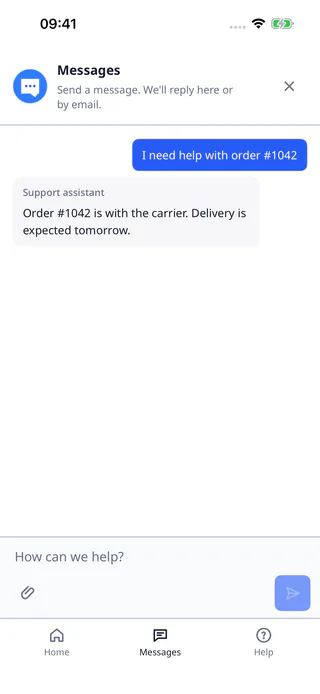
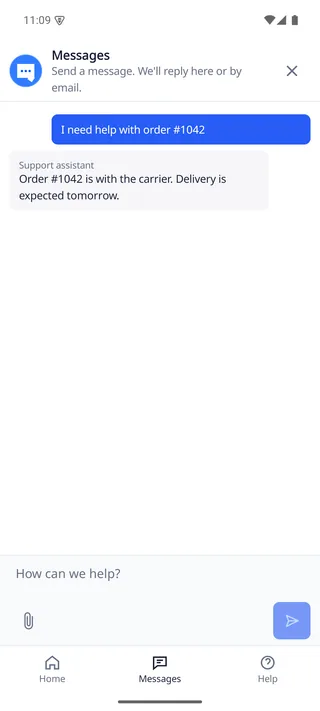
Localized screens from the DobroDesk mobile SDK with sample message text. Your app team chooses where customers open Help or Messages.
When does in-app support help?
For a pending card payment, an article can explain the usual processing time. A customer who needs the team to check their payment can open a conversation in the app.
Follow the customer from a question to an answer
Use one real task from your app to decide whether the experience fits. The mobile SDK includes a Help view and a native Messages conversation.
1
Open Help at the point of need
The app can open the Help view or a selected Help article. Put the entry point near the screen where customers are likely to need an explanation.
2
Start a conversation without leaving the app
Customers send a message from the native screen and can continue in that conversation. The mobile UI uses platform navigation and keyboard controls rather than showing the web widget in a WebView.
3
Confirm how a teammate takes over
If human handoff is configured, verify how a customer reaches a teammate and that the conversation lands in the right Inbox. Your team can reply from DobroDesk while the customer continues in the app conversation.
Plan the route before adding the SDK
The SDK supplies the customer-facing screen. Your support setup decides who owns the request after it arrives.
- Choose the Inbox that receives mobile conversations and the Team that can handle them. Make a person responsible for watching unassigned work before your app shows a contact option.
- The native SDK requires a signed customer identity before it opens a screen or makes network requests. Your backend issues short-lived tokens and keeps the signing secret out of the app bundle.
- Agree how the team will handle a request that needs a person. If AI replies are enabled, keep the workspace policy clear: drafts require review by default and sensitive cases stay with a human.
Check the engineering fit as well as the chat experience
Choose the integration for the product your customers use. A website or browser-based app uses the website widget. A compiled iOS or Android app uses a native SDK, with published wrappers for Flutter, React Native, NativeScript and Capacitor. Start with the guide for your platform.
- Your mobile team needs to install and configure the SDK in the app, then test and release that build.
- The React Native SDK uses a native module. Expo Go is not supported. Expo projects need a development build or a prebuilt native project.
- Push notifications and voice are optional capabilities with separate setup. A basic in-app conversation does not require them.
- Product tours, session replay and behavioral analytics need separate tools.
Before you release the app
Use two test customer accounts in a staging workspace. Run these checks on every platform you plan to release.
- 1.Install the SDK for one target platform. Start a session with the first test customer's signed identity.
- 2.Open a conversation in the app and send a message. Find it in the chosen Inbox, reply from DobroDesk and confirm the answer appears in the app.
- 3.If human handoff is configured, test how the customer reaches a teammate. Confirm the conversation lands in the right Inbox, is assigned and gets a reply.
- 4.Sign out, then switch to the second test customer's account. Confirm that the previous customer's conversation is no longer visible.
- 5.Briefly interrupt the network during a send. After reconnecting, follow your platform's pending or retry state and confirm the message arrives once. Don't submit a duplicate while the original is pending.
Choose a next step
- iOS SDK guide
Check native iOS setup and requirements for your app team.
- Android SDK guide
Check native Android setup and requirements before planning a release.
- Framework SDK guides
Choose Flutter, React Native, NativeScript or Capacitor for your app stack.
- Set up signed customer identity
See how your backend issues customer tokens and keeps signing secrets out of the app.
- Website widget guide
Use this guide for a website or browser-based product.
- Review current pricing
Check the published plans and billing details for your expected support volume.