
What you'll achieve
The widget answers covered questions in the customer's language while sensitive or uncertain requests wait for a teammate.
Prepare approved answers first
Automatic replies are useful only when DobroDesk has a reviewed answer for the customer's question. Create one public FAQ source for each language the widget supports. Do not rely on the model to invent missing product, billing or account information.
Open Admin > AI & Automation > Knowledge sources.
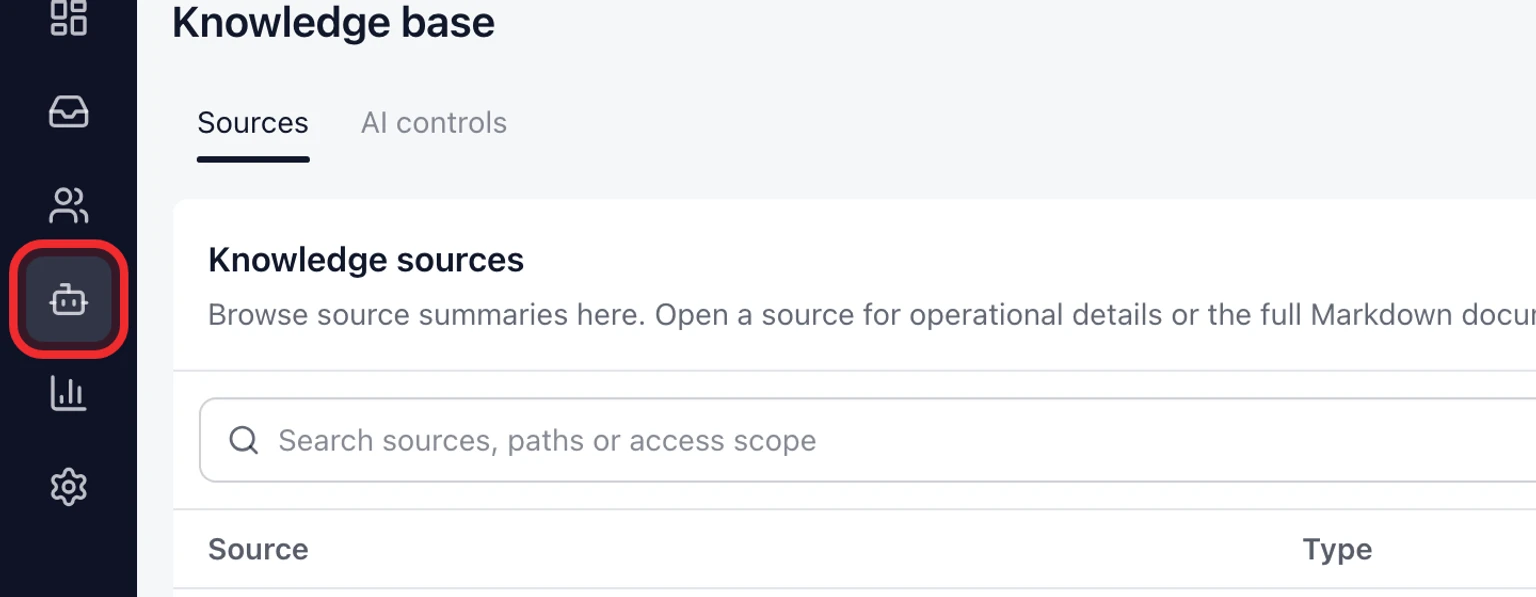
In Create source choose Source kind > Public FAQ and enter a clear Source name, for example Returns FAQ.
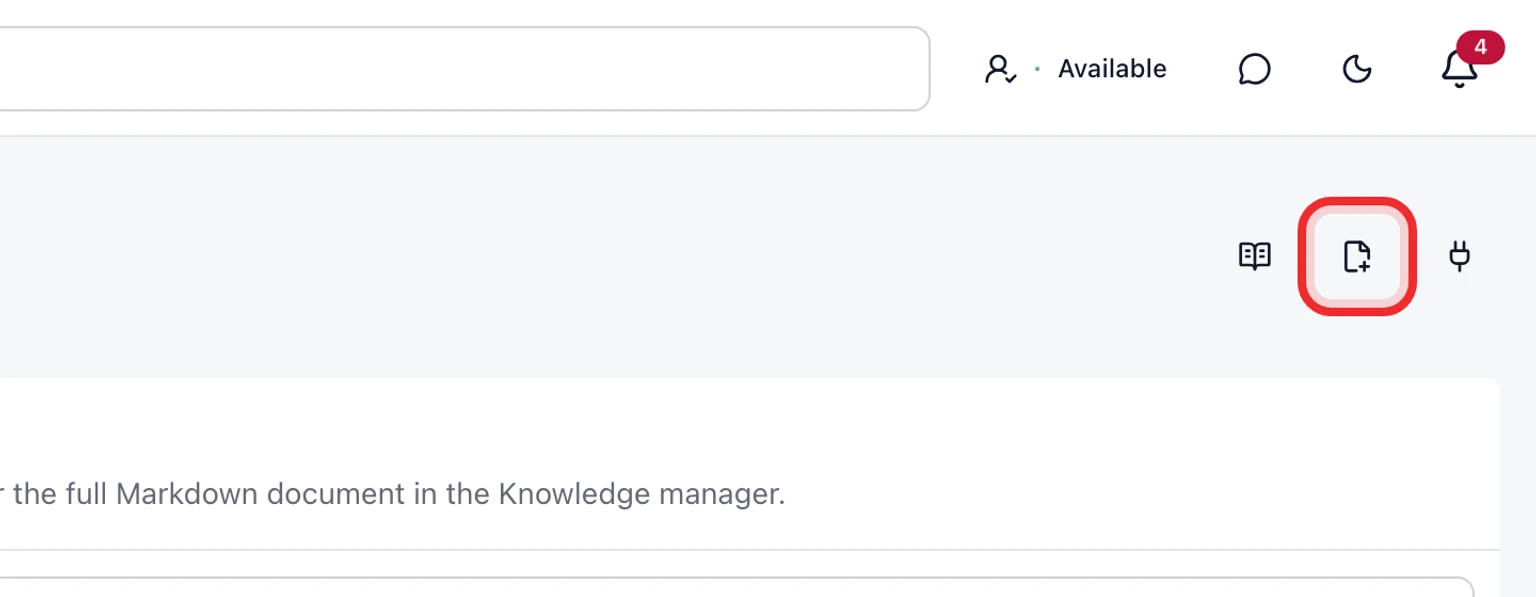
Enter the question and the complete reviewed answer that is safe to show publicly.
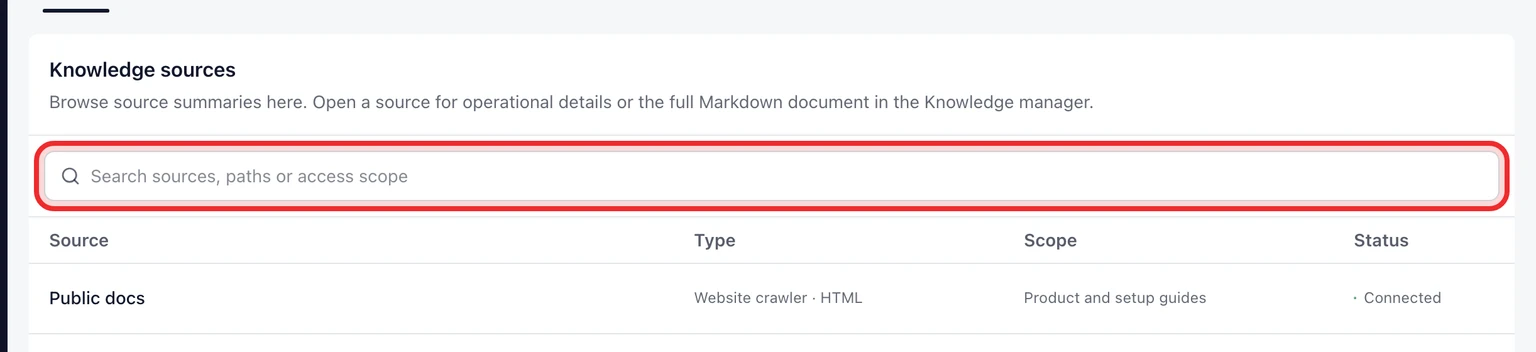
Choose the language and enable AI replies for the widget. Limit the source to a Help Center section or Inbox only when that narrower context is needed.
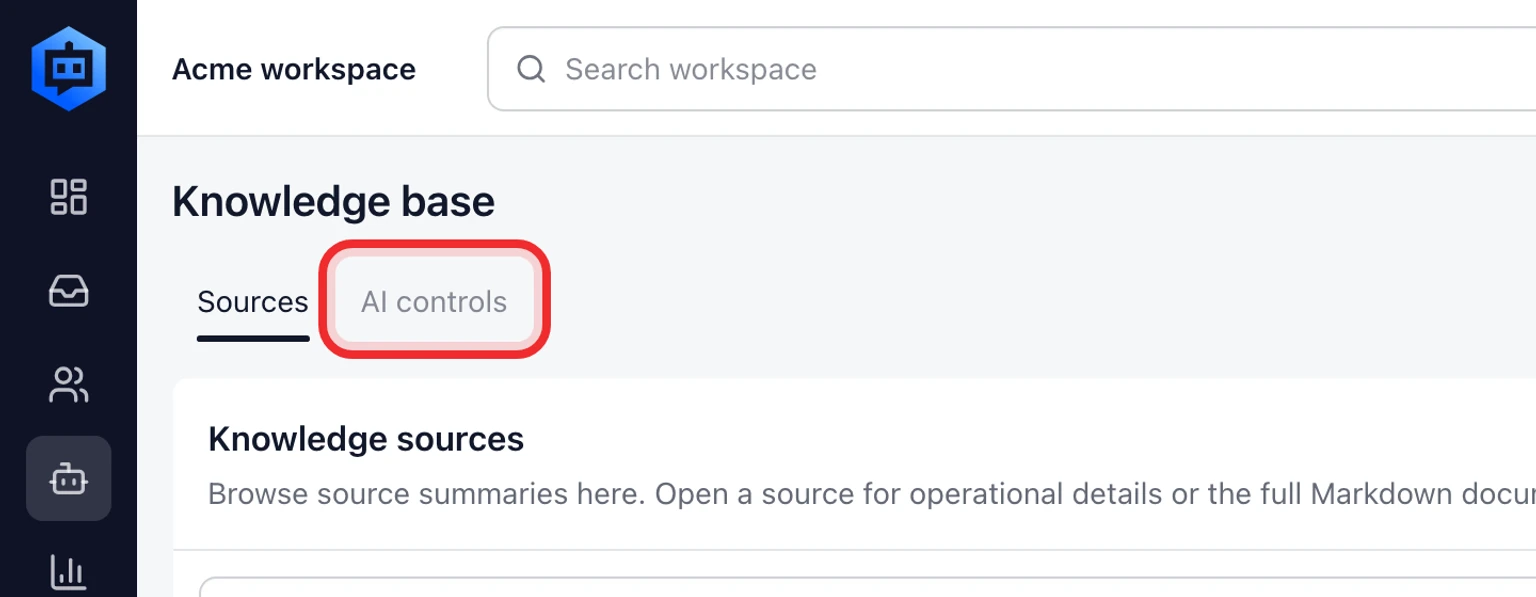
Select Create source. Repeat these steps for the other supported language instead of mixing languages in one answer.


Allow the reply mailbox to use those sources
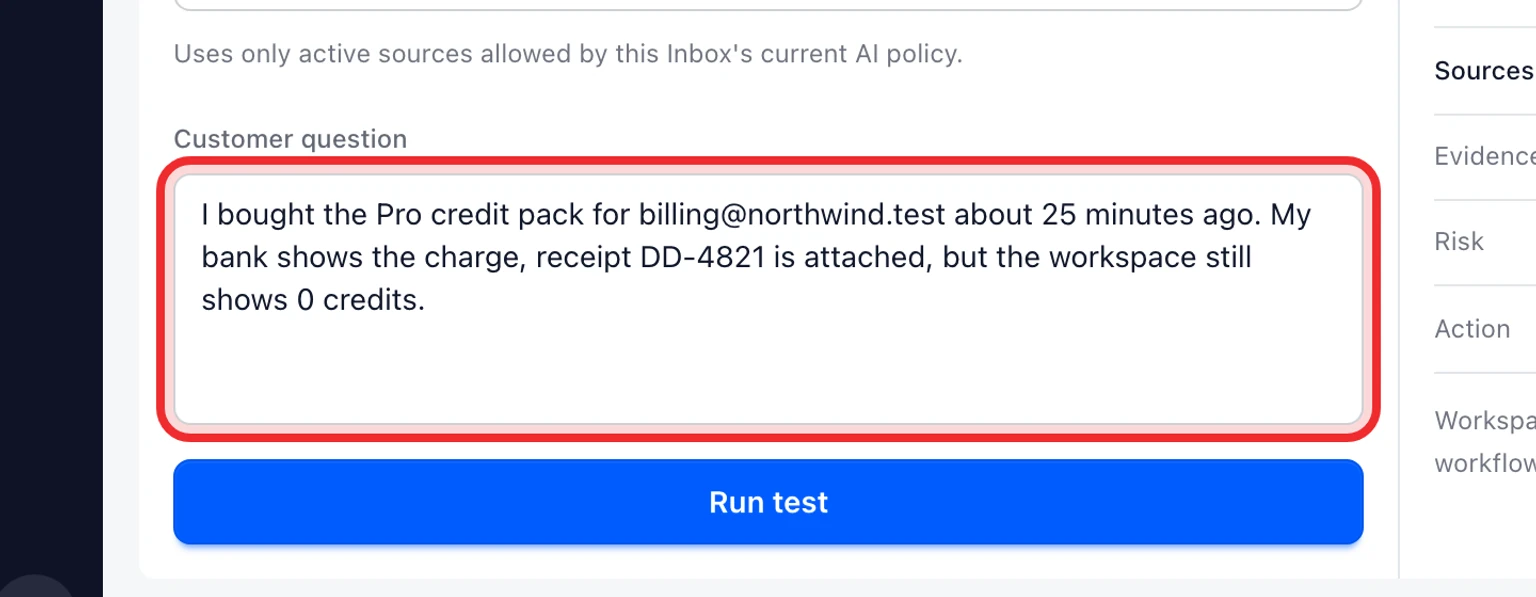
On the Knowledge sources page, open the reply-mailbox access settings.
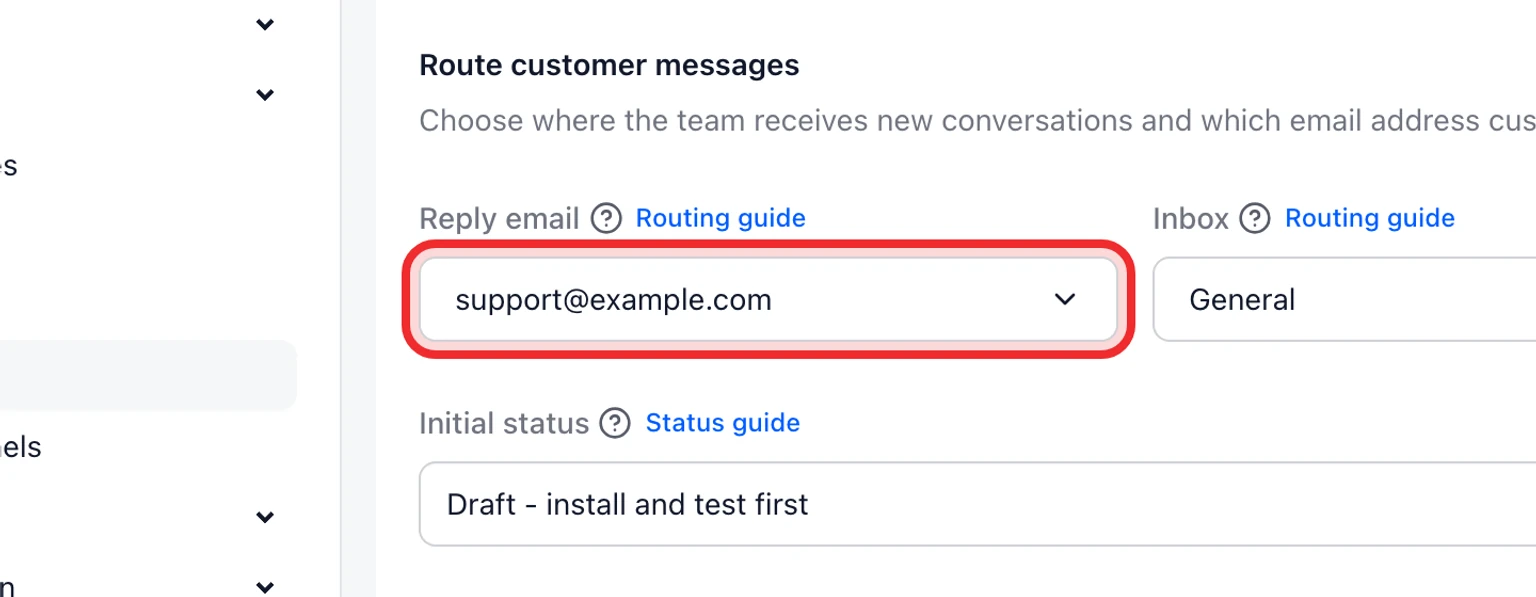
Select the same Mailbox used as the widget's Reply email.
Select only the reviewed sources that are valid for that mailbox then choose Save mailbox scope.
Open Admin > AI & Automation > Reply mode, select the same Mailbox and keep Drafts enabled.
To permit automatic answers, choose Reply mode > Autonomous by default, enable Autonomous allowed and set Autonomous confidence threshold. Start at 0.90 then save the AI policy.
Choose what this widget may do
Open Admin, choose Channels and open Website widgets.
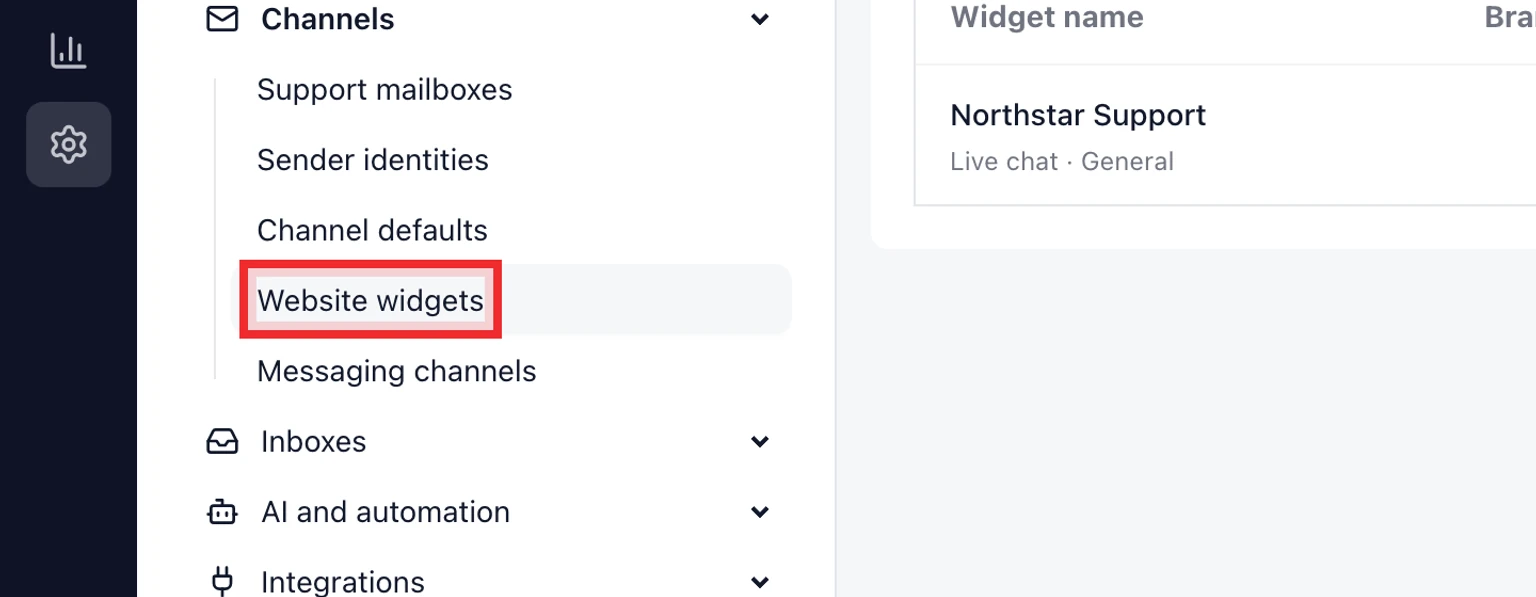
Select the widget you want to configure. Each widget keeps its own AI reply setting.
Under AI replies choose Human replies only, Prepare drafts for teammates or Reply automatically when safeguards pass.
Save changes.


- Human replies only: AI does not draft or send for this widget even if the mailbox allows automatic replies.
- Prepare drafts for teammates: DobroDesk prepares an answer but a teammate reviews and sends it.
- Reply automatically when safeguards pass: DobroDesk may send only when approved evidence meets the threshold and no safety rule requires a person.
The per-widget setting is an upper limit. Choosing automatic does not bypass the mailbox policy, knowledge scope or sensitive-request rules.
Test a covered question and a handoff
Open the real website in a private browser window and start a new widget conversation with a test email address you can identify.
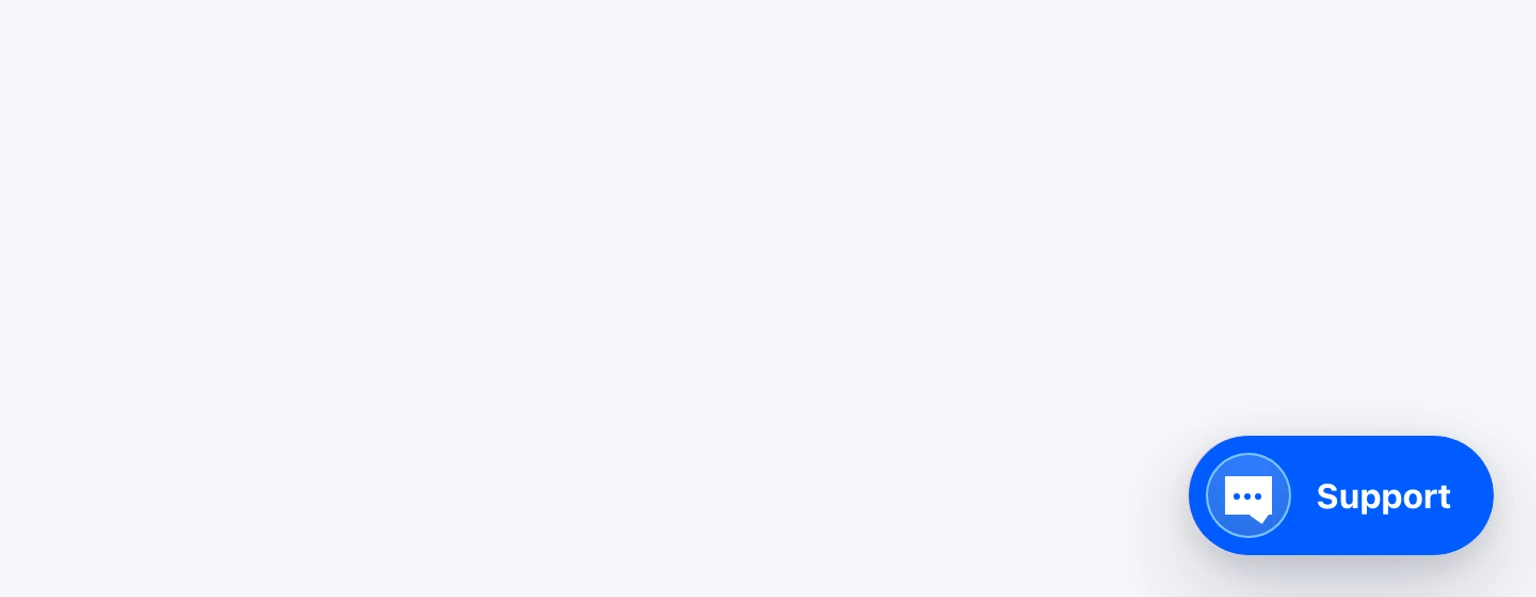
Ask the exact customer question covered by the approved source. Confirm the answer is accurate, brief, natural and in the same language.
Ask a related question that the source does not answer. Confirm DobroDesk waits for a teammate instead of guessing.
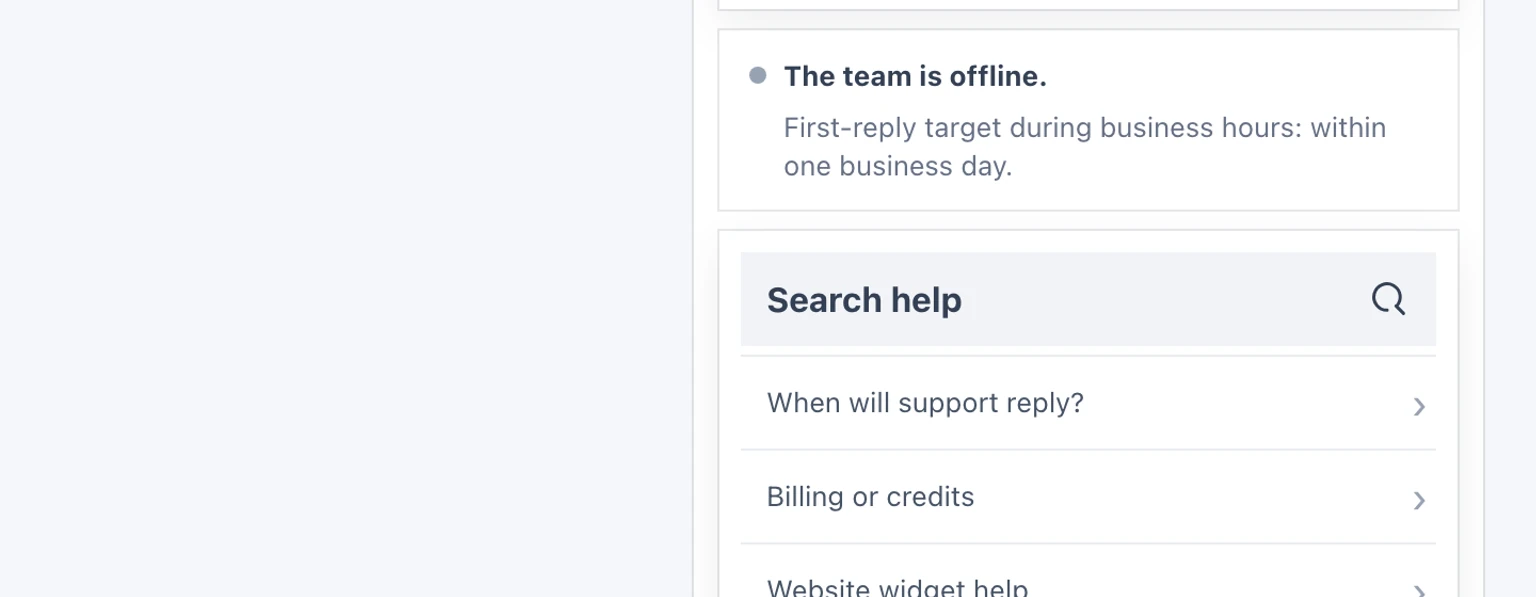
Send a sensitive request such as an account deletion, privacy, security, abuse or chargeback question. Confirm no automatic answer is sent.
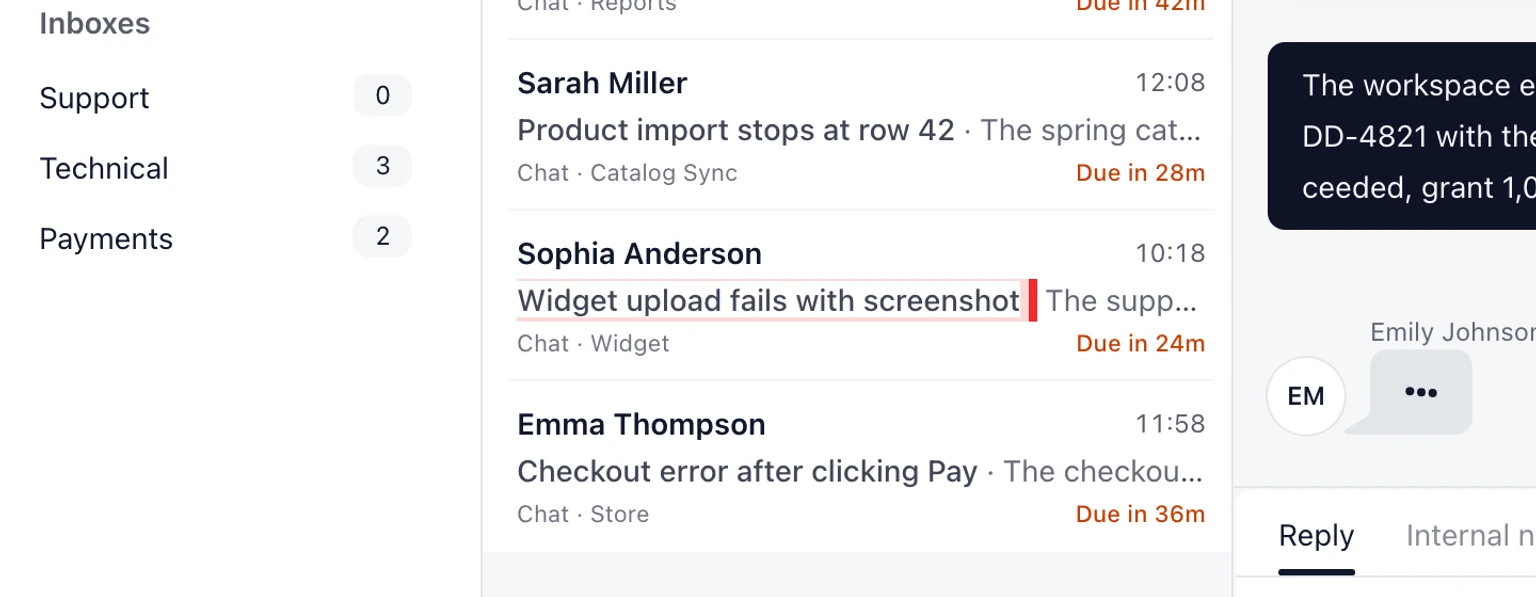
Reply from the DobroDesk Inbox and confirm the customer sees the message immediately in the open widget.


Do not enable automatic replies for customers until both the covered-question test and the sensitive-request handoff pass.
If an automatic reply does not appear
- The widget is set to Human replies only or Prepare drafts for teammates.
- The reply mailbox does not allow autonomous replies or Drafts enabled is off.
- No active source is selected for the reply mailbox.
- The source is not allowed for AI replies, not allowed for the widget or uses a different language.
- The best approved evidence is below the configured threshold.
- The request is sensitive, asks for a person or matches a human-escalation rule.