
What you'll achieve
Each website keeps the correct widget configuration and you can invalidate one widget's old installation without affecting the others.
What the Integration ID controls
DobroDesk generates a random public Integration ID when you create a widget. The loader or SDK sends this ID to DobroDesk to select that widget's public name, allowed websites, Inbox route, language and customer experience.
Each saved widget has a different Integration ID and its own customer sessions. The ID is a public selector used in website code. Website addresses remain the control that prevents an unrelated origin from using the widget.
Copy the current Integration ID
Open Admin > Channels > Website widgets.
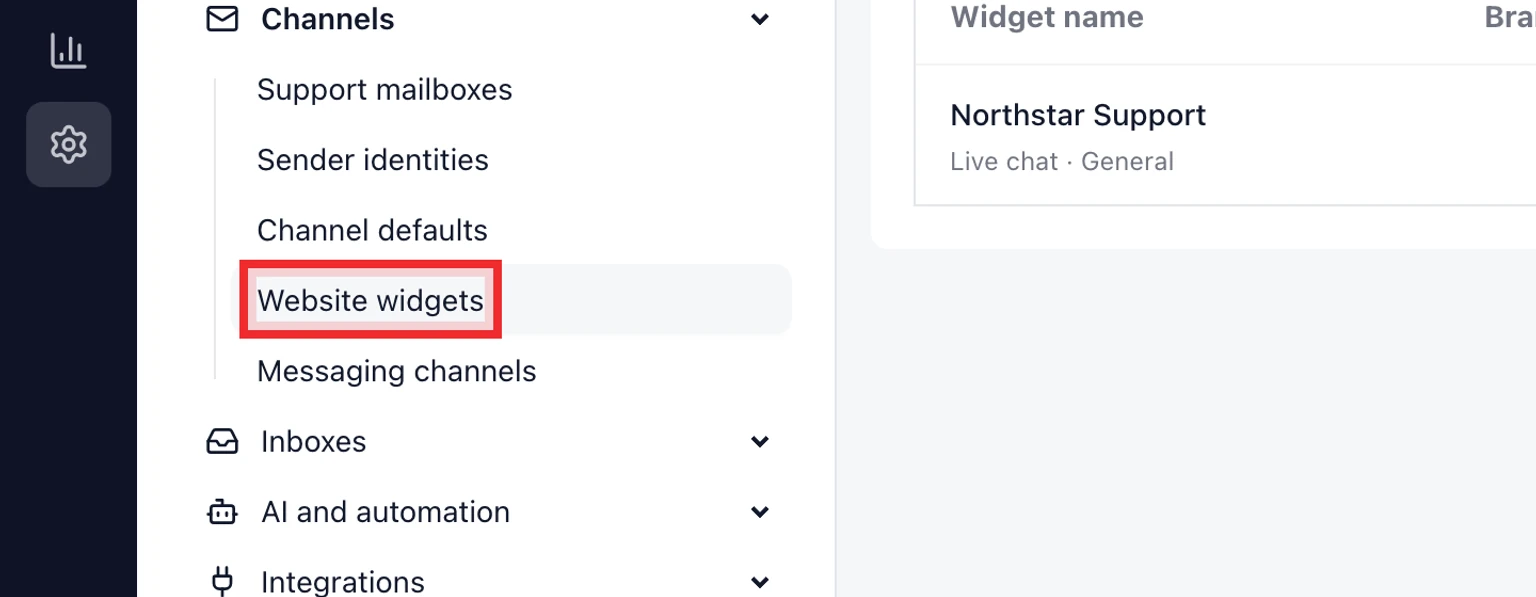
Choose the widget for the website or product you are updating.
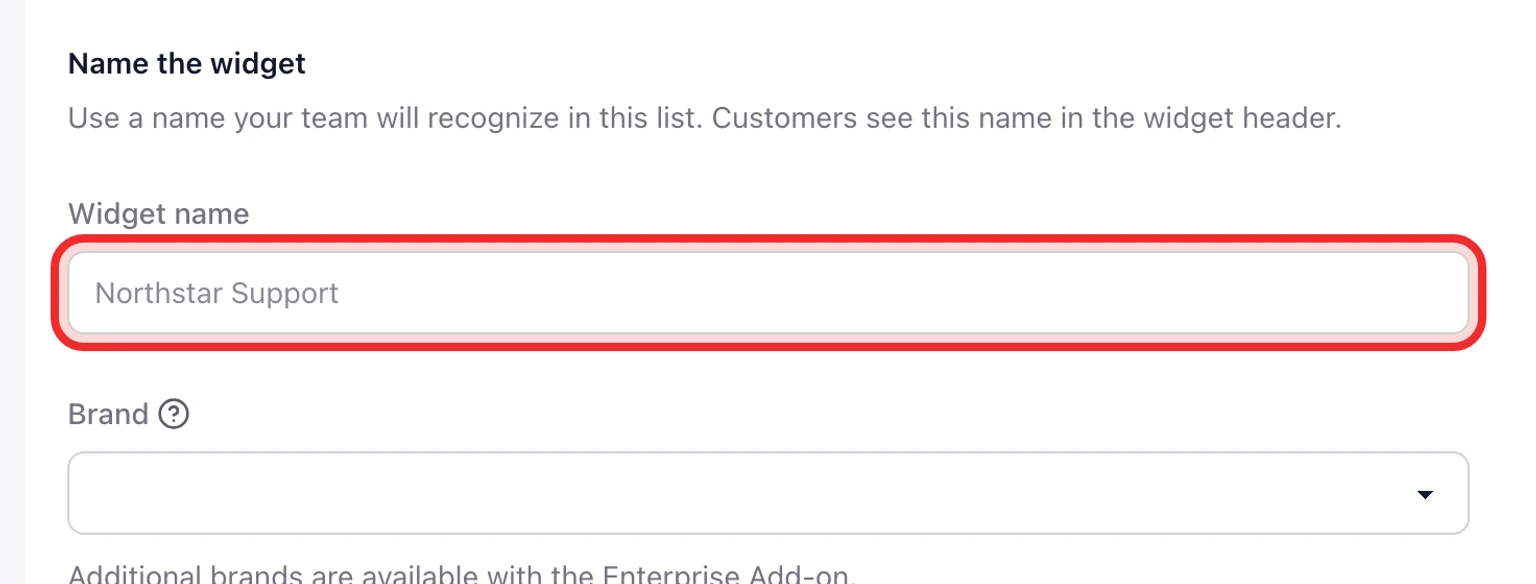
Find Integration ID in Widget settings. Compare the widget name and Website addresses before copying it.
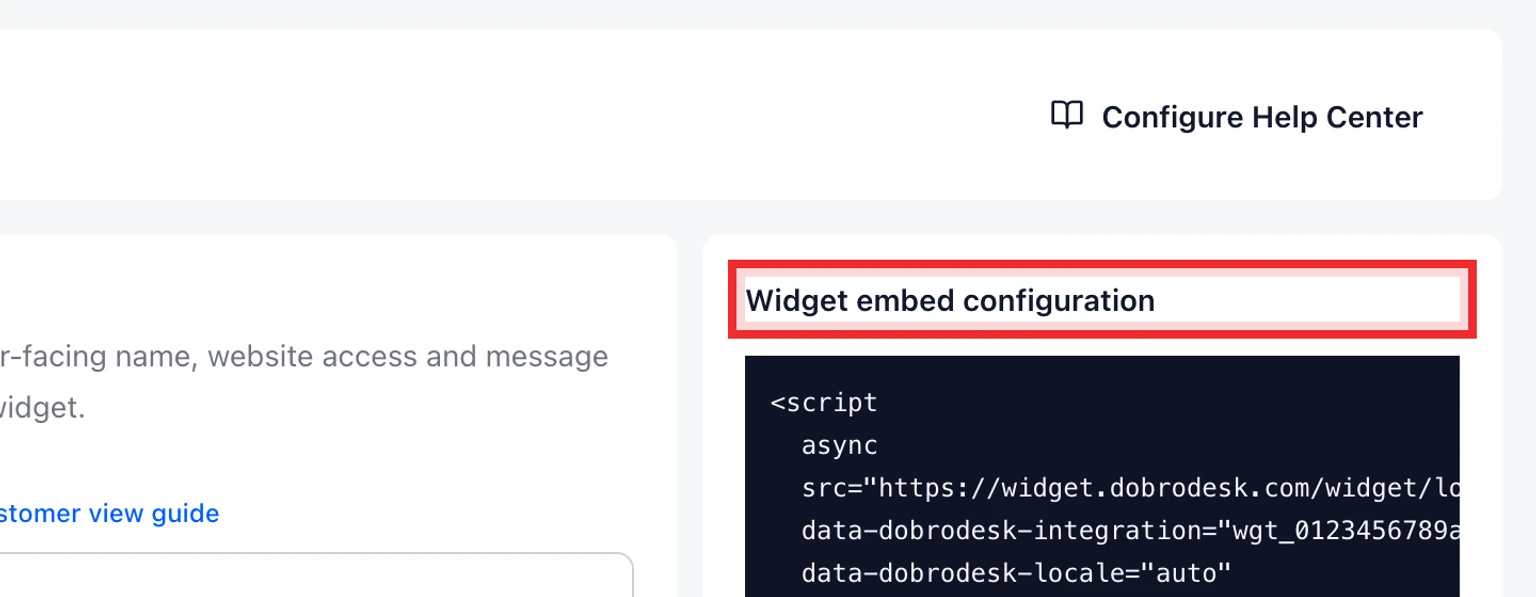
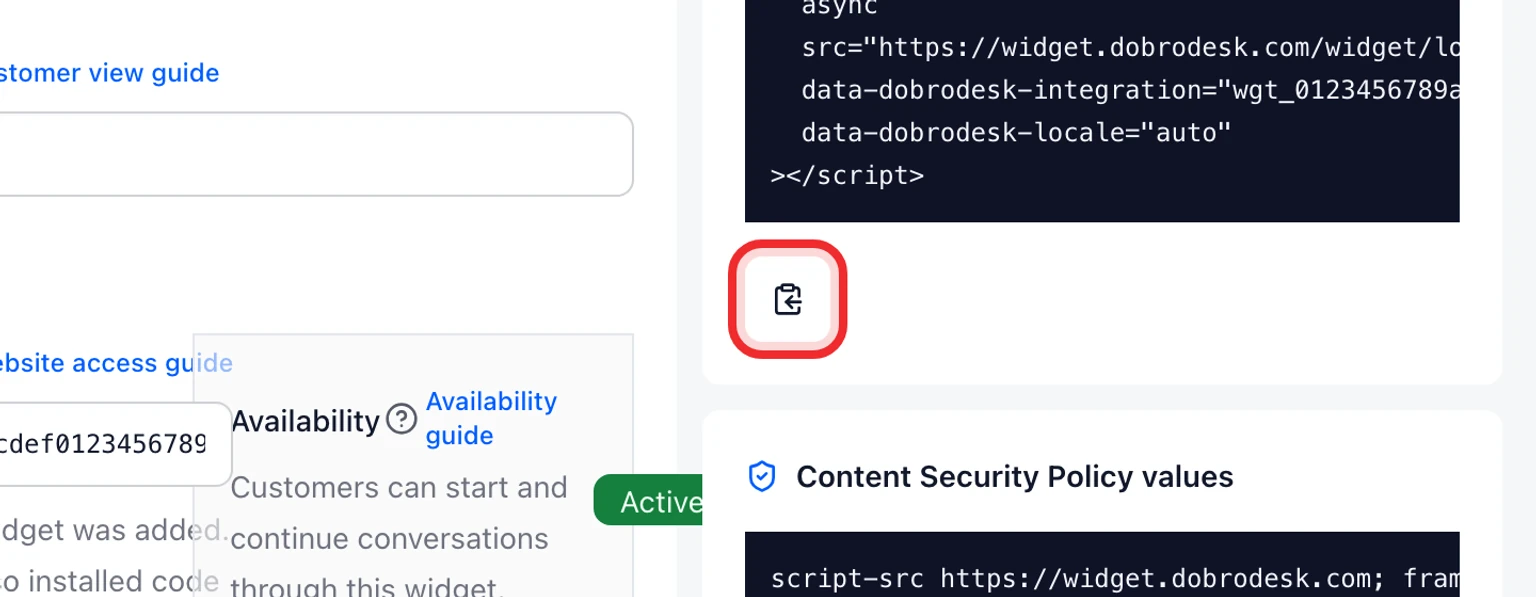
For a script installation, use Copy widget code so the ID is included automatically. For @dobrodesk/widget, copy the ID into the integrationId option exactly as shown.


Regenerate the ID safely
Prepare access to every website or application that currently uses this widget. Do not regenerate the ID until you can publish the replacement configuration.
Next to Integration ID select Regenerate and read the confirmation. It lists the immediate effects before anything changes.
Confirm Regenerate ID. DobroDesk creates a new random value and invalidates every existing customer session for this widget.
Copy the new widget code or replace integrationId in the SDK configuration on every approved website.
Publish each website or application and clear its deployment cache if it has one.

The previous ID stops loading this widget immediately. Existing conversations remain in the DobroDesk Inbox, but returning website visitors start a new widget session after the replacement is published.
Verify every product separately
Open each updated website in a new private browser window.
Confirm the header shows the correct product or support name, not the name from another widget.
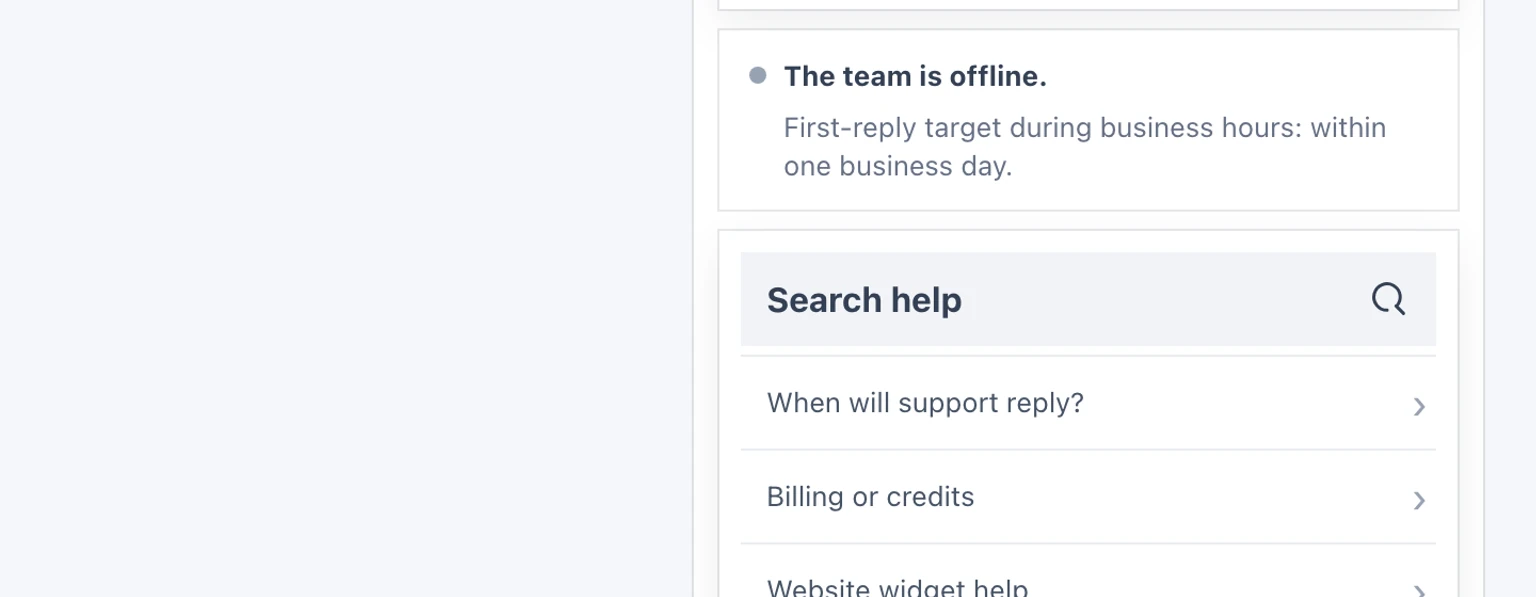
Send a unique test message and record the displayed request reference.
In DobroDesk confirm the message reached the Inbox selected for that widget and that each product created a different conversation reference.
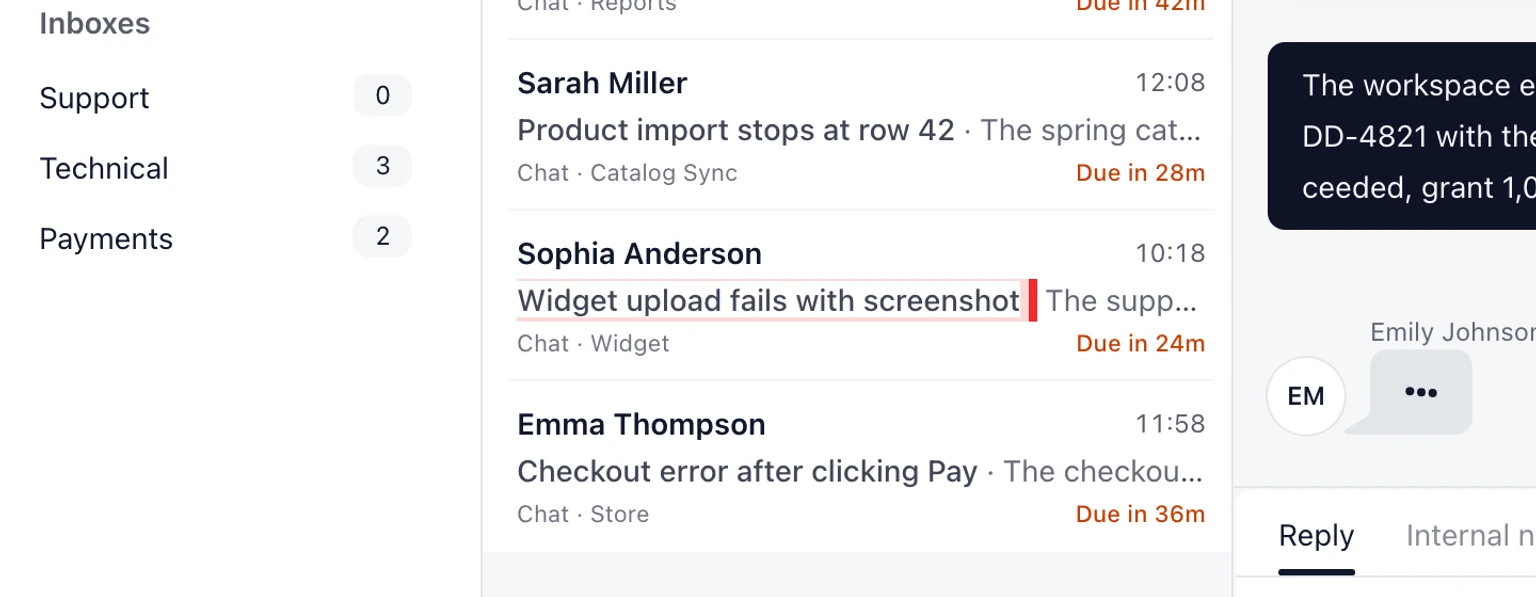
Reply once and confirm the reply appears only in the matching website session.


