
How to add live chat to your website: a launch checklist
A practical checklist for adding website chat, setting visitor expectations, testing ownership and connecting self-service with human support.
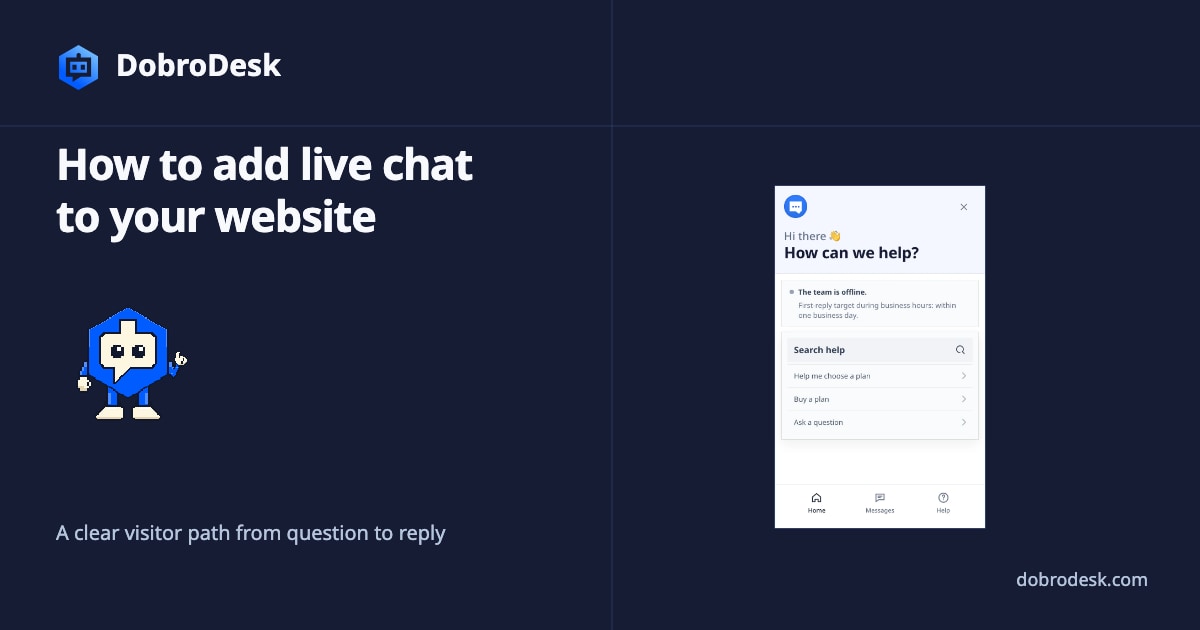
Adding live chat to a website is more than placing a chat bubble in the corner. Visitors need to know when someone will reply, teammates need a clear owner and the conversation needs to remain useful after the visitor closes the page. A small team can launch website chat successfully when it tests the whole path from the first message to the next action.
Define the job before adding a chat bubble
Decide what website chat should handle before choosing its position. Use it for questions that benefit from a conversation, such as an account-specific problem or help choosing the next step. Put stable instructions in your Help Center and keep a visible route to a person when an article does not answer the question. This prevents chat from becoming a second unstructured inbox.
Set the availability message and reply expectation before launch. A team that answers during working hours should say so. An offline form can collect the message while making the next step clear. Avoid promising an immediate reply if nobody is responsible for watching the inbox. The visitor should understand what happens after sending a message and whether returning to the site will show the conversation.
Test the visitor message from start to finish
Connect the widget to the inbox that owns website support and send a real test message from a visitor browser. Follow it through routing, assignment, internal notes and the teammate reply. Then reload the page and confirm that the visitor can find the conversation again. A screenshot of a widget proves that the entry point exists. The end-to-end test proves that support can act on what it receives.
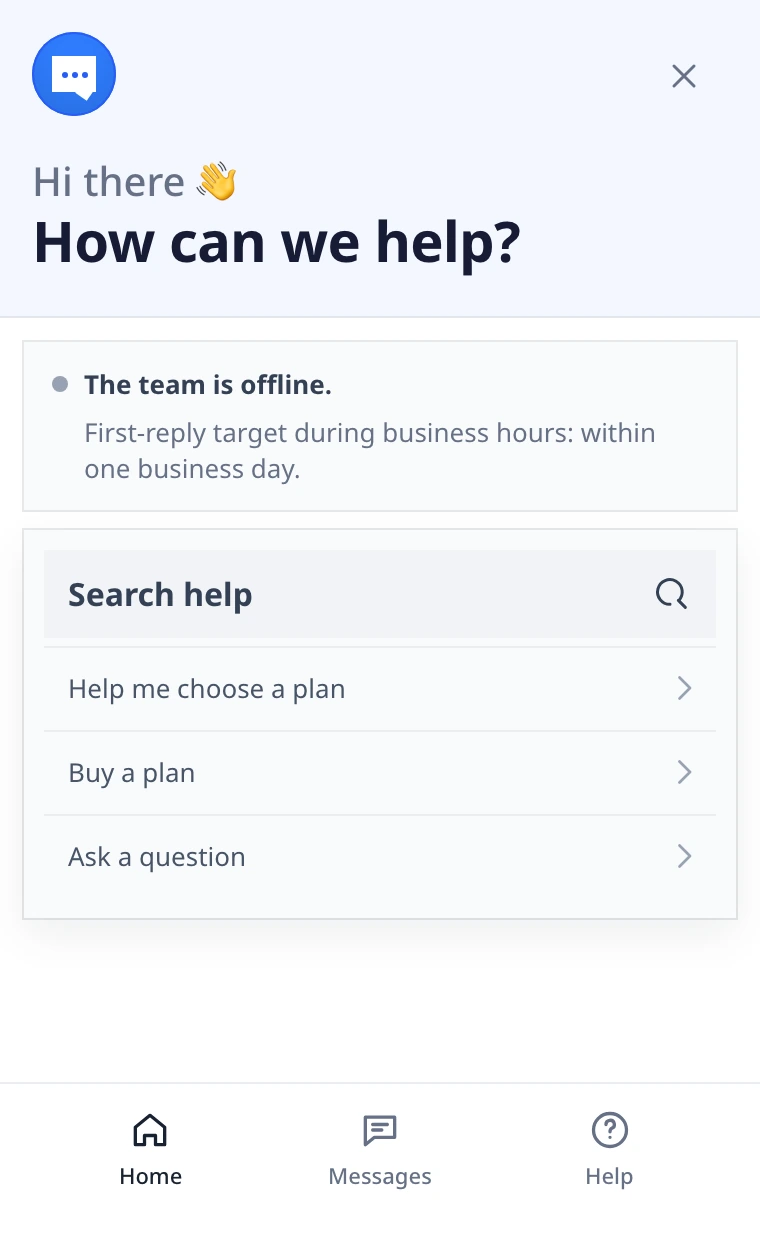
Keep self-service and messaging in the same journey. Make article titles recognizable in search and link an unanswered question to contact. The DobroDesk widget can offer Help Center search and a message entry point together. Review the questions people still ask after reading an article, then improve the source article or route the case to the right Inbox.
Use approved AI with a clear data path
Add AI after the knowledge and handoff path works. DobroDesk uses approval-only drafts by default and limits replies to approved workspace knowledge. For the main text support path, it uses open-weight models hosted on Cloudflare. Customer messages are not sent to OpenAI, Anthropic or Google model APIs for processing or training their models. This keeps the model data path inside the Cloudflare-hosted stack while the original channel still follows its own provider path.
Test ordinary and difficult conversations before publishing the widget. Try a question with a clear article, a question with no supported answer, a request for a teammate and a sensitive billing, privacy or security case. Confirm that unsupported or risky cases stop for human review, preserve the conversation history and receive a clear owner. Do not judge the workflow from one successful AI answer.
Measure and maintain the support workflow
Measure the work that chat creates and the work it removes. Look at unanswered messages, conversations without an owner, time to first human reply and the questions that repeatedly need clarification. A high number of opened articles is useful only when people can complete the task. Use the results to improve routing, article wording and the hours shown in the widget.
Maintain the widget as part of the support system. Recheck it after a website release, a change to business hours or a change to the responsible Inbox. Review the visitor path on mobile and desktop and keep the contact route visible when self-service is not enough. Expand coverage from real conversations rather than adding a chatbot to every page without a clear job.